Computer Details Page
On the Computer Details page, you can view the complete details of the computer and perform the desired activity.
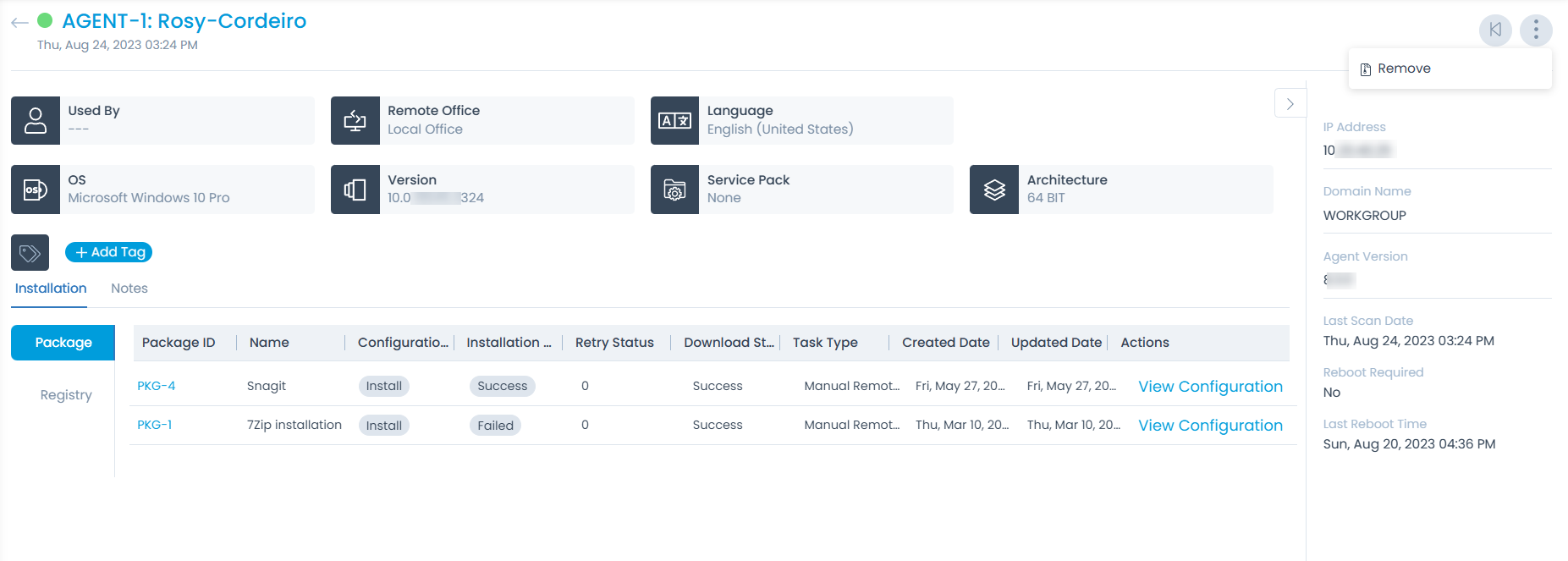
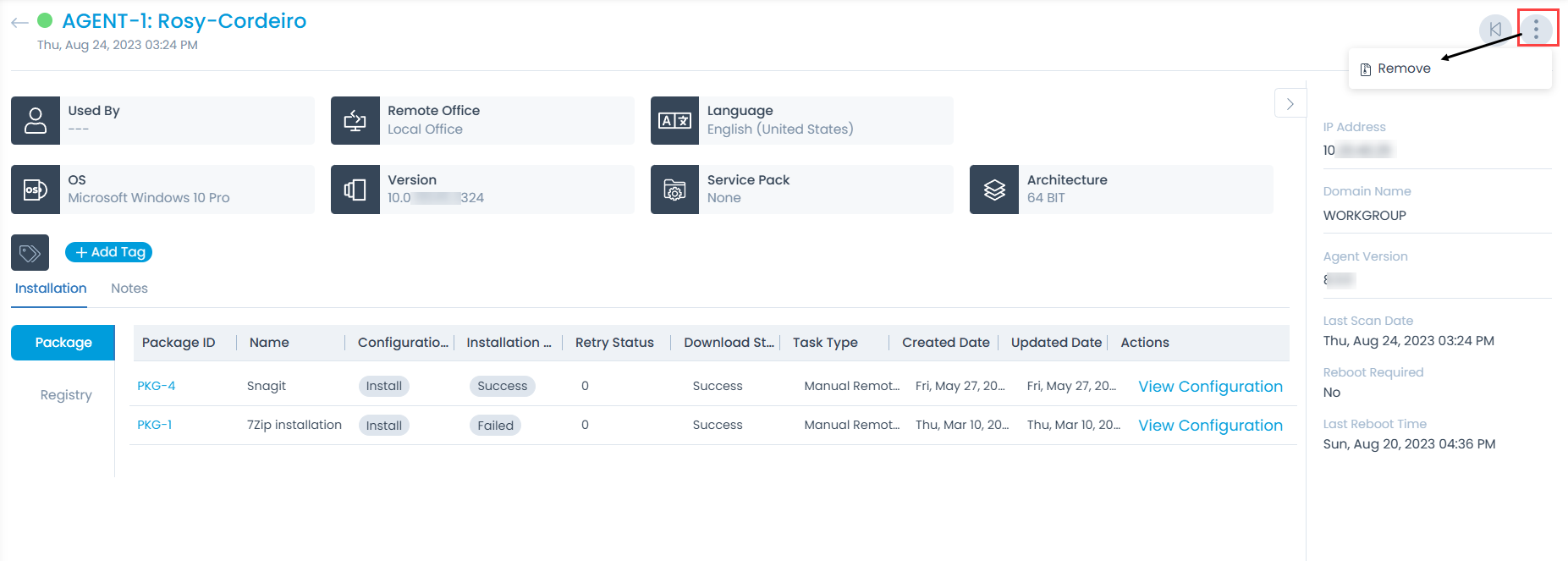
To view the details, on the list page click on the Agent ID, and the below page appears.
Classifiers
These properties tells you the current statistics of the agent and help you classify them under the different labels. When someone works on an agent, they update the labels accordingly.

| Parameter | Description |
|---|---|
| Used By | Displays the current user of the computer. |
| Remote Office | Displays if the computer is in local office or not. |
| Language | Displays the language used in the computer. |
| OS | Displays the current OS of the computer |
| Version | Displays the current version of the computer. |
| Service Pack | Displays the service pack classified for the computer. |
| Architecture | Displays the specific computer's architecture. |
| Add Tags | You can add the custom tags to quickly find the computers based on it. Also, system adds some default tags when based on certain labels and actions. |
Associated Actions
You can create or update different actions and activities as a part of details of the computer. The available types of actions are:
- Installation
- Notes
This tab displays the installation packages and registry of the particular computer.
Package
It displays the list of packages required for the deployment.
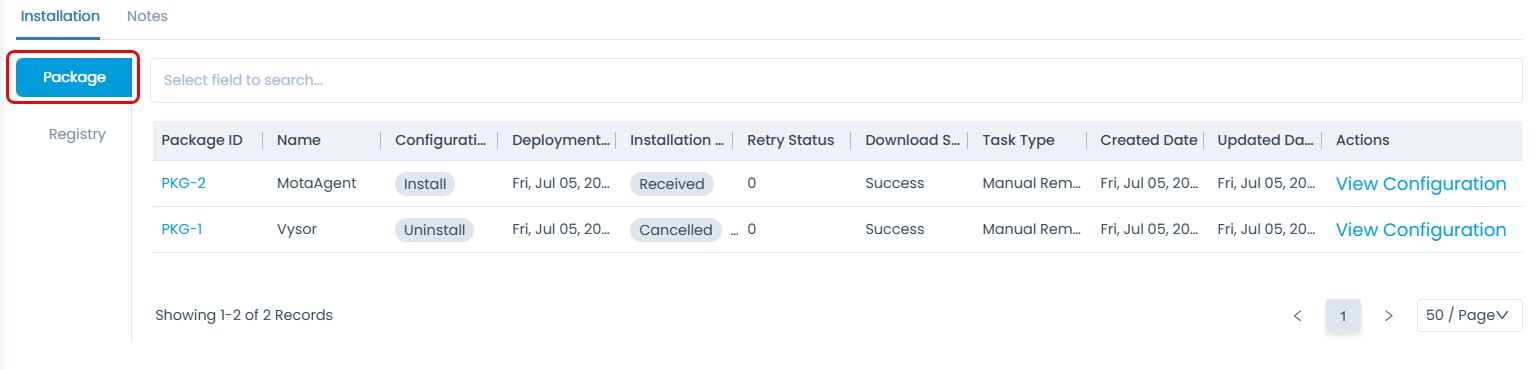
Here, you can view the complete list with its configuration and specifications. Also, you can click on the Package ID to view its details in a new tab.
You can also view the complete configuration using the option View Configuration link.
Registry
Windows Registry contains keys and values and by manipulating them you can change the behavior of the OS.
Here, it displays the various Registry Templates associated with the specific package installation if any.
To know more about Registry, refer to the link Registry Templates.
This tab enables you to view and add notes related to the computer. You can also click on the user name in the Created By column to view the details of the creator.
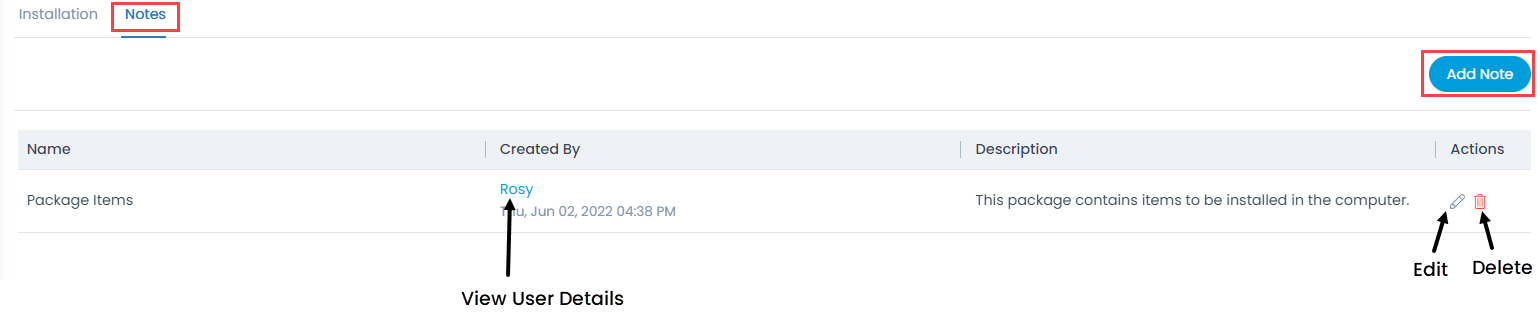
To add a note,
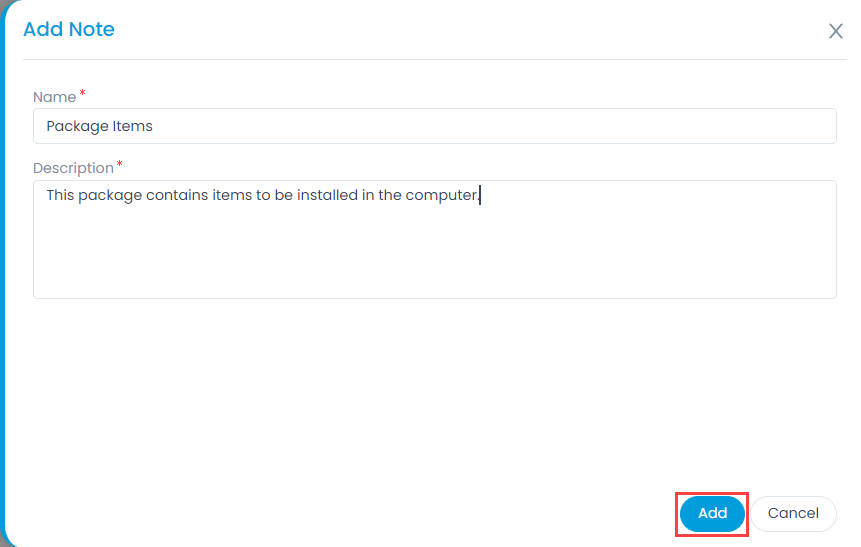
- Click the Add Note button and a popup appears.
- Enter the name and description of the note.
- Click Add.
Once added, you can edit or delete the note if not required anymore.
More Options
Remove
Apart from the list page, you can remove the agent from the Computer Details page as well.
Click the More Options icon and select Remove. A confirmation message appears. Click Yes to continue or No to stop the process. If Yes is clicked, the Computer will be removed from the End Points Scope as well.
Other Information
The other information displays the additional details about the computer.
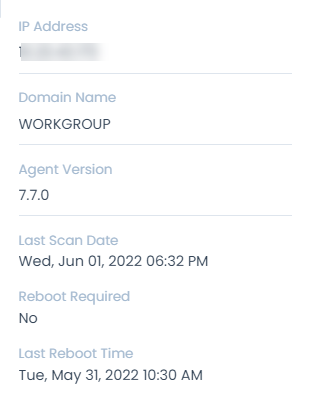
- IP Address: Displays the IP Address of the computer.
- Domain Name: Displays the domain name of the computer.
- Agent Version: Displays the Agent Version of the computer.
- Last Scan Date: Displays the date when the Computer was last scanned.
- Reboot Required: Displays if the reboot is required or not for the particular computer.
- Last Reboot Time: Displays the date and time of the last reboot of the computer