Computer Details Page
On the Computer Details page, you can view the complete details of the computers and perform the desired activity. To view the Computer Details, on the List page click on the ID, and the below page appears.
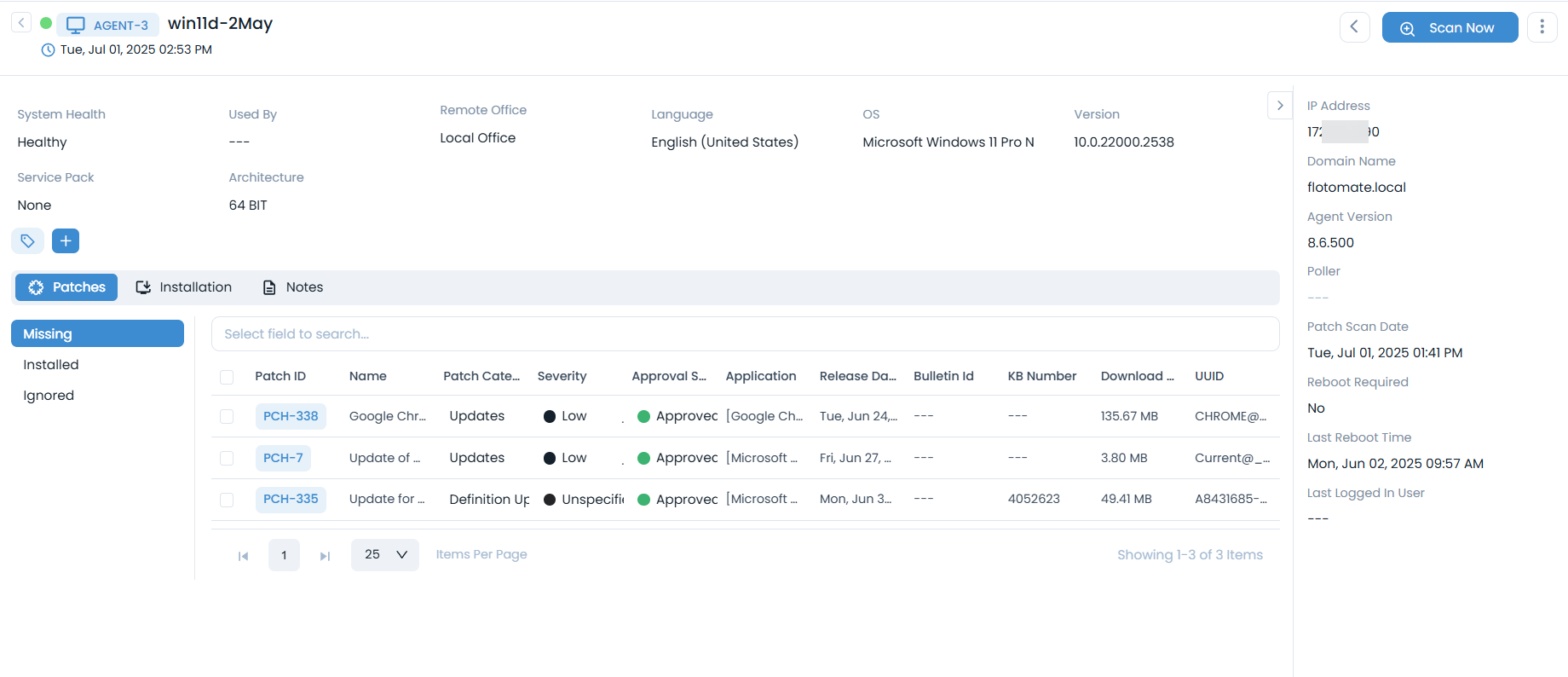
Classifiers of Computer
These properties tell you the current statistics of the agent and help you to classify them under the different labels. When someone uses an agent, they update the labels accordingly.

| Parameter | Description |
|---|---|
| System Health | Displays the health of the computer. The status is based on the computer scanning. |
| Used By | Displays the current user of the computer. |
| Remote Office | Displays if the computer is in Local Office or not. |
| Language | Displays the language of the computer. |
| OS | Displays the current OS name of the computer. |
| Version | Displays the current version of the computer. |
| Service Pack | Displays the service pack classified for the computer. |
| Architecture | Displays the specific computer's architecture. |
| Add Tags | Displays the created tags. You can also create a new tag by clicking the blue plus button. |
Associated Actions
You can create or update different actions and activities as a part of details of the computer. The available types of actions are:
- Patches
- Installation
- Notes
This tab displays a list of Missing, Installed, and Ignored Patches as shown below (1).
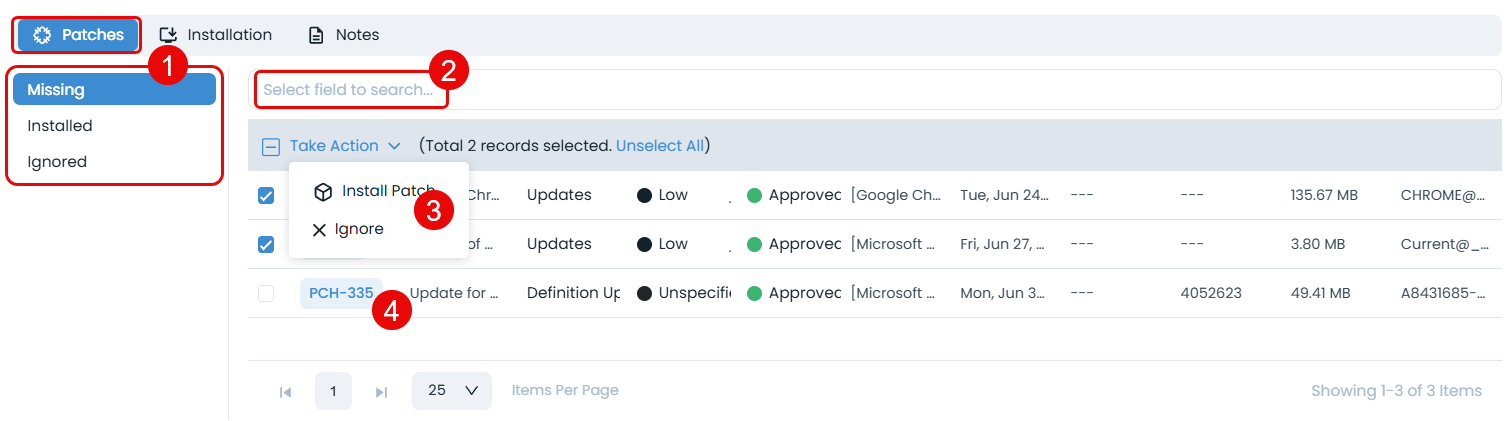
Also, you can do the following:
- Search the desired patch if required from the search bar (2).
- Perform bulk action (3) like Install Patch and Ignore, on multiple patches in one go. Also, you can perform the bulk Uninstall action from the Installed tab.
- View the patch details by clicking on the respective Patch ID (4).
If the ignored patches are already installed in the machine, they will move to the Installed tab in the next scan cycle.
This tab displays a list of patches that are to be installed or already installed.
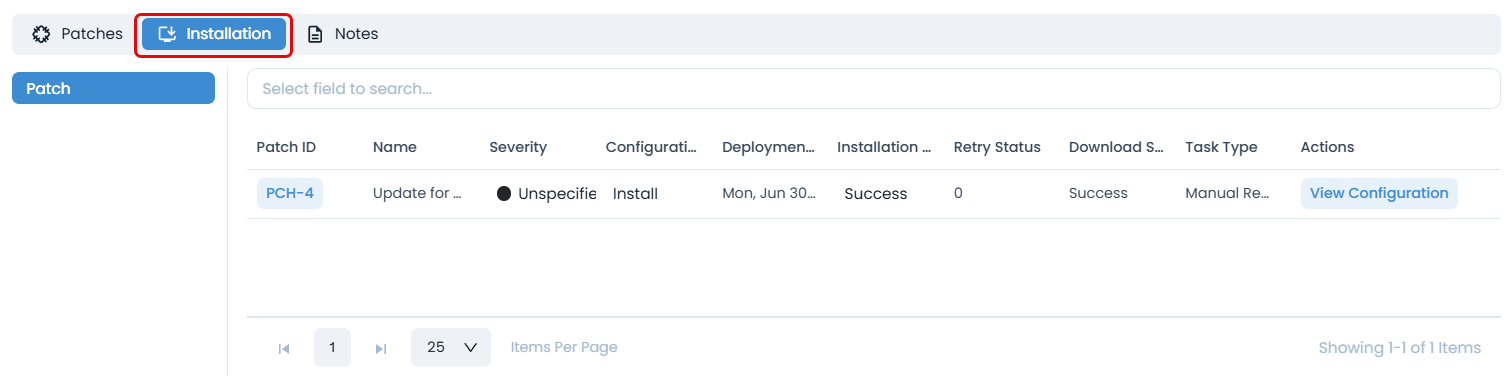
Here, you can view the list of patches along with their configurations and specifications. Also, you can click the Patch ID to view its details.
From the Actions column, you can view the actual configuration of the respective patch.
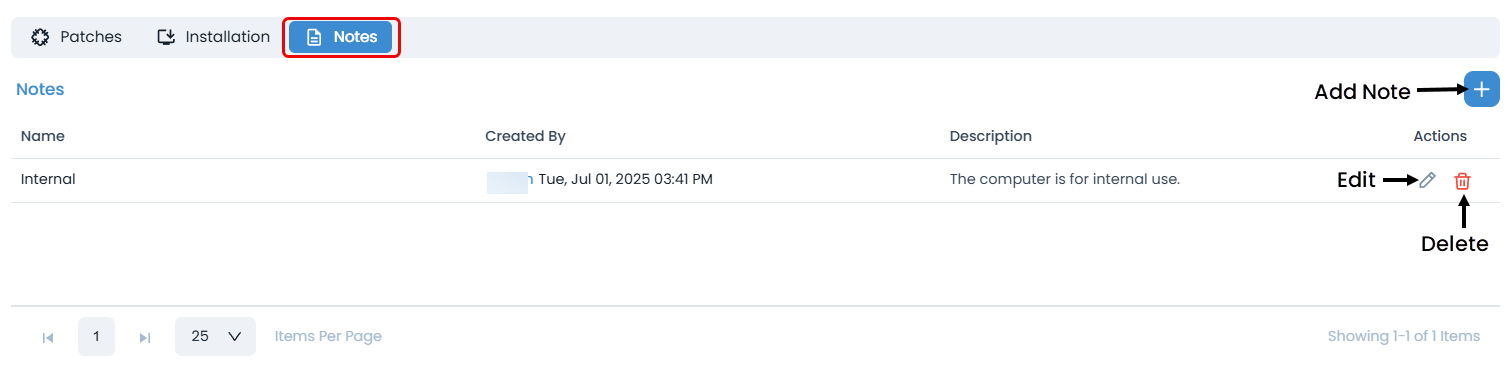
This tab enables you to add, edit, delete, and view all the notes related to patches. Also, you can view the user details by clicking the username link.
More Options
You can perform the following additional actions on the patches:
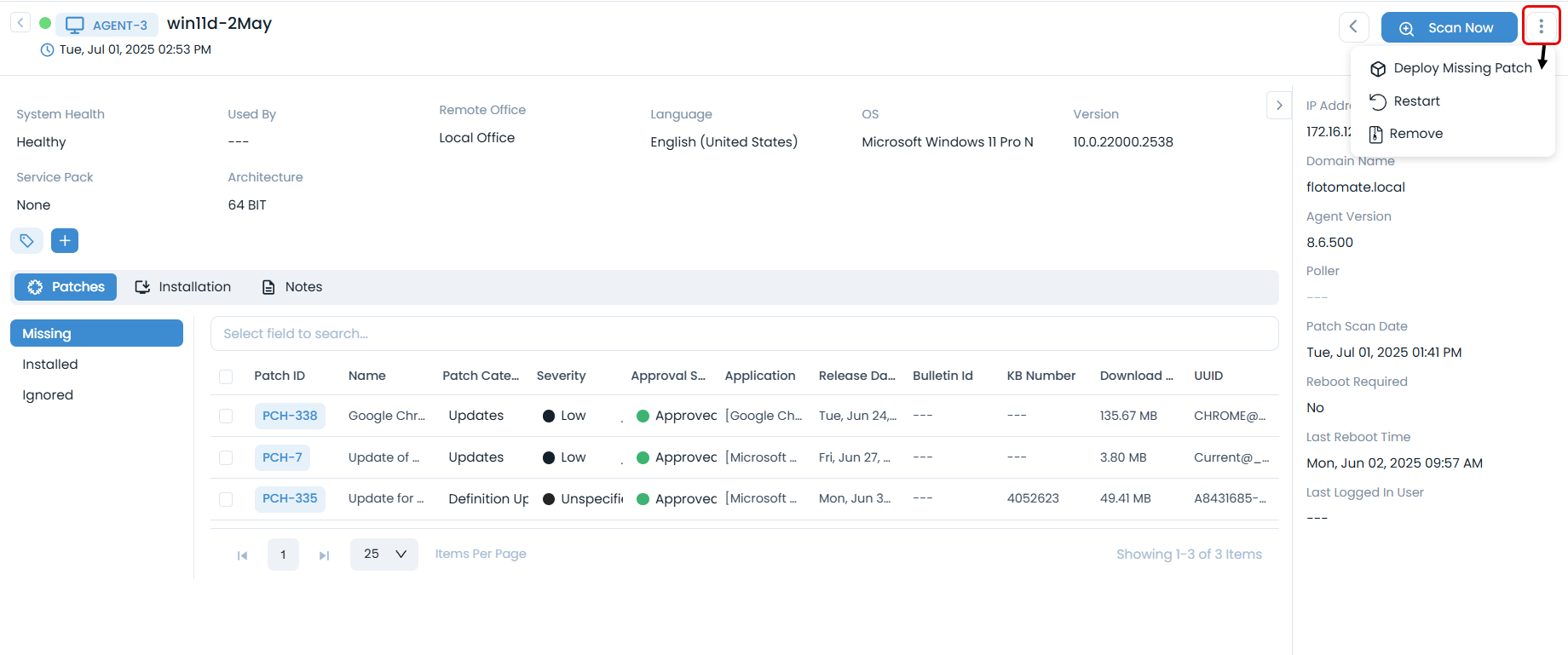
Deploy Missing Patch
You can also deploy the missing patches from this page. To deploy,
- Select the Deploy Missing Patch option, a confirmation dialog appears. Click Yes to continue and Create Patch Deployment page appears. Only Approve patches will be deployed.
- Create Patch Deployment.
- Publish the Patch Deployment and the missing patches will get deployed in the Computer. You can view the installation status from the Installation tab of Patch Deployment Details page.
Restart
You can restart the computer from the details page.
Remove
Apart from the list page, you can remove the agent from the Computer Details page as well.
Click the More Options icon and select Remove. A confirmation message appears. Click Yes to continue or No to stop the process. If Yes is clicked, the Computer will be removed from the End Points Scope as well.
Other Information
The other information displays additional details about the computer.
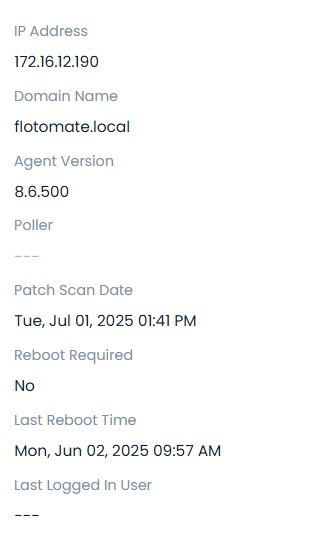
- IP Address: Displays the IP Address of the computer.
- Domain Name: Displays the Domain Name of the computer.
- Agent Version: Displays the Agent Version of the computer.
- Poller: Displays the poller agent.
- Patch Scan Date: Displays the date and time when the computer was last scanned for patches as per the patch cycle. For example, if the patch cycle is set to 60 minutes, then after every 60 minutes the patch scan will occur and accordingly the date will get updated here.
- Reboot Required: Displays if the Reboot is required or not for the particular computer.
- Last Reboot Time: Displays the date and time when the computer was last rebooted.
- Last Logged In User: Displays the username who last logged into the system.