Patch Details Page
On the Patch Details page, you can view the complete details of the patch and perform the desired activity.
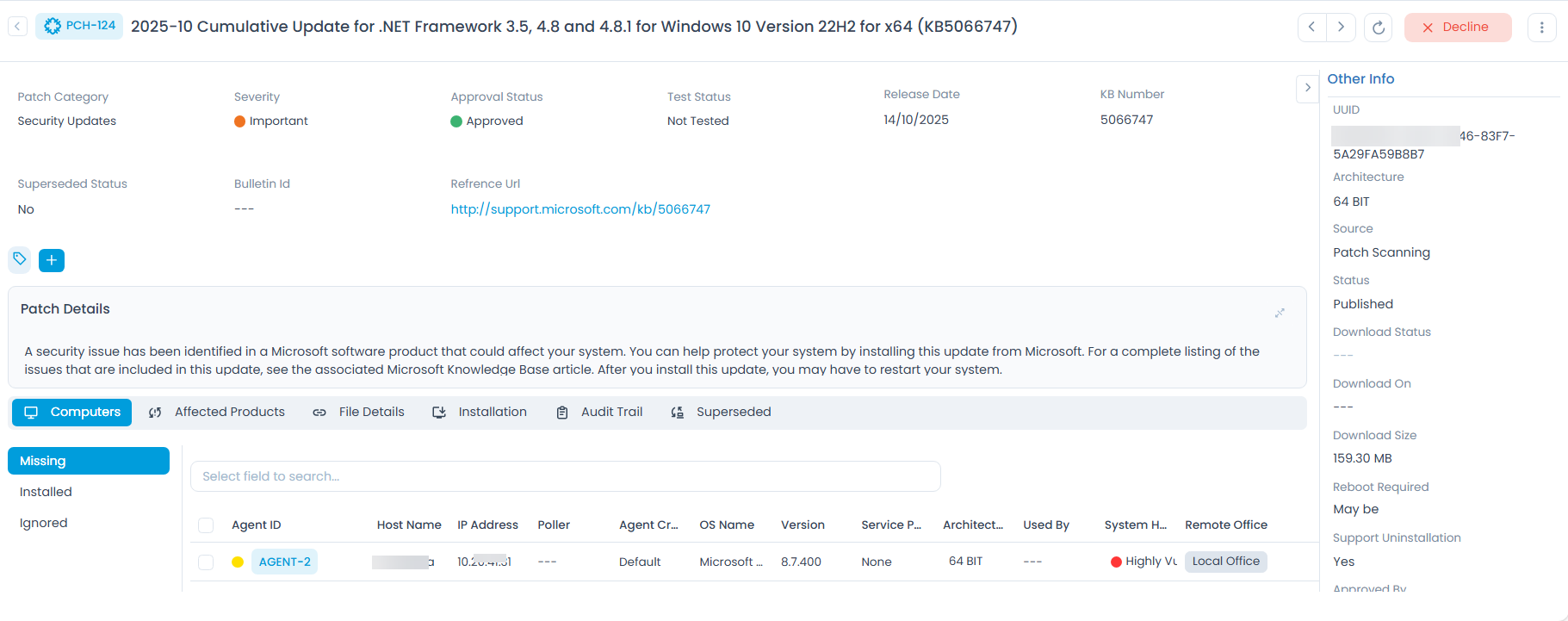
To view the Patch Details, on the List page click on the ID, and the below page appears.
Edit the Patch
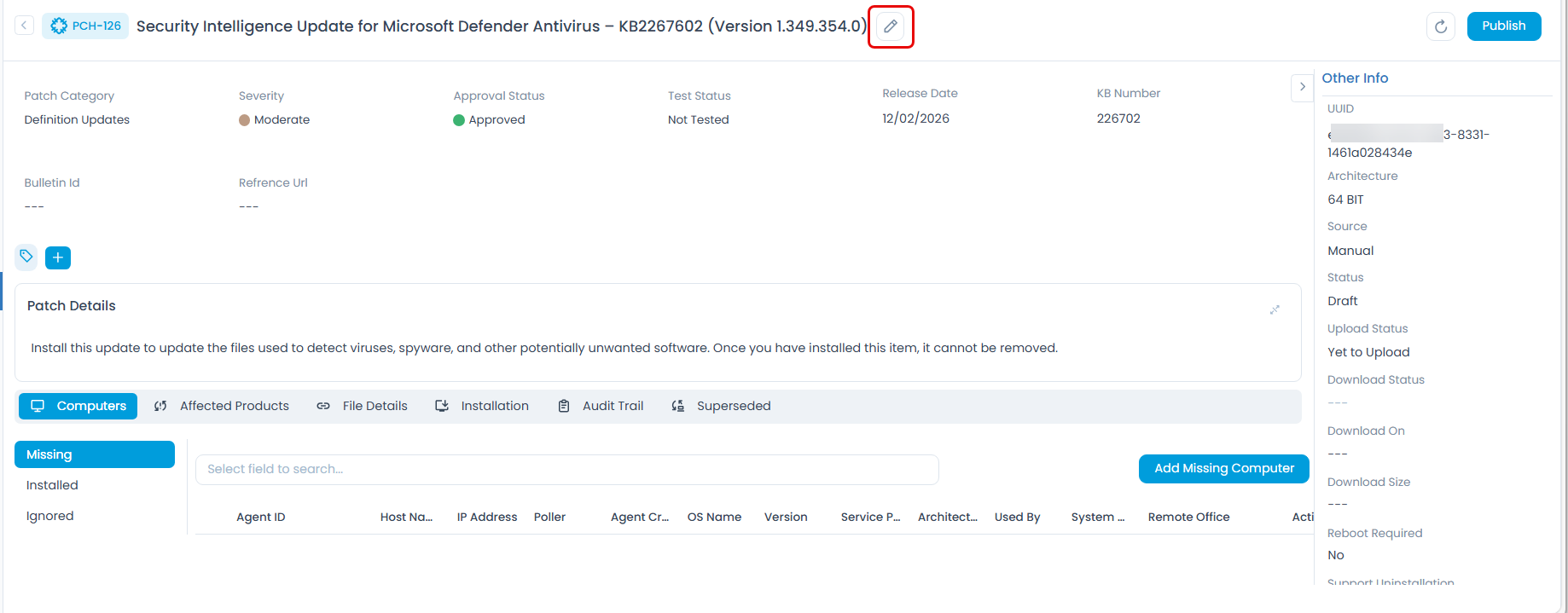
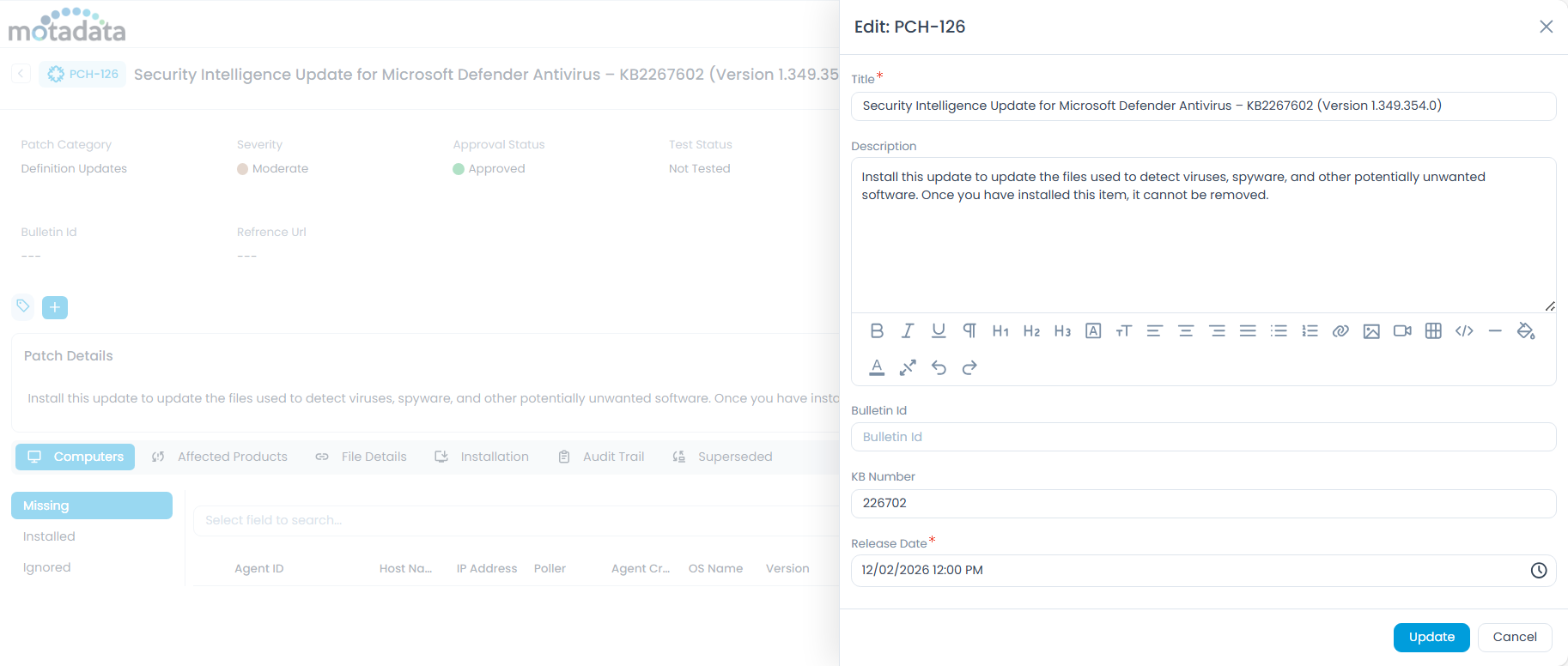
You can edit the details of the manually created patch by clicking on the Edit icon, changing the required details, and clicking Update as shown below.
Classifiers of Patch
These properties tell you the current statistics of the patch and help you to classify them under different labels. When someone works on a patch, they update the labels accordingly. For example: If the "Status" is Closed, it means you do not need to do anything on the patch.

| Parameter | Description |
|---|---|
| Patch Category | Displays the current category of the patch. You can change it if required. The options are Tools, Feature Packs, Service Packs, Update Rollups, Definition Updates, Critical Updates, Updates, Hotfix, and Security Updates. |
| Severity | Displays the severity of the patch. |
| Approval Status | Displays the approval status of the patch. |
| Test Status | Displays whether the patch is tested or not. |
| Release Date | Displays the release date mentioned for the patch. |
| KB Number | Displays the KB number of the patch. |
| Bulletin ID | Displays the bulletin ID of the patch. |
| Superseded Status | Displays whether the patch is superseded or not. |
| UUID | Displays the UUID of the patch. |
| Reference URL | Displays the Reference URL of the specific patch. |
| Add Tag | You can add the custom tags to quickly find the patch based on it. Also, system adds some default tags when based on certain labels and actions. |
Associated Actions for Patch
You can create or update different actions and activities as a part of communication, collaboration, and resolution in the patch. The available types of actions are:
- Computers
- Affected Products
- File Details
- Installation
- Audit Trail
- Superseded
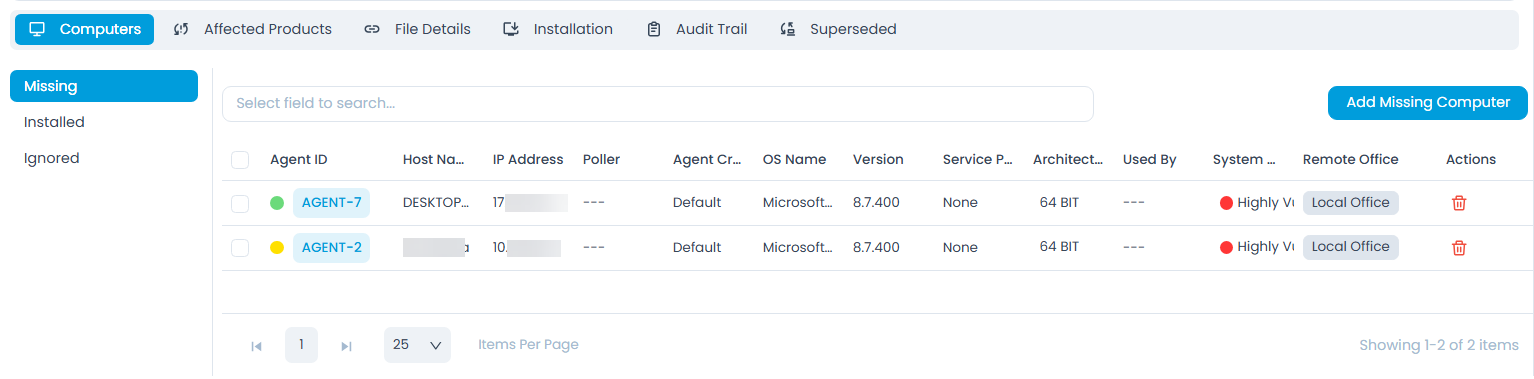
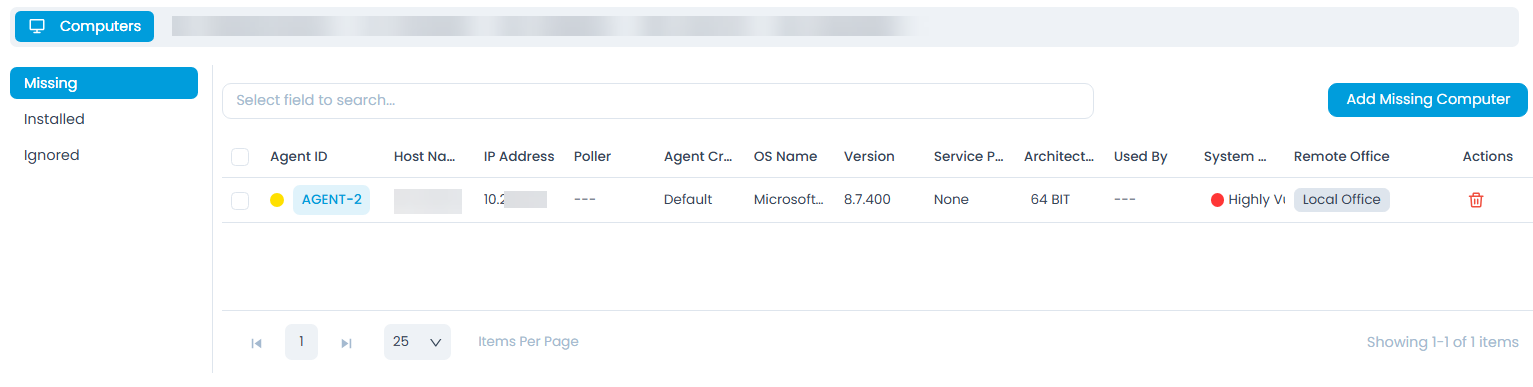
This tab displays a list of computers in which the particular patch is either Missing, Installed, or Ignored. Here, you can add and search a particular computer with the help of the keyword search.
Missing
Here, the computers/agents with yellow status are considered to be Offline, while that with the green are Online.
Adding Missing Computers
To add missing computers,
- Click the Add Missing Computer button and a popup appears.
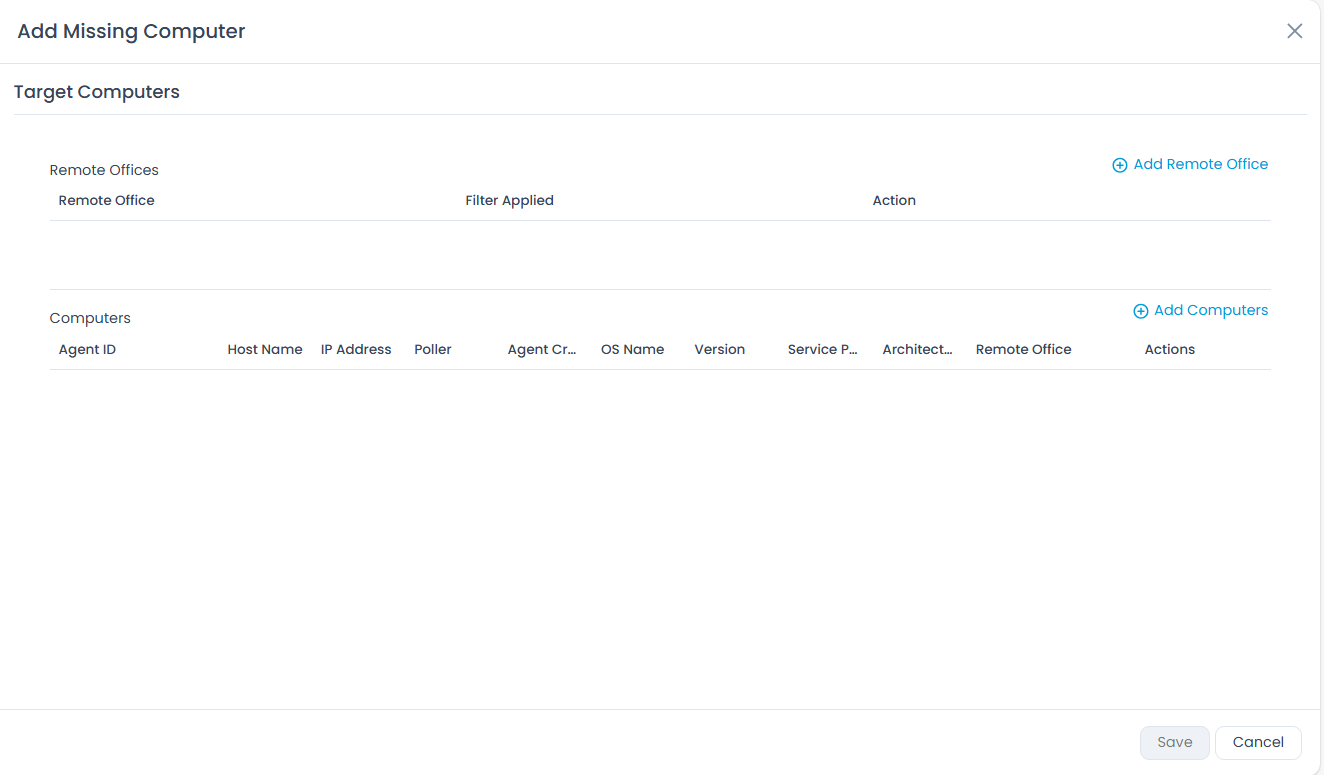
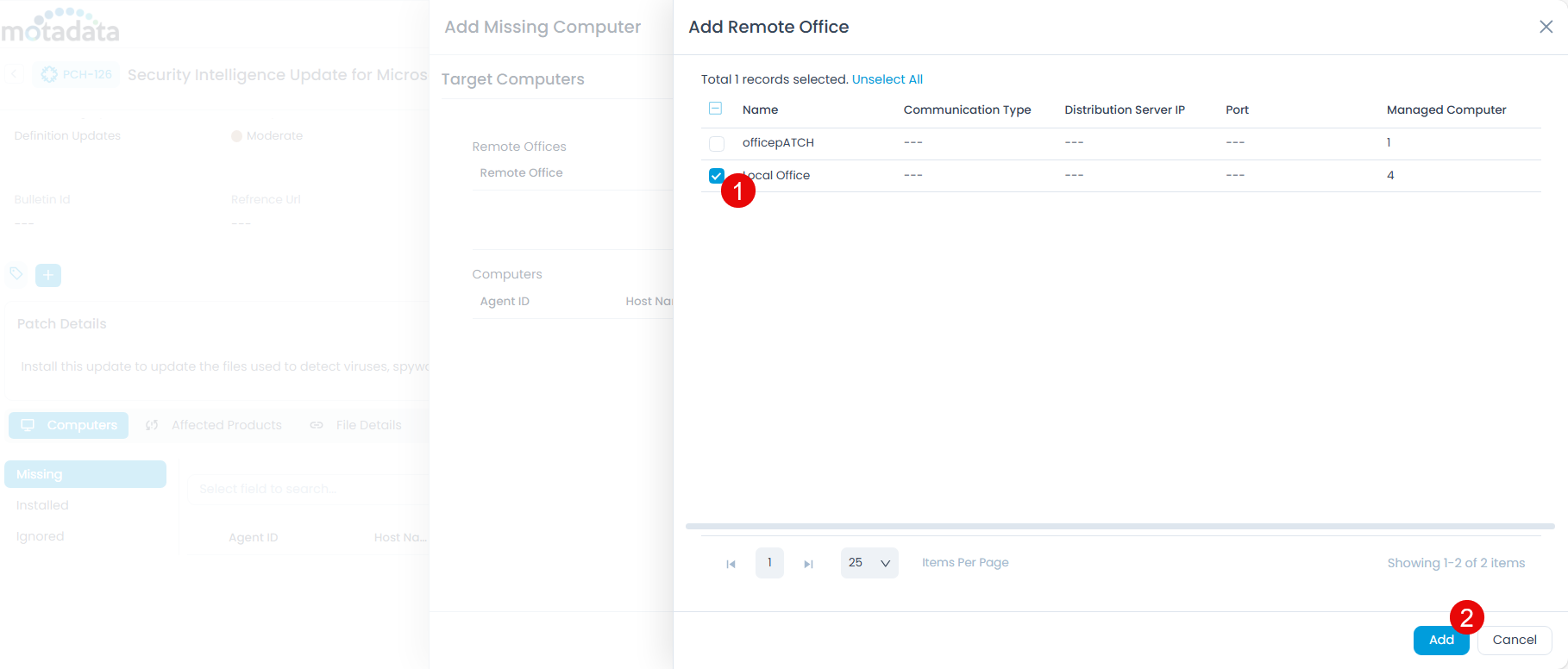
- If required, select the remote offices using the Add Remote Office link as shown below.
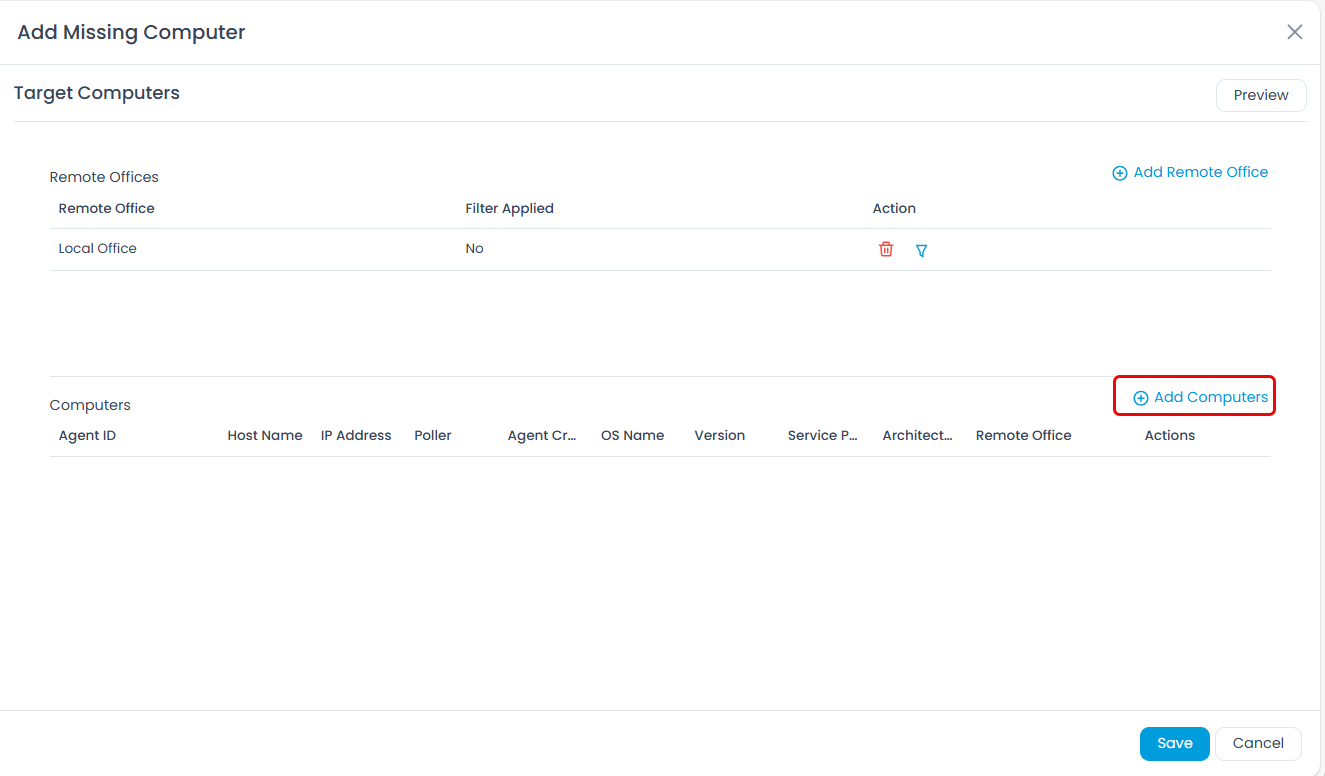
- Select computers or agents in which the patch is to be installed using the Add Computers link as shown below.
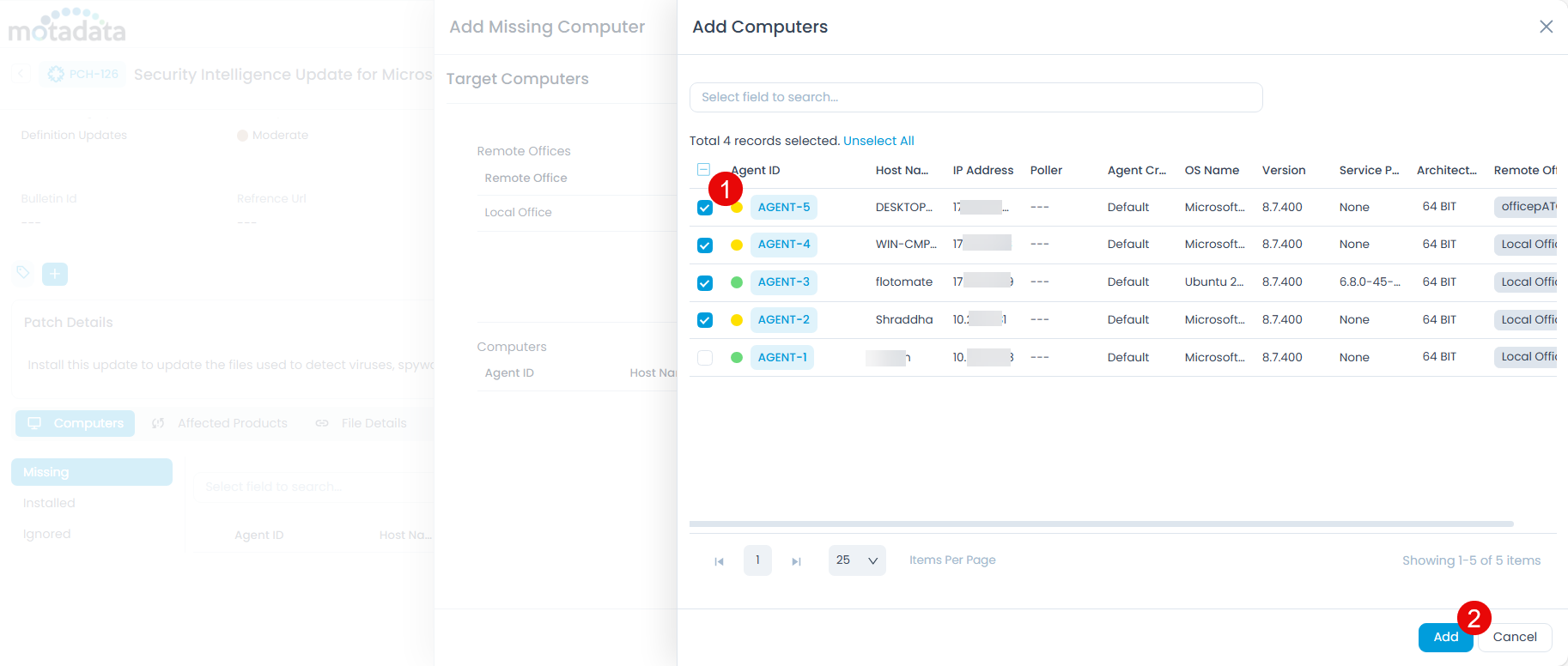
Once added, click Save and the computers appear in the list as shown below. You can also delete them if required using the Delete icon.
Installed
This tab displays a list of computers in which the patch is installed. Also, you can select the required patches and uninstall if required using the bulk uninstall functionality.
Bulk Uninstall Patch is not supported for Mac OS.

Ignored
This tab displays a list of computers in which the patch is ignored.

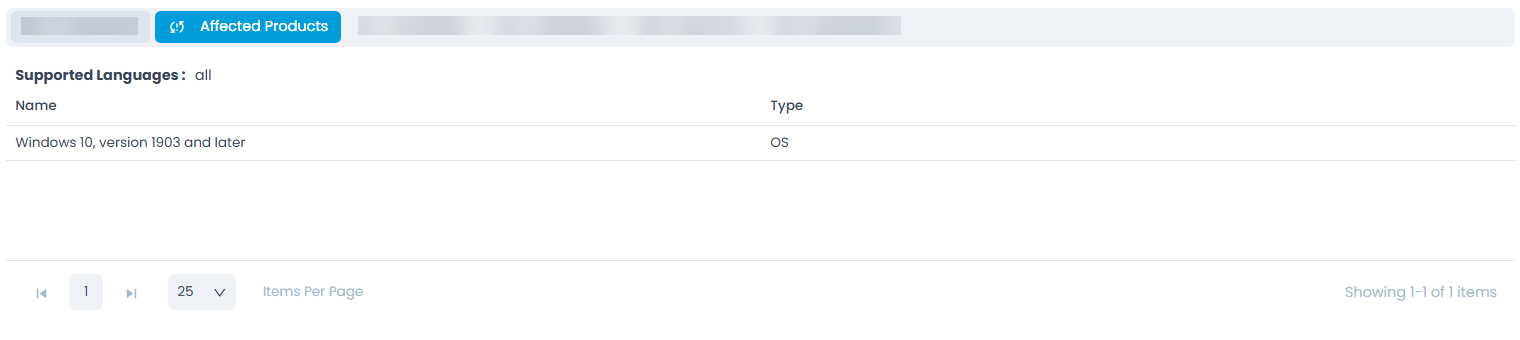
After the patch is installed/applied to a software or device, the affect of it appears over some applications or Windows. The below list shows the same products which got affected due to the patch.
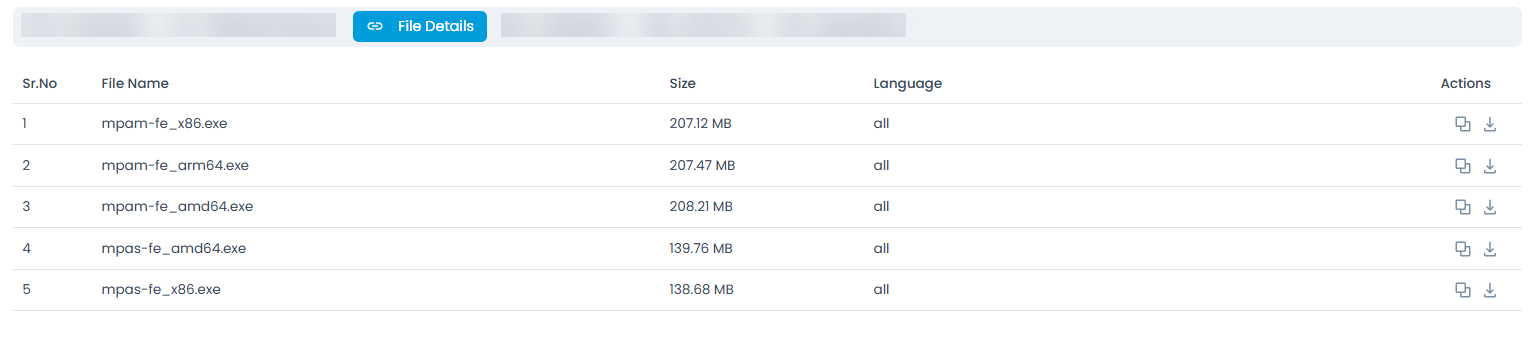
This page displays the details of the patch like name, size, and language. You can also copy the URL or download the patch file if required.
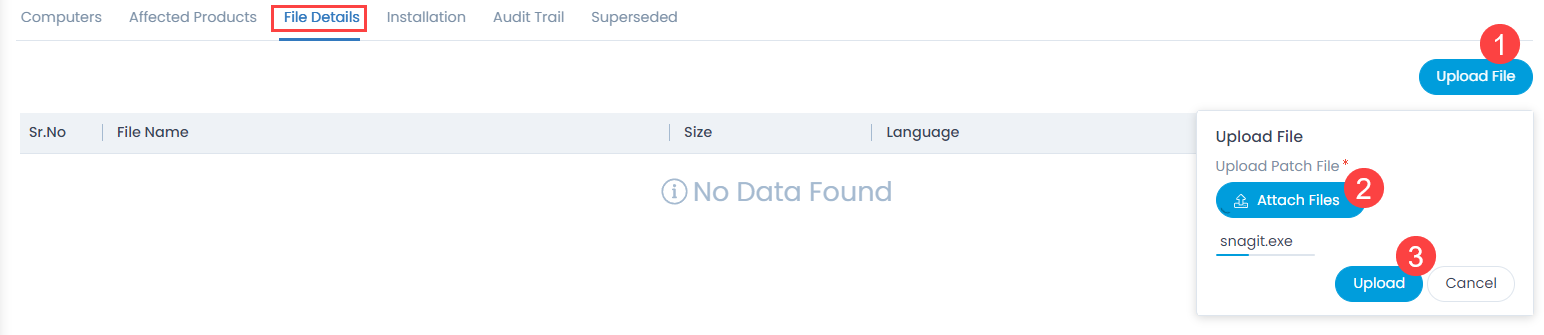
In case of the manually created patch, you need to upload the exe file using the Upload File button as shown below.
Once uploaded, it appears in the table as shown below. Now, you can download the URL or delete it if required.

This tab displays the computers in which the patch is to be installed or already installed.
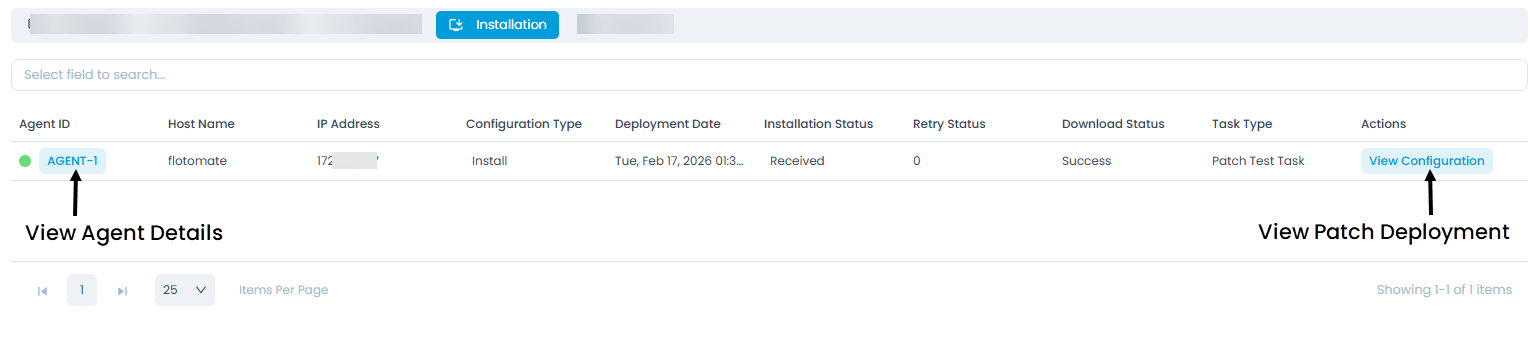
From here, you can view the Agent details or the configuration by clicking on the respective links.
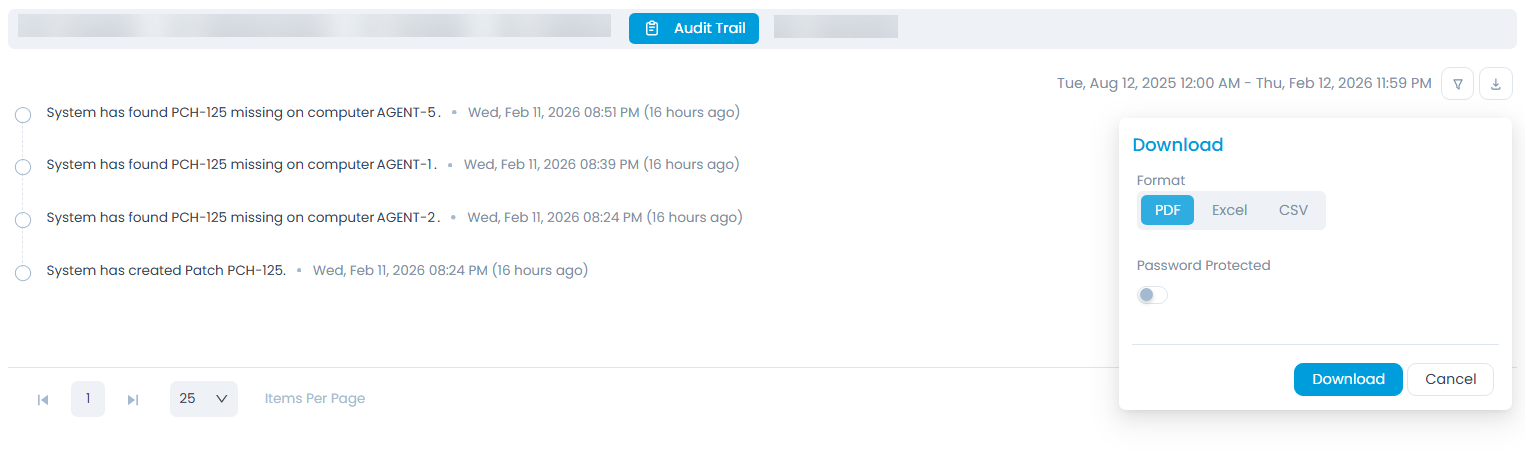
The Audit Trail tab displays all the actions that you and other technicians have performed. This tab is common at all places in the system. When you are on the details page of any patch, it displays the concerned activity logs only. You can also download the logs in PDF, Excel, and CSV format. Additionally, you can password-protect the PDF and Excel files.
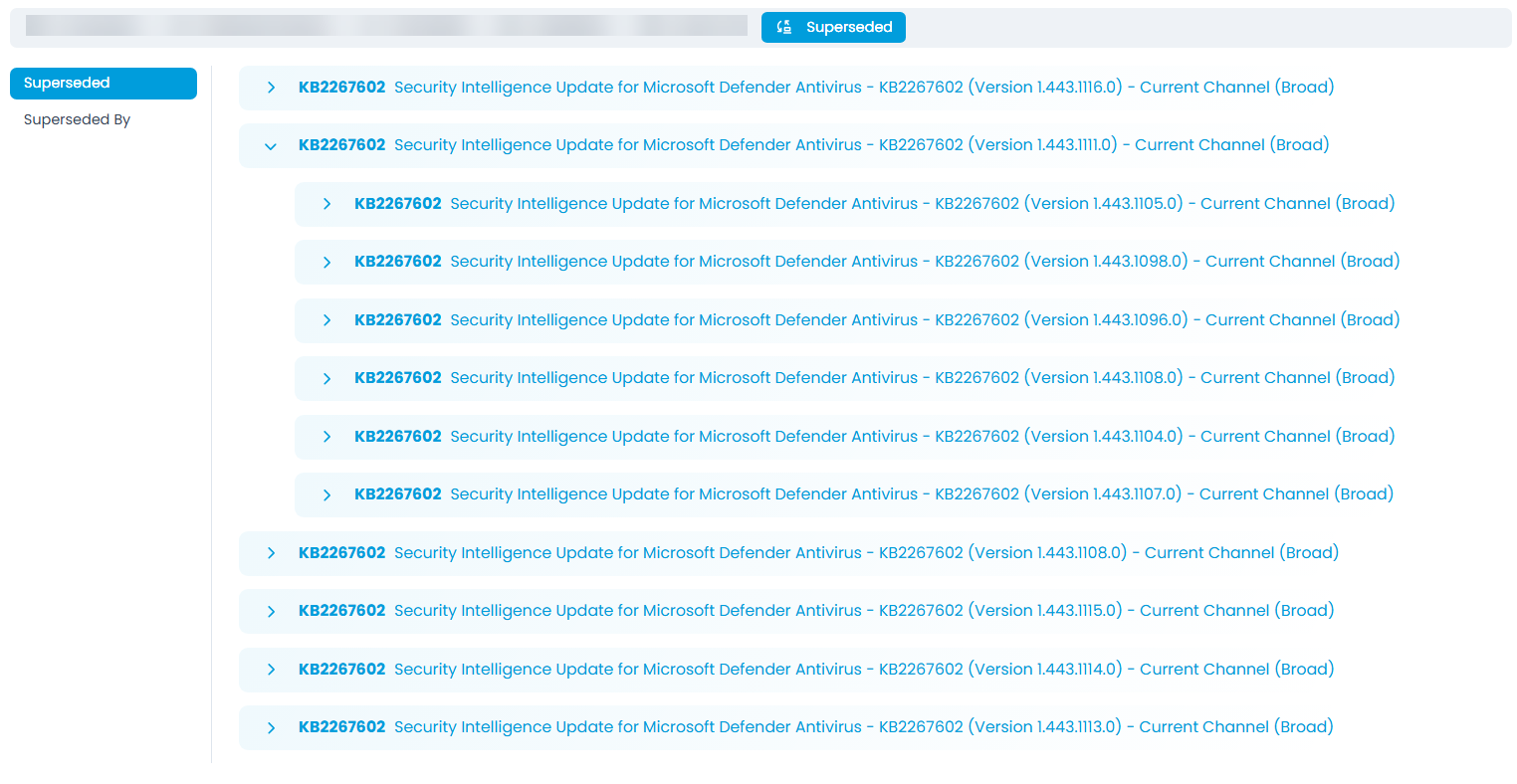
This tab displays a list of superseded patches.
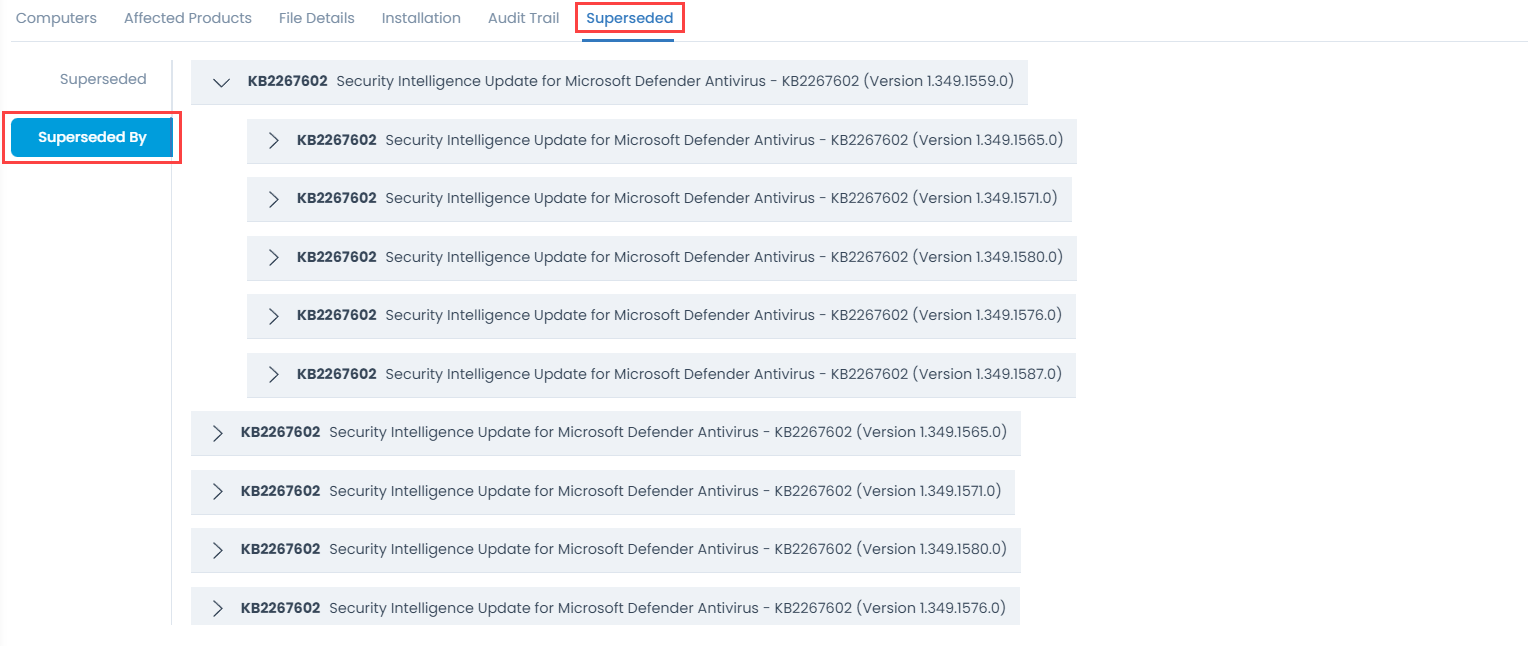
Superseded By
This tab displays a list of new patches that replaces the older ones.
Other Information
The other information displays additional details about the patch.
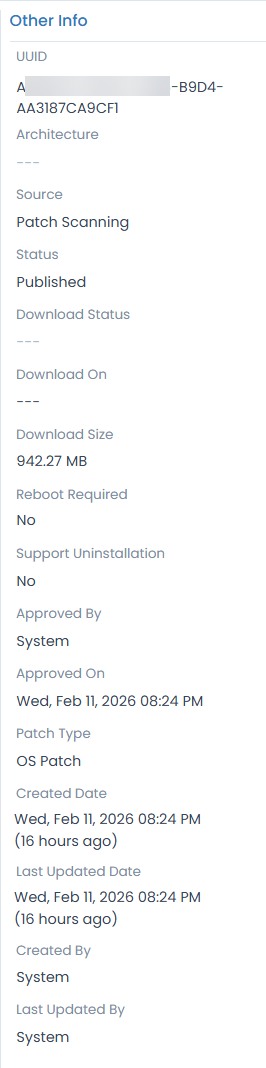
- Architecture: Displays the architecture of the machine.
- Source: Displays the source of the patch.
- Status: Displays the current status of the patch.
- Upload and Download Status: Displays the upload and download status of the patch.
- Download On: Displays the date on which the patch is downloaded.
- Download Size: Displays the size of the downloaded patch.
- Reboot Required: Displays if the reboot is required or not after the patch installation or download.
- Support Uninstallation: Displays if the patch uninstallation is supported or not.
- Approved By: Displays the name of the user who approved the patch.
- Approved On: Displays the date of the approval.
- Created and Last Updated Date: Displays the date when the patch is created and lastly updated.