Digital Signature for Purchase Orders in ServiceOps
Get a legally binding e-signature on any purchase order without leaving ServiceOps.
ServiceOps lets you send documents for digital signature directly from a purchase order detail page. When you send a signature request, ServiceOps routes a pre-filled document to the signer's email via DocuSign. The signer signs from any device, and the purchase order record updates automatically when signing is complete.
Before you can send signature requests, an administrator must configure a DocuSign provider and create at least one signature template with Module set to Purchase. See Digital Signature Configuration.
Prerequisites
- An active signature provider configured under Admin > Organization > Digital Signature
- At least one signature template with Module set to Purchase and Enabled set to ON
- The View Signatures and Request Signatures permissions enabled on your role. See Roles.
How It Works
When you click Request Signature, ServiceOps opens a dialog where you select a template and enter the signer's details. ServiceOps prepares a document using the template, pre-fills it with purchase order data (PO number, vendor name, line items, and total amount), and sends it to the signer's email. The signer clicks Review Document in the DocuSign email and signs without needing a DocuSign account. When the signer completes or declines, DocuSign notifies ServiceOps automatically, and the Signature section on the purchase order updates.
Send a Signature Request
- Open the purchase order detail page.
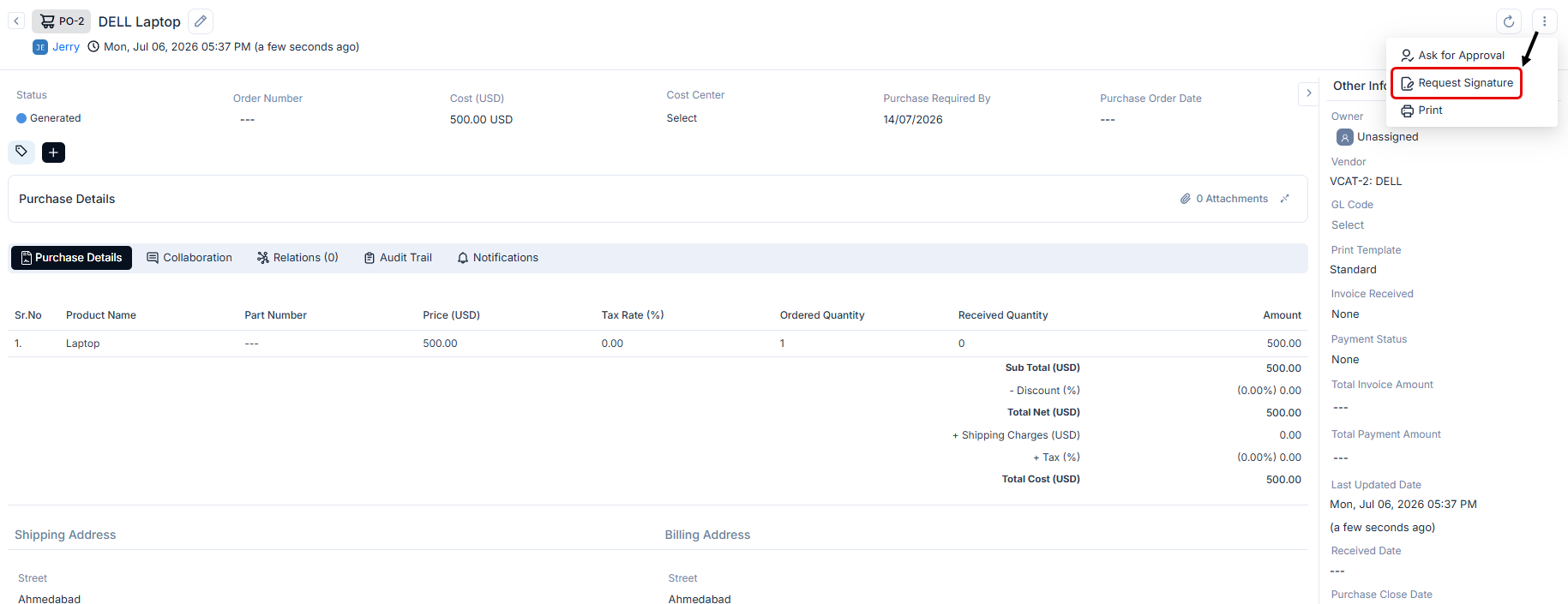
- Click the More Actions icon (vertical three dots) at the top-right corner.
- Select Request Signature. The Digital Signature Template dialog opens.
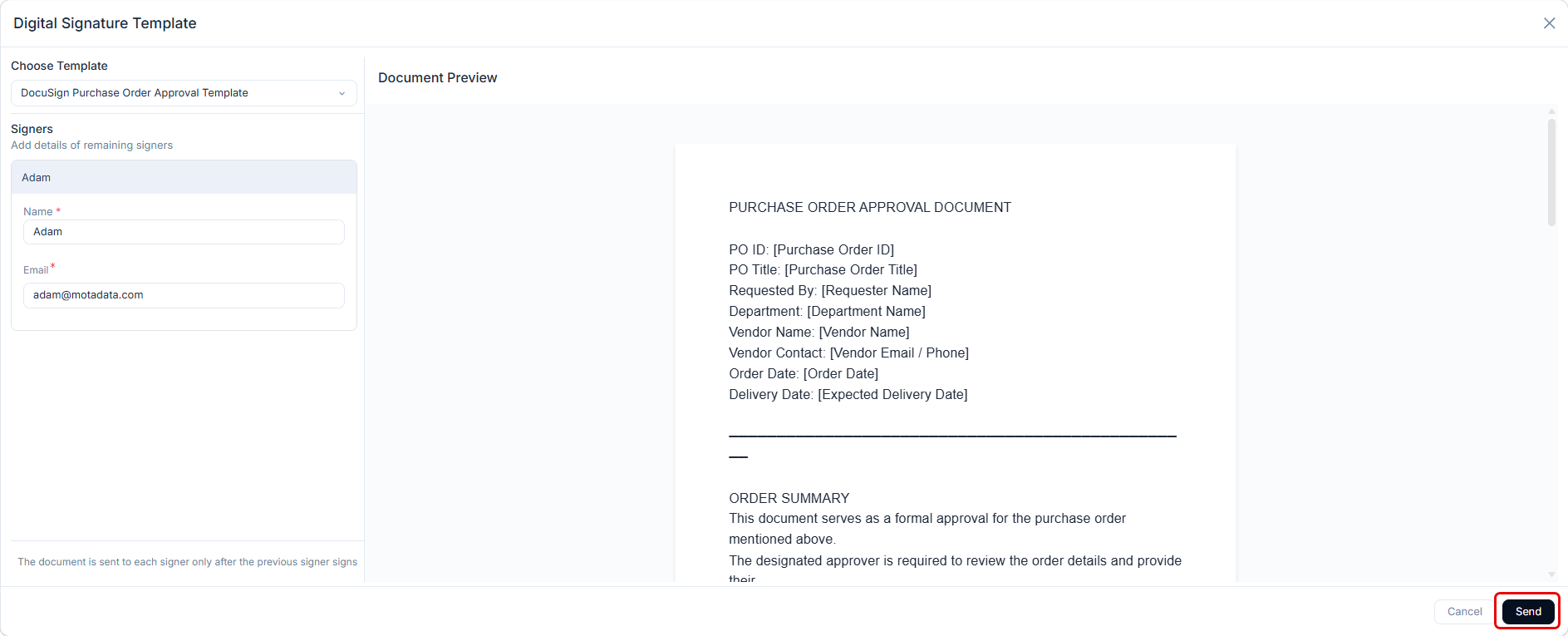
The dialog has the following controls:
- Choose Template: Select the signature template to use. Only templates with Module set to Purchase and Enabled set to ON appear in this list.
- Signers: Enter the signer's Name (required) and Email (required). The Document Preview panel updates to show the populated document with the purchase order details filled in.
- Send: Click to send the signature request to the signer's email.
The signer can be anyone with an email address. Enter a vendor contact's email for external sign-off, or an internal approver's email for budget authorization. The signer does not need a DocuSign account to sign.
If the template has Sequential Send enabled, DocuSign delivers the document to each signer in order. The next signer receives the request only after the previous one signs. Configure this option when creating the template under Admin > Organization > Digital Signature > Signature Templates.
The signer receives a DocuSign email. Open the Signature tab to track progress.
Track Signature Status
The Signature tab does not appear in the Associated Actions bar until the first signature request is sent on the record. Once sent, it remains visible for the entire life of the ticket, even after signing is complete.
Open the Signature tab in the Associated Actions bar of the purchase order detail page to view all signature requests sent for the record.
Each signature request shows the template name, who sent it, the timestamp, and the overall status badge (In Progress, Completed, Declined, or Failed) in the top-right corner of the request card.
The signer list displays the following columns:
| Column | Description |
|---|---|
| Signer | Name of the person the signature request was sent to. |
| Email address the DocuSign request was delivered to. | |
| Status | Current signing status for this signer. Updates automatically as the signer progresses: Pending (email being prepared), Sent (email delivered), Viewed (signer opened the link), Signed (signature complete), Declined (signer refused to sign), Failed (delivery or authentication error), Voided (envelope or document cancelled by the sender or system), Ignored (signer was skipped, removed, or no longer required to take action). |
| Signed By | Name recorded when the signer adopts their signature. Shows --- until signed. |
| Signing Time | Date and time the signature request was sent, or when signing was completed. |
| Action | Remind (bell icon) to send a reminder, Delete (trash icon) to remove the request. |
Deleting a signature request in ServiceOps does not cancel it in DocuSign. The signer may still be able to sign from the original DocuSign email link.
Example
A finance manager creates a purchase order for a high-value server refresh and needs the CFO to sign off before the order is placed. The manager opens the purchase order, clicks More Actions, selects Request Signature, picks the "PO Approval" template, enters the CFO's name and email, and clicks Send. The CFO receives a DocuSign email, reviews the pre-filled PO details, signs, and the purchase order's Signature tab shows "Signed / Completed."
Troubleshooting
Common issues when sending and tracking signature requests on purchase order records.
Request Signature option does not appear in the More Actions menu
Cause: Your role does not have the Request Signatures permission, or no active digital signature provider is configured.
Fix: Ask your administrator to enable the Request Signatures permission on your role, or to configure a provider under Admin > Organization > Digital Signature.
No templates appear in the Choose Template dropdown
Cause: No templates exist with Module set to Purchase, or all such templates are disabled.
Fix: Ask your administrator to create or enable a template under Admin > Organization > Digital Signature > Signature Templates with the Module set to Purchase.
Signer did not receive the DocuSign email
Cause: The email address entered was incorrect, or the email landed in the signer's spam or junk folder.
Fix: Ask the signer to check their spam folder for an email from DocuSign. If the email address was wrong, delete the signature request from the Signature tab and send a new one with the correct address.
Signature tab shows "Sent" status and never updates
Cause: The DocuSign webhook is not reaching ServiceOps, so signing events are not delivered to the record.
Fix: Ask your administrator to verify the DocuSign Connect webhook configuration and confirm that ServiceOps is reachable over public HTTPS. See Digital Signature Configuration.
Signer declined the document and you need to resend it
Cause: The signer clicked Decline in DocuSign. A declined request cannot be reopened.
Fix: Delete the declined signature request from the Signature tab and send a new one. If the signer declines again, contact them directly to resolve any concerns before resending.