File Server Configuration and Troubleshooting
Configure and troubleshoot the ServiceOps File Server correctly, covering Remote Office setup, HTTP/HTTPS communication, Proxy/DMZ configuration, and Microsoft Office patch deployment.
The ServiceOps File Server is the central component responsible for downloading patches from the internet and distributing them to endpoints across your environment. A misconfigured File Server is the most common root cause of failed patch deployments, "Unable to connect to remote server" errors, and incomplete Remote Office replication. Getting the installation, protocol, URL, and credential settings right from the start prevents the majority of issues support teams encounter in the field.
This guide covers File Server installation, URL setup, Remote Office architecture, Proxy/DMZ configuration, and Office patching requirements, with a dedicated troubleshooting section for the most frequent failures.
Prerequisites
- You have the Admin role in ServiceOps.
- The Windows machine that will host the File Server meets the hardware and OS requirements.
- .NET Framework 3.5 is installed on the File Server machine.
- The communication port between the ServiceOps server and the File Server is open.
- If you plan to use HTTPS, a valid CA-signed SSL certificate is already installed on the ServiceOps server.
Windows File Server Installation
Correct File Server installation is critical for successful patch download and deployment. Work through the installer steps below in order.
Local File Server Option
During Windows File Server installation, the setup wizard shows an Is Local File Server checkbox.
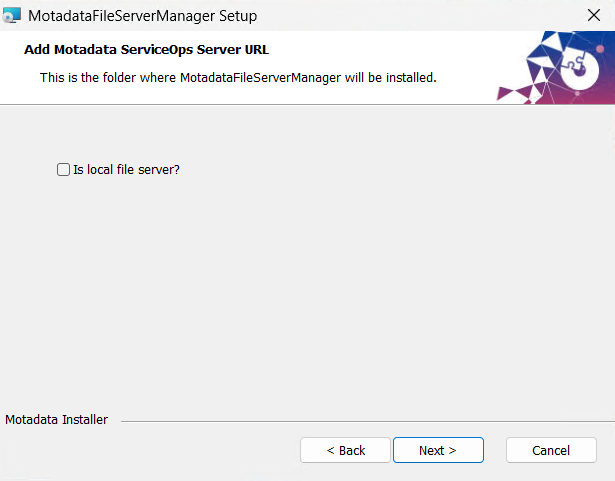
- Keep this option unchecked in standard deployments.
- Enable it only when the File Server is installed on the same machine as the ServiceOps server.
- Most customer environments use a dedicated File Server machine, so this remains unchecked.
HTTP / HTTPS Configuration
Selecting the wrong protocol is one of the most common deployment issues. In the configuration step, choose the correct protocol. If you select HTTPS, a valid certificate must already be in place or the File Server will fail to connect.
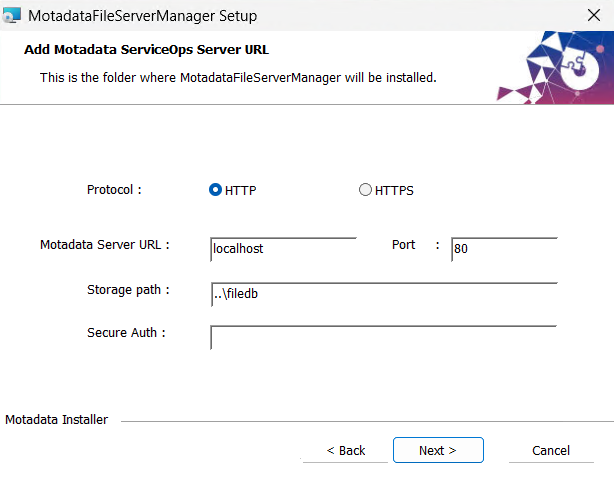
- HTTPS works only if the main ServiceOps server has a valid CA-signed SSL certificate.
- The File Server machine must trust the certificate.
- The certificate hostname must match the configured FQDN.
- Self-signed or invalid certificates can cause File Server communication failures.
If a valid CA-signed SSL certificate is not configured on the ServiceOps server, configure the File Server using HTTP instead of HTTPS.
Port Validation
Firewall restrictions between the ServiceOps server and the File Server cause deployment failures and communication errors.
- Ensure the configured communication port is open between the ServiceOps Server and the File Server.
- Endpoints must also be able to reach the configured File Server URL.
- Firewall restrictions may cause deployment failures or communication issues.
Secure Authentication
The File Server Credential Profile section defines Secure Authentication credentials, which authenticate the File Server during setup. Configure them correctly before completing installation.
- Select the correct Secure Auth value from an existing Credential Profile during configuration.
- Incorrect or missing credentials may prevent the File Server from registering successfully.
- If registration fails, re-check the Credential Profile and re-enter the Secure Auth value, then retry.
Storage Path Configuration
During installation, specify the directory where the File Server is installed and where patches are stored.
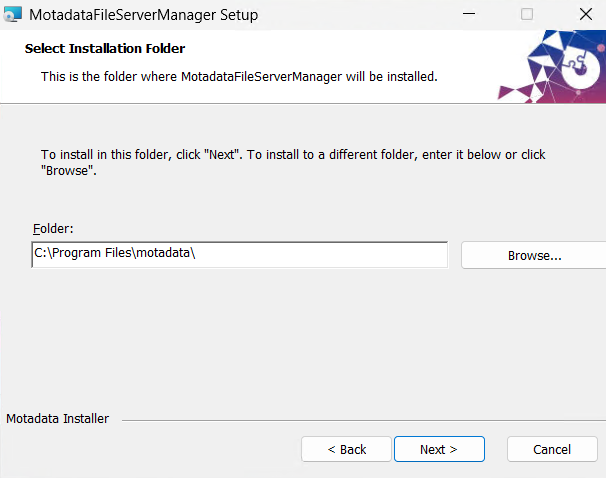
- Ensure sufficient disk space is available.
- Avoid unstable network-mounted storage paths.
- Leave the path unchanged to use the default:
C:\Program Files\motadata.
File Server Service Startup Error
Sometimes the File Server service fails to start during installation with the error: Service 'motadata-fileserver-server' failed to start. This commonly happens because the .NET Framework 3.5 dependency is missing on the Windows machine.
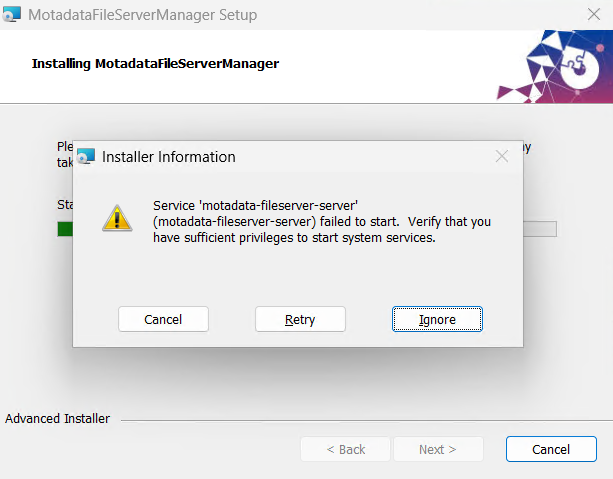
Resolution Steps
Open Control Panel.
Navigate to Programs and Features (Add or Remove Programs).
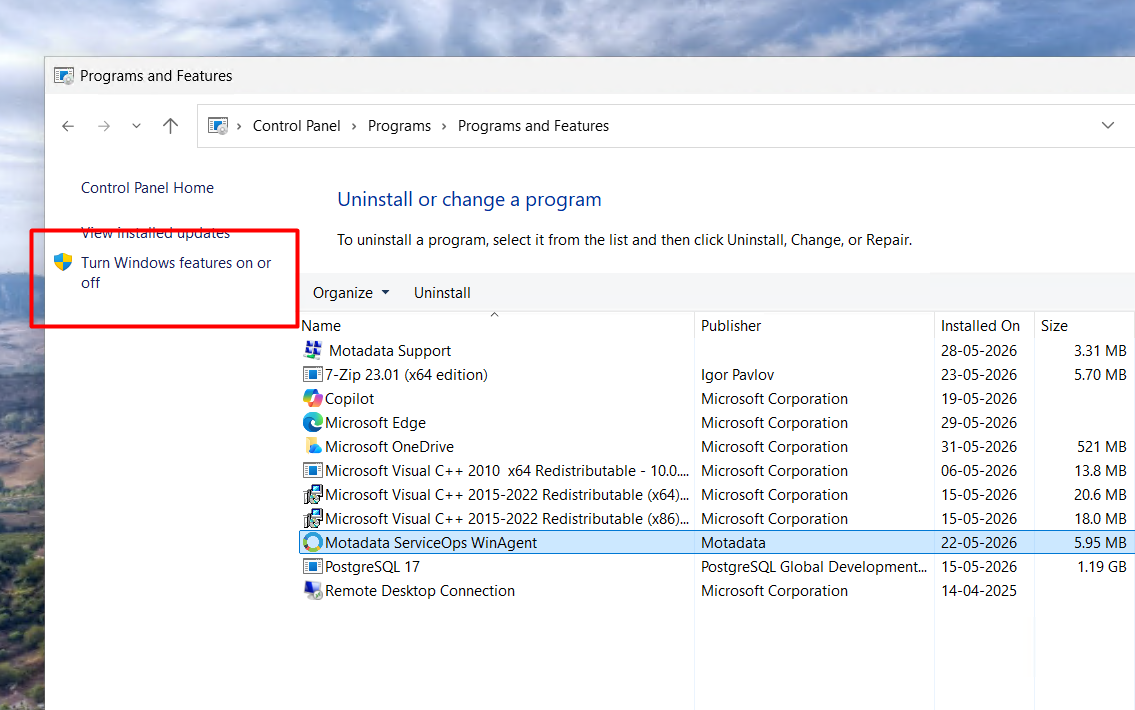
Click Turn Windows features on or off.
Enable .NET Framework 3.5 (includes .NET 2.0 and 3.0) and let the process complete.
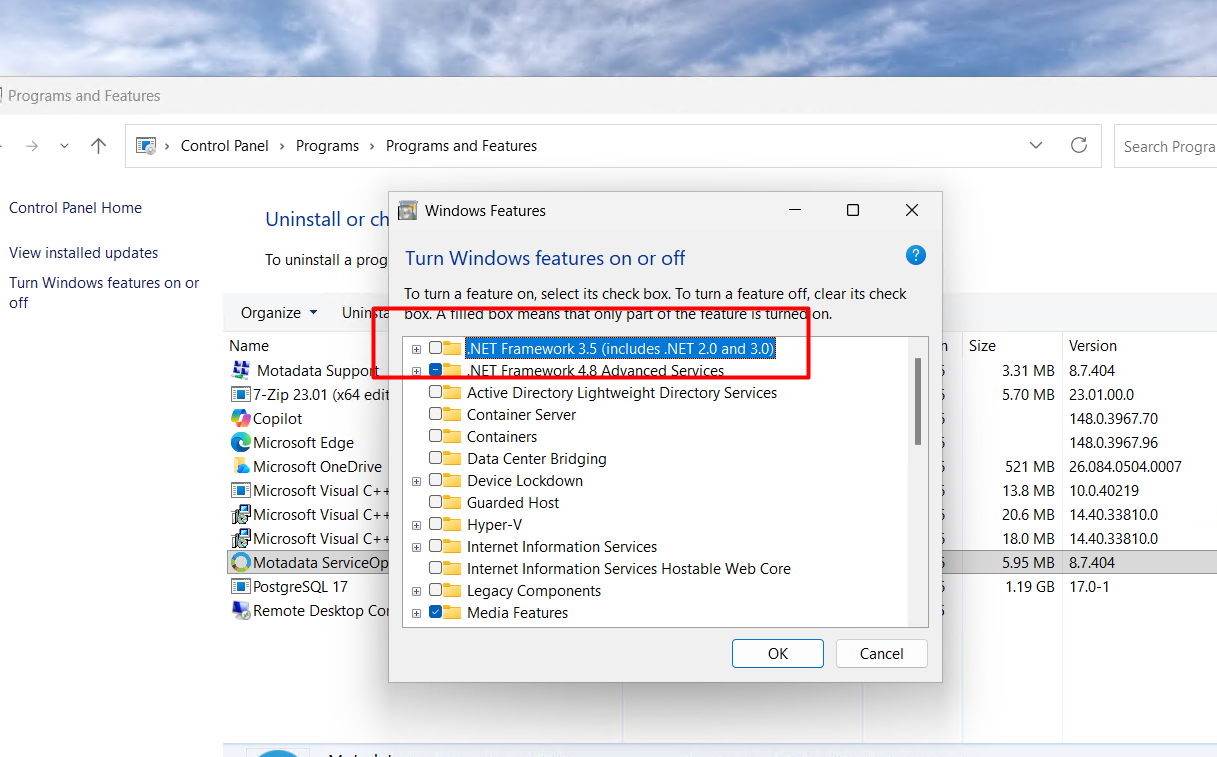
Retry the File Server installation. The error should now be resolved.
File Server URL Configuration
The File Server URL is one of the most important configurations in the entire patch deployment process. When a File Server is first listed in the UI, the File Server URL field is blank and must be set. Endpoints use this URL directly to download patch files.
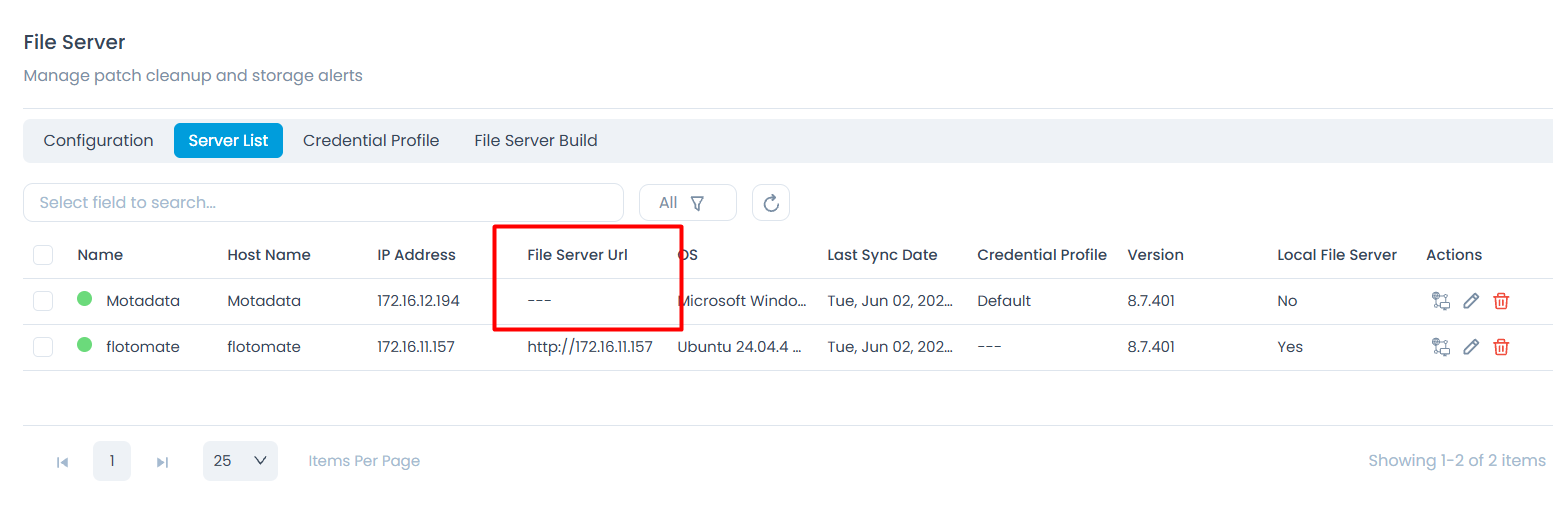
Navigate to Admin > Patch Management > Patch Administration > File Server.
Locate the File Server in the list.
Enter the IP address or FQDN in the File Server URL field.
Example using an IP address:
http://172.16.12.194Endpoints download patch files using:
http://172.16.12.194/<patch_file>Click Save.
Note the following after saving:
- Incorrect URL configuration can cause deployment failures and "Unable to connect to remote server" errors on endpoints.
- Verify that endpoints can access the configured File Server URL.
- Validate DNS resolution when an FQDN is configured.
- Validate SSL certificate trust when HTTPS is used.
Remote Office Architecture
Remote Office configuration manages patch distribution across environments with multiple physical locations, each with its own File Server. With offices in Ahmedabad and Mumbai, for example, set up one File Server per location and use Remote Offices to control patch distribution.
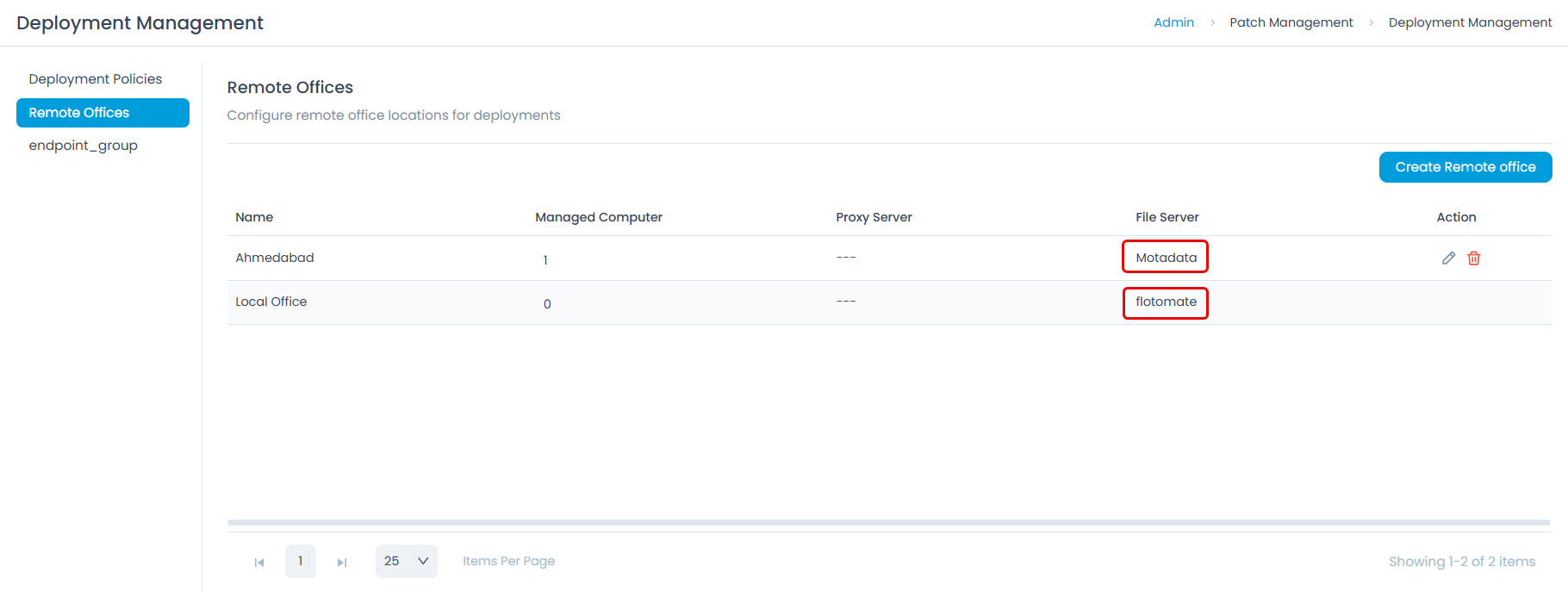
- A default Local Office always exists and cannot be deleted.
- The File Server mapped to the Local Office acts as the Primary File Server.
- All patches are downloaded first to the Primary File Server.
- Patches are then distributed only to the required Remote Office File Server.
Offices: Local Office, Ahmedabad, and Mumbai (each with its own File Server). A patch is deployed to a Mumbai endpoint:
- The patch downloads first to the Local Office (Primary) File Server.
- It is then replicated directly to the Mumbai File Server.
- The Ahmedabad File Server does not receive the patch unless required.
Proxy / DMZ Configuration
If direct internet access or URL whitelisting is unavailable on the File Server, use a Proxy or DMZ server. Configure it on the Local Office, because the Local Office acts as the primary patch downloader and then distributes patches onward.
- The Local Office acts as the primary patch downloader.
- Remote Offices mainly distribute already-downloaded patches.
- Whitelist Microsoft and third-party patch source URLs.
- Validate outbound internet connectivity from the Local Office File Server.
Microsoft Office / Office 365 Patching
Microsoft Office patch deployment has additional platform-specific limitations that are frequently missed during implementation.
- The Primary File Server must be Windows-based for Office patch deployment.
- Office patches will fail if the Primary File Server is Linux-based.
- This limitation applies only to Microsoft Office patching.
- Operating System and other third-party patching continue to work normally on Linux File Servers.
- Distribution File Servers can still be Linux or Windows.
- The Primary Windows File Server must have direct internet access.
- Proxy or DMZ-based Office patch downloads are currently not supported.
- Validate outbound connectivity to Microsoft update services.
What Are the Most Common File Server Issues?
The sections below cover the most frequent failures encountered during File Server setup and patch deployment, with their causes and step-by-step fixes.
File Server service fails to start during installation
Possible Reasons:
- The .NET Framework 3.5 dependency is not installed on the Windows machine.
- The installer requires this dependency, and the service will not start without it.
Solution:
Open Control Panel.
Navigate to Programs and Features (Add or Remove Programs).
Click Turn Windows features on or off.
Enable .NET Framework 3.5 (includes .NET 2.0 and 3.0) and let the process complete.
Retry the File Server installation. The
motadata-fileserver-serverservice error should no longer appear.
Endpoints report "Unable to connect to remote server"
Possible Reasons:
- The File Server URL is incorrect or unreachable from endpoints.
- The configured port is not open between endpoints and the File Server.
- HTTPS is configured with an untrusted or self-signed certificate.
Solution:
- Navigate to Admin > Patch Management > Patch Administration > File Server.
- Confirm the File Server URL matches the IP address or FQDN of the File Server machine.
- Test connectivity from an endpoint to the configured URL on the configured port.
- If you use an FQDN, confirm DNS resolves it to the correct IP address.
- If you use HTTPS, confirm the endpoint trusts the SSL certificate on the ServiceOps server.
- Confirm the communication port is open between endpoints and the File Server.
File Server fails to register during installation
Possible Reasons:
- The Server URL or Port number entered is incorrect.
- The Secure Authentication credentials in the Credential Profile are incorrect or missing.
Solution:
- Navigate to Admin > File Server Credential Profile in ServiceOps.
- Open the Credential Profile assigned to this File Server.
- Verify the username and password are correct.
- Return to the File Server installation wizard.
- Select the correct Credential Profile and re-enter the Secure Auth value.
- Retry the installation.
HTTPS communication fails between ServiceOps and the File Server
Possible Reasons:
- The SSL certificate on the ServiceOps server is self-signed, expired, or its hostname does not match the configured FQDN.
- The File Server machine does not trust the certificate authority.
Solution:
- Confirm the ServiceOps server has a valid CA-signed SSL certificate.
- Confirm the File Server machine trusts the certificate authority.
- Confirm the certificate hostname matches the FQDN configured during File Server setup.
- If a valid certificate is not available, reconfigure the File Server to use HTTP.
Microsoft Office patches fail to download
Possible Reasons:
- The Primary File Server is Linux-based.
- The Primary Windows File Server does not have direct internet access to Microsoft update services.
- Office patch downloads are being routed through a Proxy or DMZ, which is not supported.
Solution:
- Navigate to Admin > Patch Management > Deployment Management > Remote Offices.
- Identify the File Server mapped to the Local Office. This is the Primary File Server.
- Confirm the Primary File Server runs Windows.
- Confirm the Primary File Server has direct outbound internet access to Microsoft update services.
- If Office patch downloads are currently routed through a Proxy or DMZ, note that this configuration is not supported. Direct internet access is required.
- If the Primary File Server is Linux-based, install a Windows-based File Server and map it to the Local Office.
Patch deployment fails for Remote Office endpoints
Possible Reasons:
- The Remote Office is not mapped to the correct File Server.
- The Local Office (Primary) File Server has not yet downloaded the patch.
- The communication port between the Local Office and Remote Office File Servers is blocked.
Solution:
- Navigate to Admin > Patch Management > Deployment Management > Remote Offices.
- Confirm each Remote Office is mapped to its correct local File Server.
- Confirm the Local Office (Primary) File Server has successfully downloaded the patch.
- Confirm the communication port is open between the Local Office File Server and the Remote Office File Server.
- Confirm the File Server URL for the Remote Office File Server is correctly configured.
Quick Reference Checklist
Use this checklist during File Server setup, Remote Office planning, and patch deployment troubleshooting.
| Done | Checklist Item |
|---|---|
| Verify the File Server service is running. | |
| Verify the File Server URL is accessible from endpoints. | |
| Validate SSL certificate trust when HTTPS is used. | |
| Confirm the required communication ports are open. | |
| Verify Secure Authentication credentials in the Credential Profile. | |
| Verify Remote Office mapping (Local Office maps to the Primary File Server). | |
| Check storage path disk space and stability. | |
| Confirm .NET Framework 3.5 is installed on the File Server machine. | |
| Validate Proxy or DMZ configuration on the Local Office. | |
| Confirm the Primary File Server is Windows-based for Office patching. |
Frequently Asked Questions
Should I enable the "Is Local File Server" option during installation?
Only when the File Server is installed on the same machine as the ServiceOps server. Most environments use a dedicated File Server machine, so leave this option unchecked.
HTTPS communication is failing between ServiceOps and the File Server. What should I check?
HTTPS works only with a valid CA-signed SSL certificate on the ServiceOps server that is trusted by the File Server and whose hostname matches the configured FQDN. If a valid certificate is not available, configure the File Server using HTTP instead.
The File Server service fails to start during installation. How do I resolve it?
This is usually a missing dependency. Enable .NET Framework 3.5 via Control Panel > Programs and Features > Turn Windows features on or off, then retry the installation.
What credentials does the File Server use, and where are they set?
Secure Authentication credentials from the File Server Credential Profile section. Incorrect or missing credentials can prevent the File Server from registering successfully.
Endpoints report "Unable to connect to remote server." What causes this?
Typically an incorrect or unreachable File Server URL. Verify the configured URL, confirm endpoints can reach it, validate DNS resolution if an FQDN is used, confirm required ports are open, and validate SSL trust when HTTPS is used.
Can the default Local Office be deleted?
No. The Local Office cannot be deleted, and the File Server mapped to it acts as the Primary File Server.
How are patches distributed across multiple Remote Offices?
Patches are downloaded first to the Primary (Local Office) File Server, then replicated only to the Remote Office File Server that serves the targeted endpoints. Other offices do not receive the patch unless required.
Where should Proxy or DMZ settings be configured?
On the Local Office, because it acts as the primary patch downloader. Whitelist Microsoft and third-party patch source URLs and validate outbound connectivity from the Local Office File Server.
Can Microsoft Office patches be deployed when the Primary File Server is Linux-based?
No. Office patching requires a Windows-based Primary File Server with direct internet access. Proxy or DMZ-based downloads are not supported. OS and third-party patching continue to work on Linux File Servers, and Distribution File Servers can be Linux or Windows.
Does the Primary File Server need internet access for Office patching?
Yes. The Primary Windows File Server must have direct outbound connectivity to Microsoft update services. Proxy or DMZ-based Office patch downloads are currently not supported.