OS Vendor Patches
Efficiently manage RedHat patches through agent nomination or satellite server integration to maintain secure and up-to-date systems.
This section provides a comprehensive guide on managing OS vendor patches, specifically focusing on RedHat patch settings within ServiceOps. It outlines the preferences available for fetching RedHat patches and details the configuration steps for both Agent Nomination and RedHat Satellite Server methods. This guide is essential for IT Administrators and Technicians responsible for maintaining system security and compliance through timely patch deployments.
A valid subscription is required to perform RedHat Patch management.
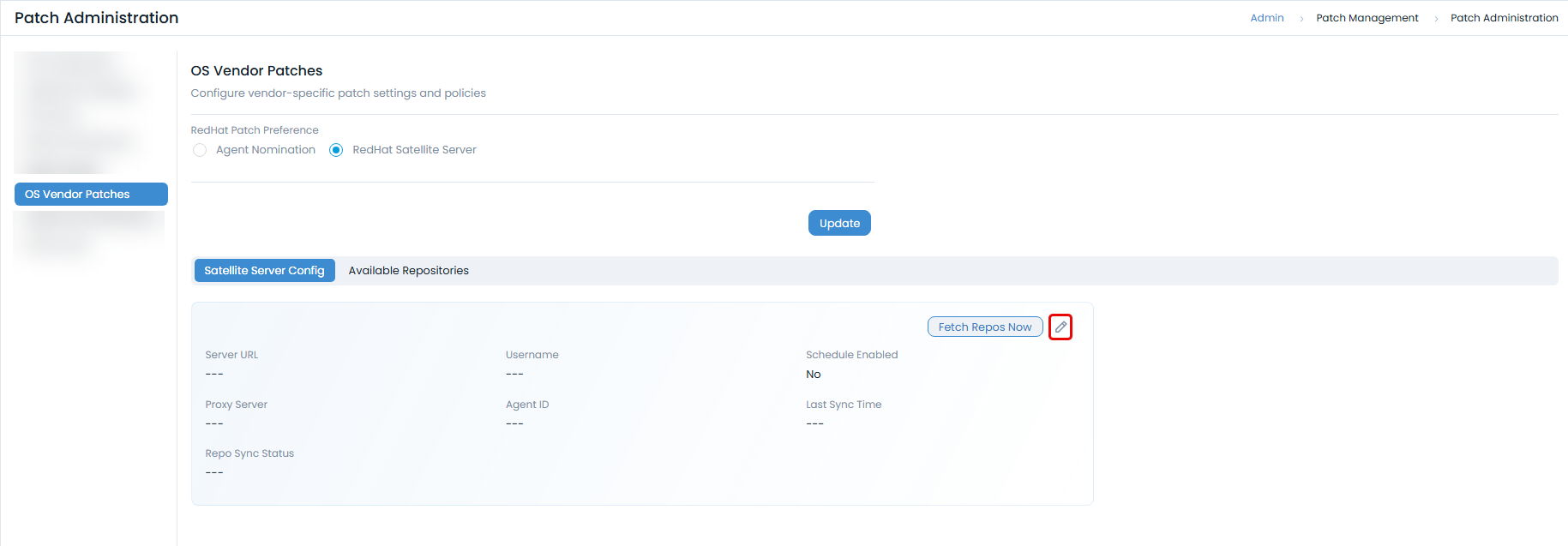
To view the OS Vendor Patches page, navigate to Admin > Patch Management > Patch Administration > OS Vendor Patches.
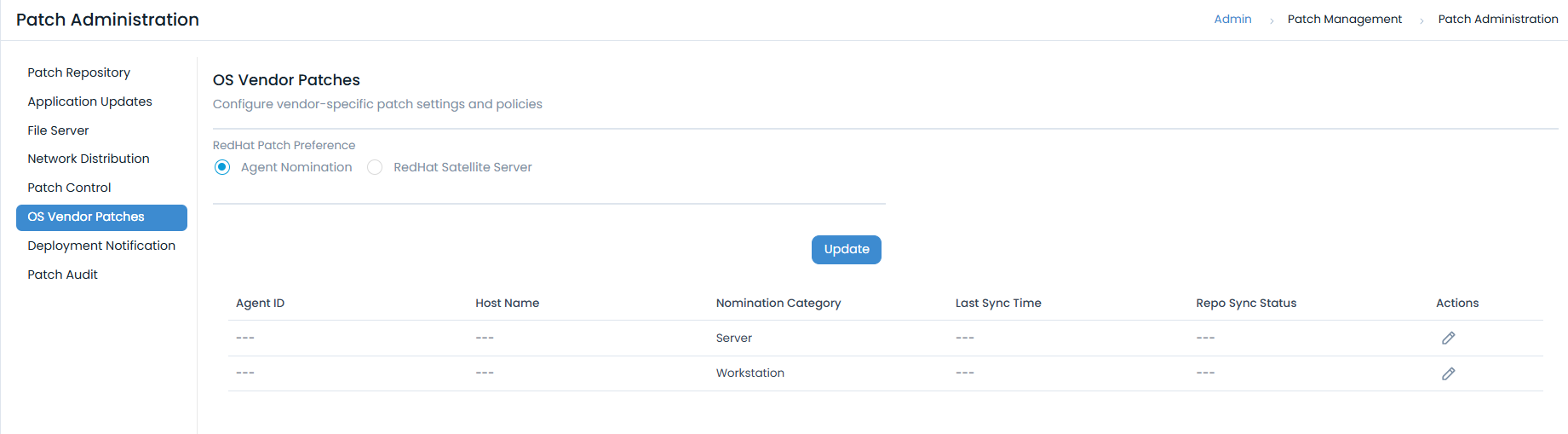
Here, you can select your preferred method for patch fetching and configure it accordingly.
RedHat Patch Preference
Choose the preference that best suits your organizational needs for fetching RedHat patches:
- Agent Nomination: Select this option to nominate specific agents that will be used for managing RedHat patches.
- RedHat Satellite Server: Select this option to integrate with a RedHat Satellite Server for patch management.
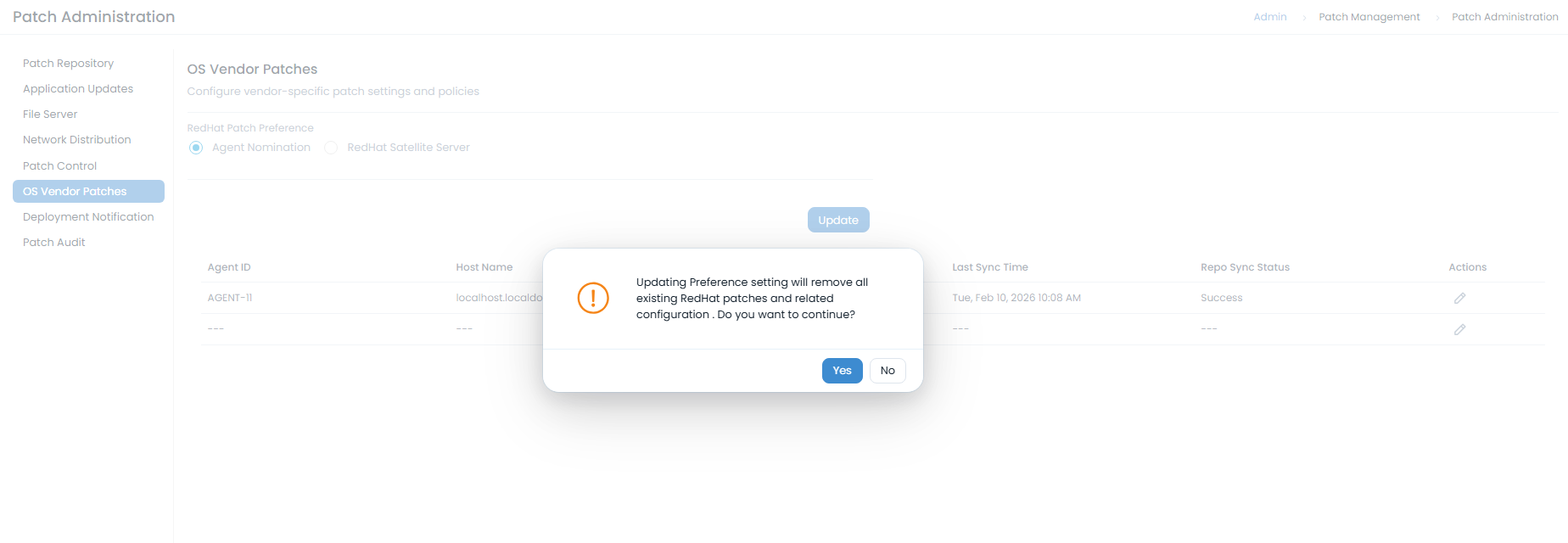
After selecting your preference, remember to update it.
Updating the preference will remove all existing RedHat patches and agent nomination details from the Patch list.
Agent Nomination
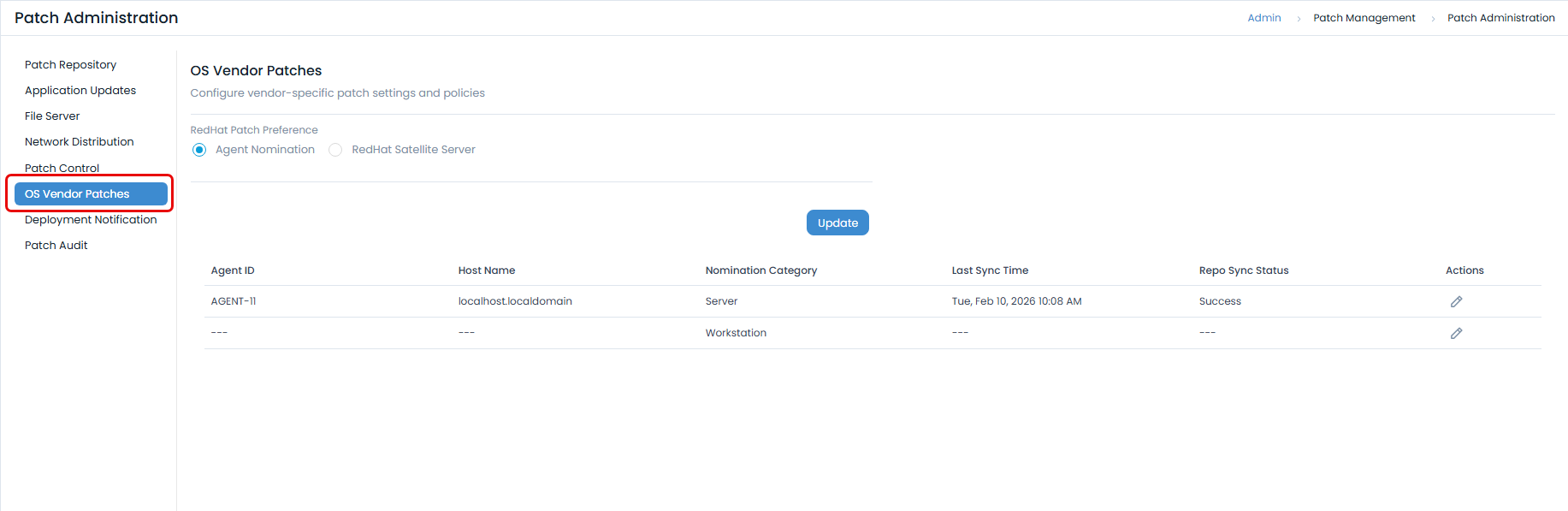
This method allows you to nominate specific agents (Workstation and Server) to handle RedHat patch management.
Prerequisites:
- Designated RHEL Host: A specific Red Hat Enterprise Linux machine has been identified to act as the Nomination Machine. Using a host that is also performing other production workloads is discouraged.
- Supported OS Version: The Agent Nomination machine is required to run on RHEL 7 or RHEL 8.
- ServiceOps Agent Installed: The ServiceOps Agent is installed on this machine and the host is visible in the ServiceOps Endpoints Scope.
- Registered to Satellite: The Nomination Machine is registered with the Satellite Server, attached to the correct organization, and assigned to a content view / lifecycle environment that exposes the in-scope repositories.
- Full Repository Access: The Nomination Machine has access to every repository enabled on the Satellite Server. This is examined in detail in Section 4 because of its impact on the integration.
- Capacity & Connectivity: Adequate disk space (sized to hold the full set of synced repositories with headroom for growth), CPU, memory, and stable network connectivity to Satellite have been provisioned. Repository sync is I/O- and bandwidth-intensive on first run.
- The Nomination Machine must have access to every single repository that is enabled on the Satellite Server.
- If even one enabled repository is inaccessible to the Nomination Machine, the repository synchronization step in ServiceOps will fail, and the entire RHEL patch flow (for every repository, not just the missing one) will not function. Partial coverage is not supported.
- Recommended approach, before configuration begins, either confirm that the Nomination Machine has access to every enabled repository, or disable the repositories on Satellite that are genuinely not required so that the enabled set matches the accessible set exactly.
Only agents with an active subscription and an internet connection can be nominated. To nominate an agent:
- Click the Edit icon next to the desired agent. The following popup appears:
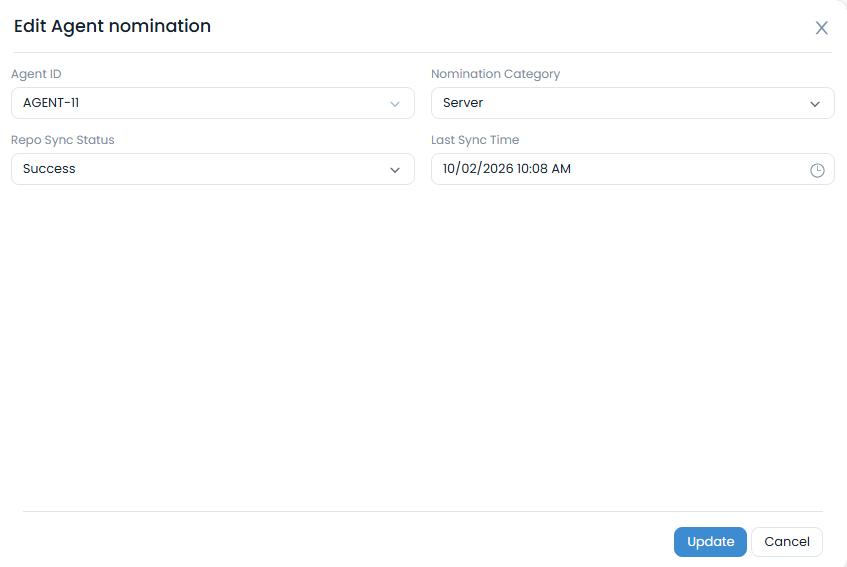
- Provide the following details in the popup:
- Agent ID: Select the Agent ID to be nominated. Only agents listed in the End Points Scope page are available for selection.
- Nomination Category: This displays the category for which the agent is nominated (either Workstation or Server).
- Repo Sync Status: Shows the status of the repository synchronization (success or failed).
- Last Sync Time: Displays the date and time of the nominated agent's last synchronization with the RedHat repository.
- Click Update to save your changes. If no agents are nominated, the record will remain blank.
RedHat Satellite Server Integration
The RedHat Satellite Server is a powerful tool for managing, updating, and securing Red Hat Enterprise Linux (RHEL) systems. It streamlines tasks like software updates, system provisioning, and compliance. Here are the steps to configure RedHat Satellite Server integration with ServiceOps.
Prerequisites
Before configuring the satellite server, ensure the following:
- Operational Satellite Deployment: A supported, production-grade Red Hat Satellite Server is already deployed, licensed, and operational.
- Repositories Enabled: All RHEL repositories required for the environment (base OS, AppStream, supplementary, EUS/E4S where applicable, and any third-party repositories in use) are enabled on the Satellite Server.
- Repositories Fully Synced: Every enabled repository has completed an initial full sync against Red Hat, and a recurring sync schedule is configured so that newly published errata and packages flow into Satellite on an ongoing basis.
- Valid Satellite Organization & Manifest: A Satellite organization exists with a valid, current Red Hat subscription manifest. The manifest must not be expired and must cover the subscriptions required for the in-scope repositories.
- Admin User Account: An admin user account on the Satellite Server is available for the ServiceOps integration, with permissions to read organizations, products, and repositories.
Configuration Steps
To configure the satellite server:
Edit the configuration and provide the following details:
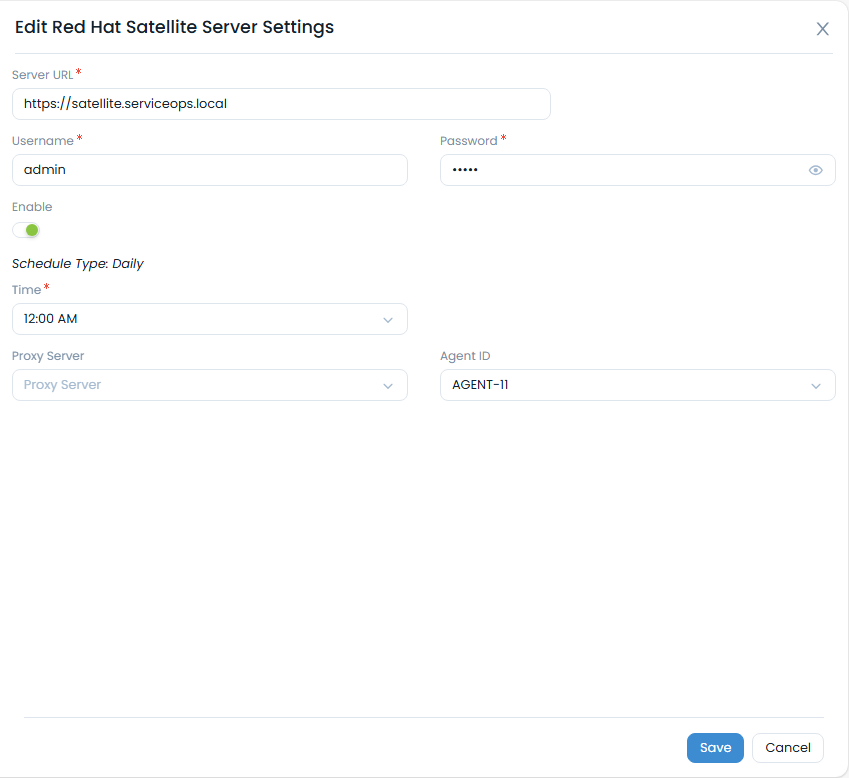
Server URL: Enter the client satellite server URL or IP address (e.g.,
https://satellite.serviceops.local).Username and Password: Enter the username and password for the satellite server.
Enable Schedule: Enable this option and specify the desired time to fetch patches daily.
Proxy Server: Select the appropriate proxy server if applicable.
Certificate: Upload the certificate obtained from the satellite server. Follow these steps to get the certificate:
Log in to the RedHat Satellite Server website.
Navigate to Administer > Organizations.
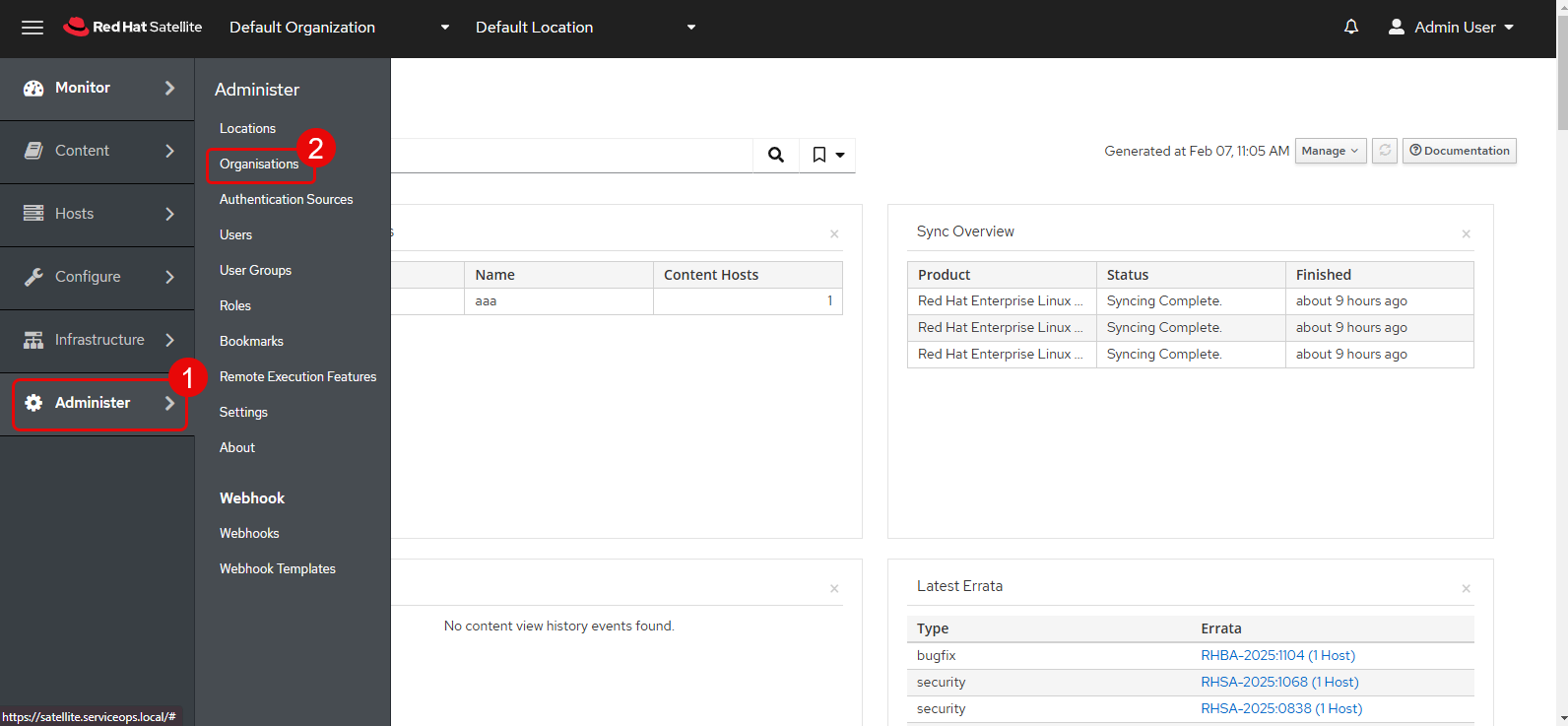
Edit the Default Organization.
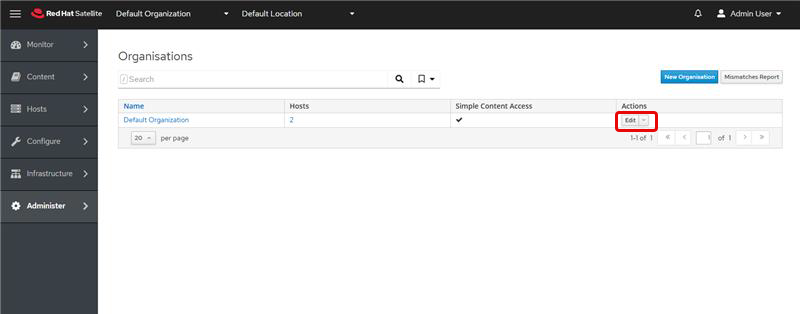
The following page appears:
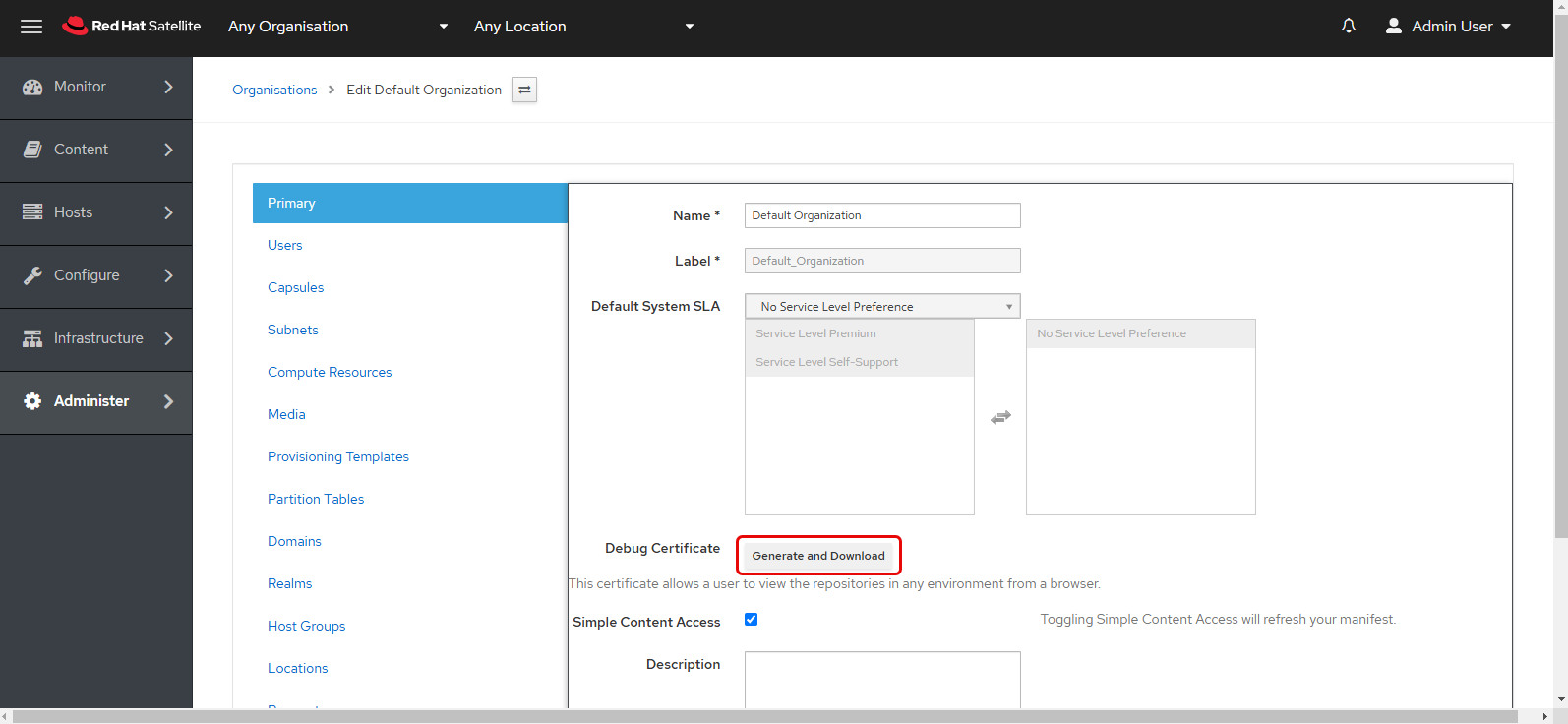
Click the Generate and Download button to download the certificate. This file will be in
.pemformat.Upload the downloaded
.pemcertificate file to the ServiceOps portal.
Once all details are provided, click Save. The added server configurations will appear as shown below:
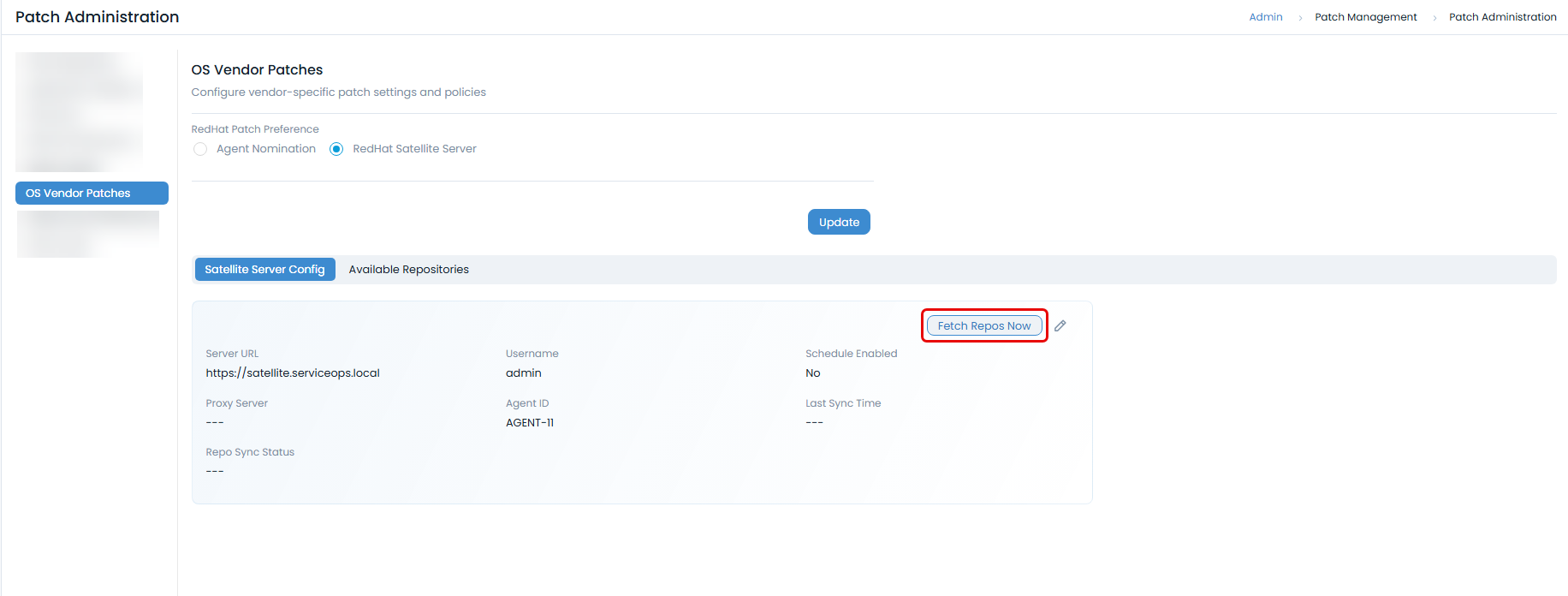
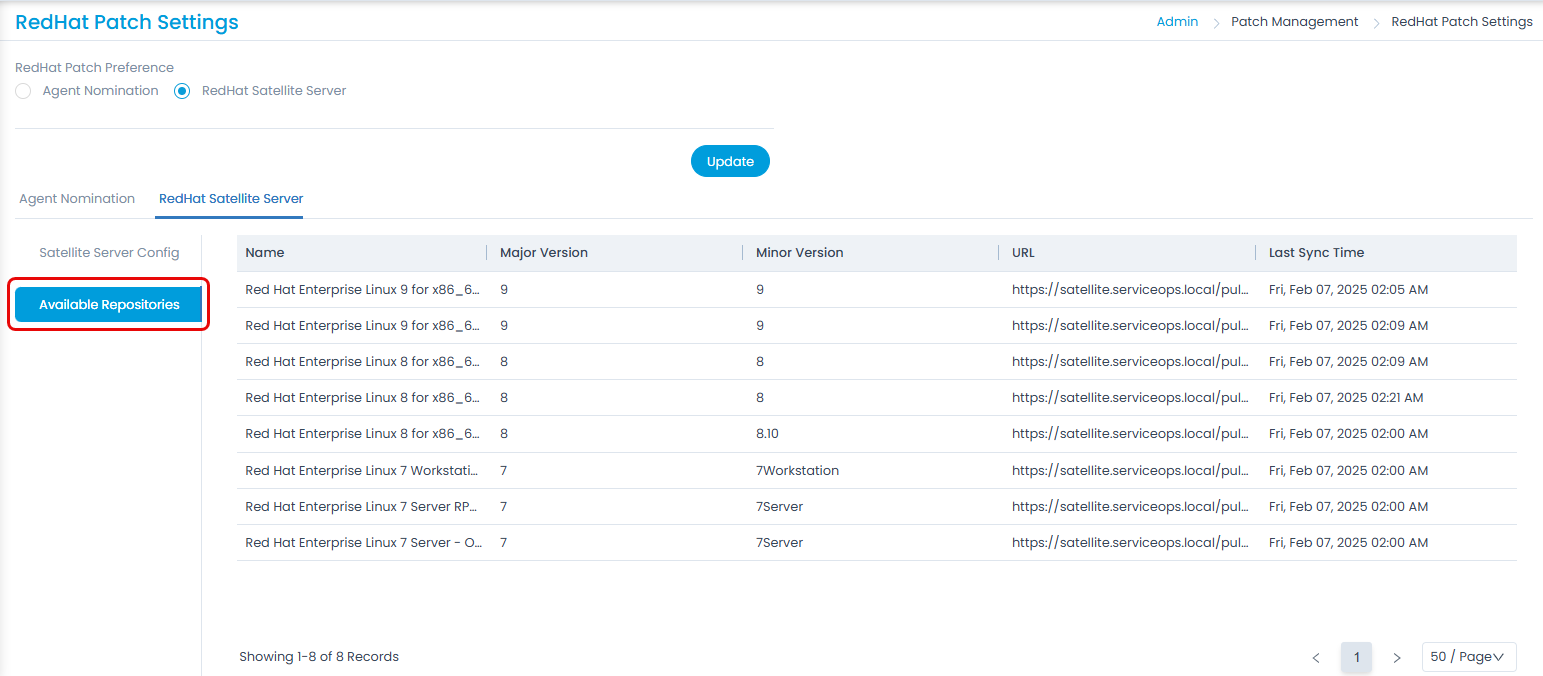
Click the Fetch Repos Now button to view the repositories. These will appear in the Available Repositories tab as shown below: