Introduction to AI in ServiceOps
From reactive to intelligent: ServiceOps AI transforms how IT teams work, respond, and deliver.
IT teams today face a relentless cycle: requests pile up, resolution times stretch, knowledge is scattered across systems, and technicians spend more time sorting and routing requests than actually solving problems. As service volumes grow, traditional approaches to IT service management struggle to keep pace.
Motadata ServiceOps AI is built to break this cycle. It embeds intelligence directly into service desk workflows, connecting technicians to the right information instantly, and enabling consistent, high-quality service delivery without adding headcount.
AI Capabilities at a Glance
| Capability | What It Does |
|---|---|
| Ask AI | Lets users ask questions in natural language and get instant, context-aware answers from across ServiceOps |
| Text Intelligence | Assists with similarity detection, sentiment analysis, tone enhancement, summarization, and response generation |
| Smart Suggestions | Recommends categories, technician groups, and resolutions during request creation and updates |
The Transformation: Before and After
| ITSM Before AI Capabilities | ITSM After AI Capabilities |
|---|---|
| Users wait for technician responses to common queries | Ask AI delivers instant answers without raising a request |
| Technicians switch between multiple systems to find answers mid-request | Ask AI presents instant, context-aware answers for technicians without leaving the Request |
| Requests are categorized manually, prone to errors | Requests are auto-categorized intelligently on submission |
| Technicians search the knowledge base manually for every issue | AI presents relevant solutions and past resolutions instantly |
| Duplicate requests inflate the backlog undetected | AI Similarity detection flags duplicates before they are created |
| Response quality varies across technicians and shifts | AI-refined, consistently professional responses every time |
| New technicians take months to become productive | Solution Assistant guides new staff from day one |
Who Benefits?
| Role | Value Delivered |
|---|---|
| IT Administrators | Full control over AI adoption with Governance dashboards, usage quotas, and cost monitoring |
| Technicians | AI-suggested categories, assignments, resolutions, response generation, identification of duplicates, toning and summarization of requests, at the point of work without leaving the request |
| Requesters | Instant answers via Ask AI, reducing wait times and unnecessary requests |
Business Use Cases
The following scenarios illustrate how ServiceOps AI delivers tangible value across real IT service operations:
Faster Incident Resolution: When a technician receives a critical incident, Smart Suggestions auto-categorizes it, recommends the right technician group, and presents similar past requests along with their resolutions, significantly reducing mean time to resolve (MTTR).
Reducing Request Backlog: AI Similarity detects duplicate requests submitted by different users for the same underlying issue, preventing backlog inflation and allowing technicians to focus on unique, high-value problems.
AI-Powered Self-Service: End users interacting with out-of-the-box AI Agents configured in AI Studio receive instant, accurate answers sourced from attached Knowledge Collections, reducing request volume without any human intervention.
Consistent, Professional Communication: Tone enhancer ensures every technician response is professionally worded, properly toned, and contextually accurate, particularly useful for large or distributed support teams where communication quality may vary.
Knowledge Gap Identification: When AI cannot find a matching resolution, it signals a gap in the knowledge base, prompting teams to create new articles and continuously improve the self-service ecosystem over time.
Where AI Appears in ServiceOps
AI is not a standalone section — it is embedded across the product wherever it adds the most value:
| Where | AI Feature Active |
|---|---|
| Request / Request Form | Smart Suggestions for category, group, and resolution |
| Request Editor | Text Intelligence: tone enhancer, summarizer, response generator |
| Request List / Details Page | AI Similarity detection for duplicate identification |
| Knowledge Base | Solution Assistant and Knowledge Collections |
| Global Search | Ask AI for natural language queries across ServiceOps |
| Admin Panel | Governance dashboards for usage monitoring and control |
Getting Started with ServiceOps AI
Rather than jumping straight into configuration, the recommended approach is to first understand what is available, evaluate how each feature fits your team's needs, and then move to setup when you are ready.
Step 1: Explore What's Available
Start by reading through the AI Capabilities at a Glance table above and visiting the individual capability pages linked there. Focus on understanding what each feature does before deciding what to enable.
Step 2: Identify What Fits Your Requirements
Map the capabilities to your team's actual pain points using the Business Use Cases section above as a guide. Not every feature needs to be enabled at once — start with what delivers the most immediate value.
Step 3: Review Governance Before You Begin
Before enabling any AI features, visit Governance to understand how AI usage is tracked, how quotas are enforced, and how anomalies are detected. This ensures a controlled and cost-aware rollout from day one.
Step 4: Configure and Enable
Once you have a clear picture of what you need, proceed in this order:
- Review Text Intelligence features: these are enabled by default and ready to use across your workflows.
- Activate Smart Suggestions for request creation and updates.
- Set up Knowledge Collections to establish the trusted data sources your AI will reference.
- Attach Knowledge Collections and enable PII detection in the out-of-the-box AI Agents and Teams available in AI Studio.
- Explore Ask AI and configure the knowledge sources it references for your users.
- Monitor adoption, usage, and costs through Governance (optional).
Accessing the AI Module
To access the AI Module, follow these steps:
- Log in to ServiceOps with your administrator credentials.
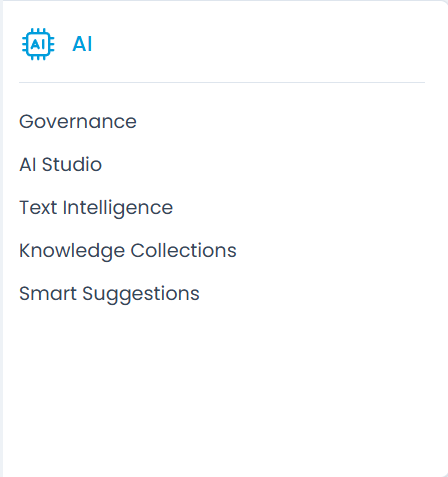
- Navigate to Admin > AI and the following options appear, as shown in the image below.