Ask AI
Ask questions, find answers, update tickets, and resolve issues, all through a single conversational AI assistant built directly into ServiceOps.
Ask AI is the core AI capability in Motadata ServiceOps. It gives technicians and users a conversational interface to interact with configured AI Agents and AI Teams in plain language. Rather than navigating through menus, searching records manually, or switching between modules, you can simply type what you need and Ask AI delivers an accurate, context-aware response drawn from your organization's Knowledge Collections and ServiceOps data.
Ask AI is not just a search tool, it can find requests, update records, identify duplicates, research resolutions, and coordinate multi-domain tasks, all through natural conversation.
Ask AI is available only when:
- The AI module is enabled by the administrator from General Settings.
- At least one AI Agent or AI Team is configured in AI Studio with Knowledge Collections attached.
- The logged-in user has been granted permission to access the AI assistant.
Contact your administrator if Ask AI is not visible in the top navigation bar.
What You Can Do with Ask AI
Ask AI goes beyond answering questions. Here are examples of what you can do through a conversation:
| What You Want to Do | Example Query |
|---|---|
| Find a ticket | "Show me all unresolved P1 tickets assigned to my team" |
| Check ticket status | "What is the current status of ticket #4521?" |
| Search knowledge articles | "Find knowledge articles about VPN connectivity issues" |
| Get a resolution suggestion | "How do I resolve a printer not recognized error on Windows 11?" |
| Identify duplicates | "Are there any other tickets similar to this one?" |
| Update a ticket | "Update the priority of ticket #3890 to High" |
| Summarize activity | "Summarize the last five interactions on ticket #2200" |
| Handle multi-domain requests | "Help me coordinate an onboarding request that involves IT, HR, and facilities" |
Accessing Ask AI
- Log in to ServiceOps with your credentials.
- Click Ask AI in the top navigation bar.
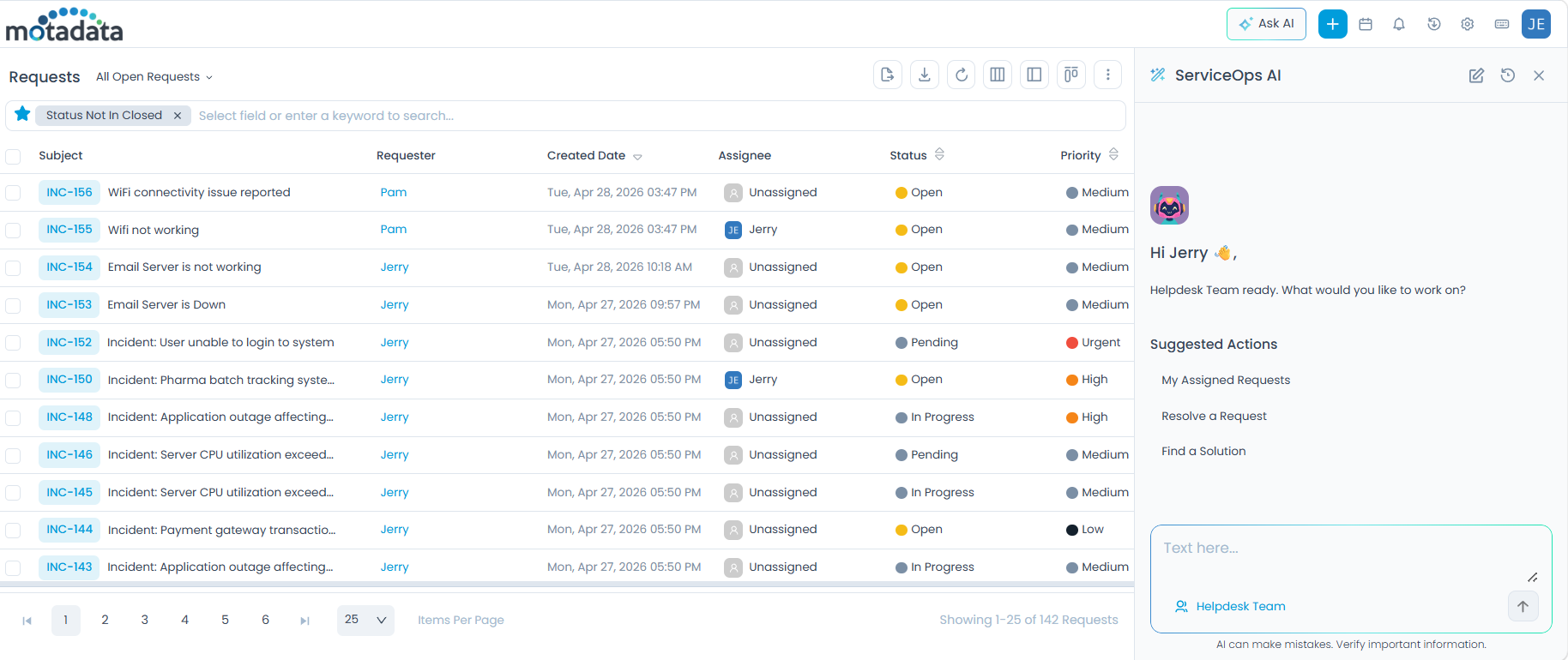
- The AI Assistant chat window opens on the right side of the screen.
How to Use Ask AI
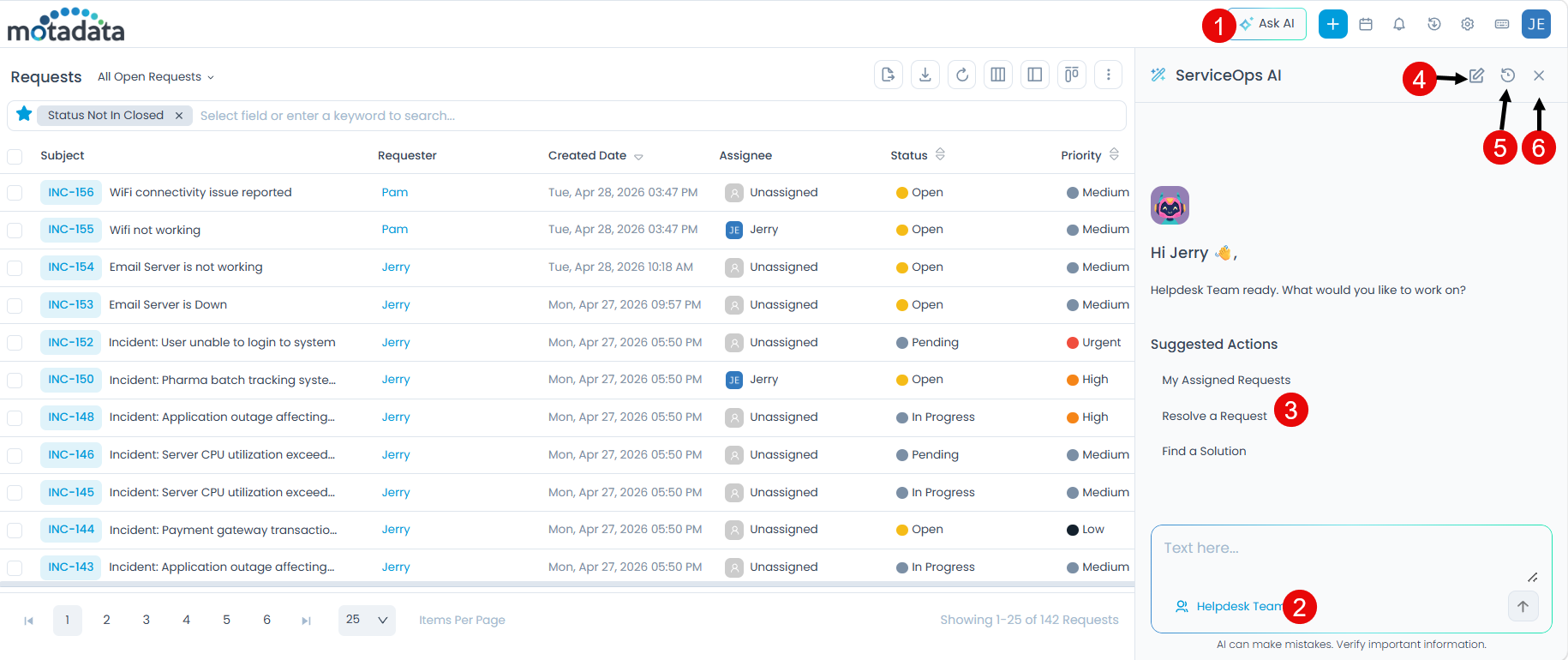
- Click Ask AI in the top navigation bar to open the chat window.
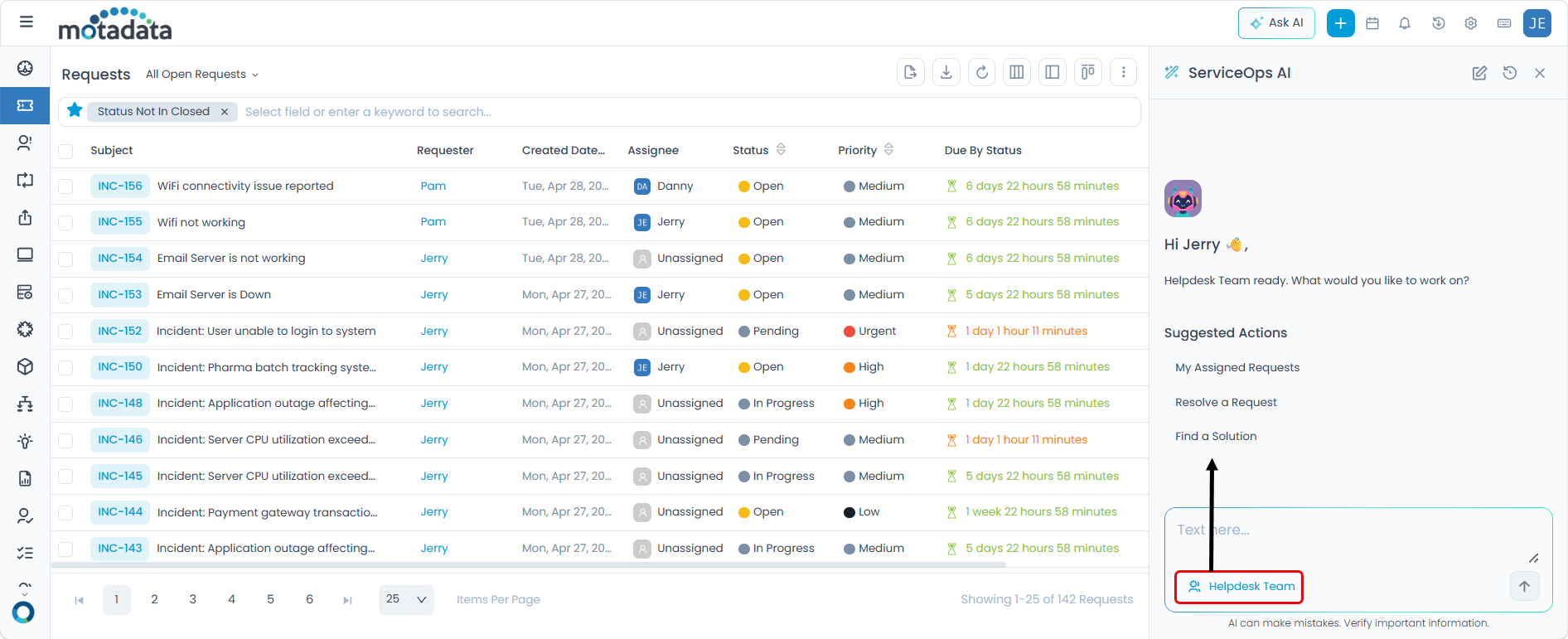
- Select an AI Agent or AI Team from the dropdown in the message input field.
- Choose a suggested action from the chat window to send it instantly, or type your own question in plain language. Review the response and take action directly from the chat window.
- To start a new conversation, click Start a New Support Chat at the top of the chat window.
- To revisit a past conversation, click View Chat History and select the session you need.
- To close the chat window, click Close at the top of the chat window.
Choosing Between an AI Agent and an AI Team
Before typing your query, select who you want to interact with from the dropdown in the input field. This determines how your question is handled and what knowledge is used to generate the response.
| Parameters | AI Agent | AI Team |
|---|---|---|
| Best for | Focused, single-domain tasks | Complex, multi-domain issues |
| Example | Finding a resolution for a password reset request | Handling an onboarding request that involves IT, HR, and facilities |
| Response style | Direct and task-specific | Coordinated, drawing from multiple knowledge areas |
For issues that span more than one department or require input from multiple knowledge sources, select an AI Team. For quick, focused tasks, a single AI Agent is the faster choice.
Suggested Actions
Once you select an AI Agent or AI Team, suggested actions appear in the chat window. Click any action to send it as a prompt instantly, without typing. The same actions are available regardless of whether you selected an Agent or a Team.
| Suggested Action | What It Does |
|---|---|
| My Assigned Requests | Lists all open requests currently assigned to you |
| Resolve a Request | Guides you through resolving an open request by drawing on the configured knowledge sources |
| Find a Solution | Searches knowledge sources to display relevant solutions and workarounds for your issue |
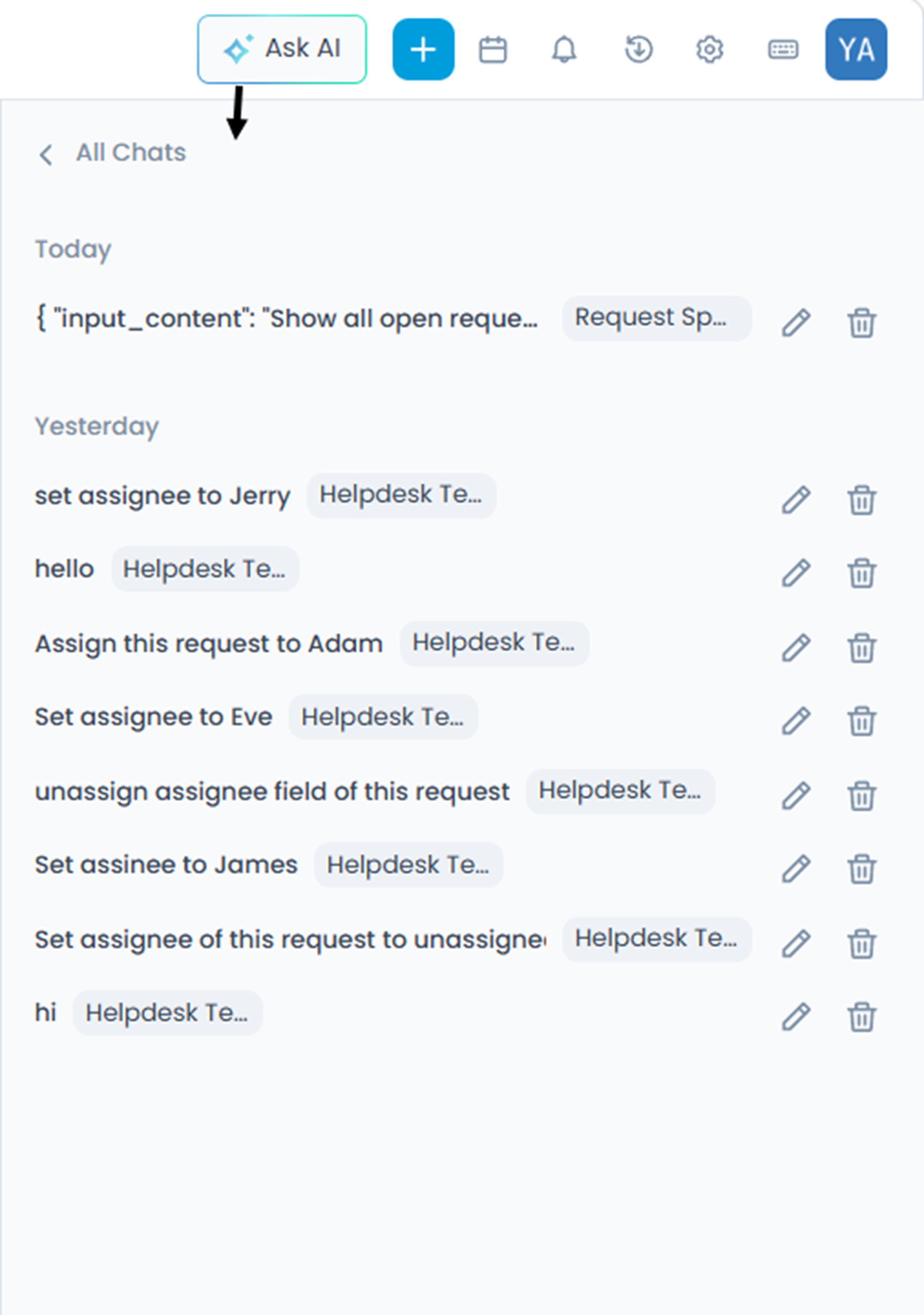
Chat History
Every conversation with Ask AI is saved automatically. You can return to a previous session at any time to review what was discussed, continue from where you left off, or refer back to a resolution that was suggested earlier.
To access chat history:
- Click View Chat History at the top of the chat window.
- A list of past sessions appears.
- Click any session to open it and review the conversation.
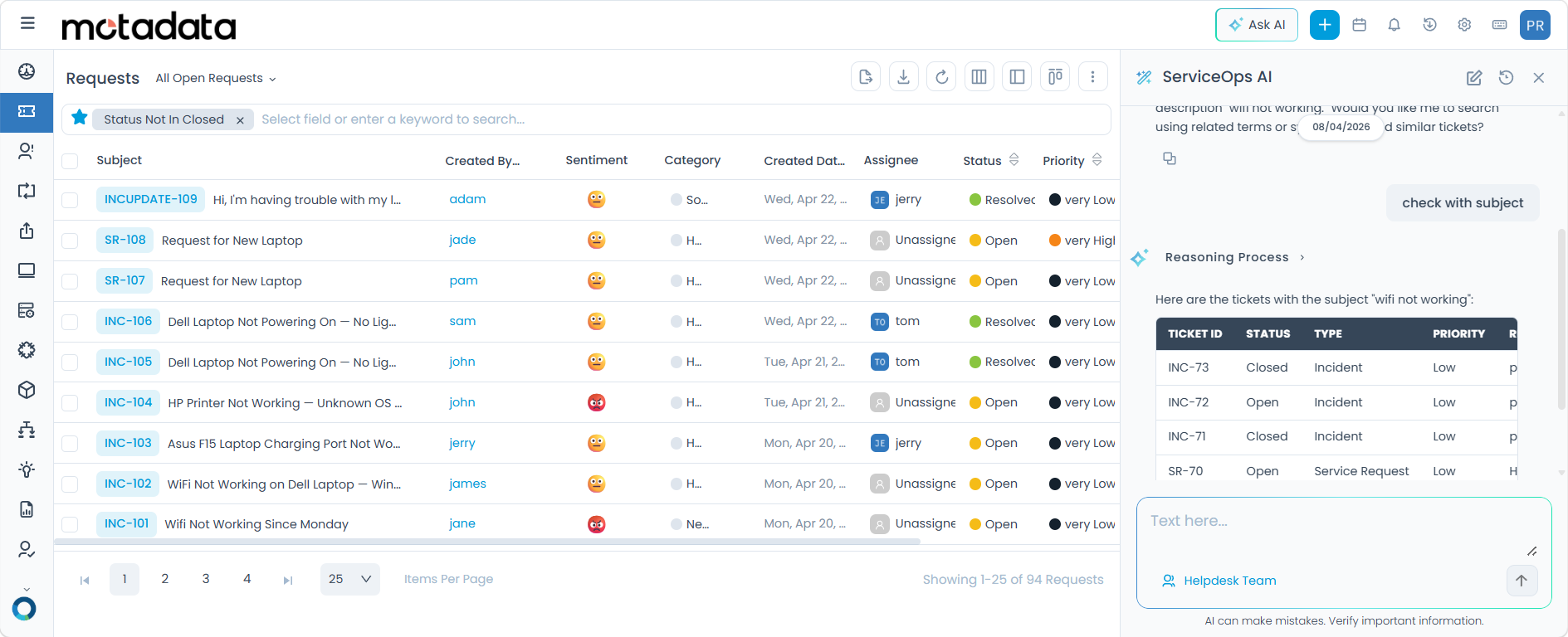
- To rename a session, click the edit option next to the session label.
- To remove a session, click the delete option next to it.
Tips for Better Results
Ask AI works best when your queries are clear and specific. The following tips will help you get accurate, useful responses:
- Mention ticket numbers when relevant: Instead of "check that ticket", say "check ticket #4521".
- Specify the time range: Instead of "recent tickets", say "tickets created in the last 7 days".
- Name the module or category: Saying "VPN-related service requests" is more effective than "network tickets".
- Use complete sentences: Ask AI understands natural language better than short keywords.
- For multi-step or cross-department tasks: Select an AI Team so responses draw from a broader set of knowledge sources.
- If a response is not what you expected: Rephrase your query with more context and try again, or switch to a different AI Agent or Team.