Vulnerability Settings
The Vulnerability Settings page in ServiceOps lets administrators configure and manage all aspects of the vulnerability management module. This includes updating the vulnerability database, setting up update schedules, configuring proxy servers, managing notification preferences, and reviewing vulnerability audit logs.
To access this page, navigate to Admin > Vulnerability Management > Vulnerability Settings and the following page appears.
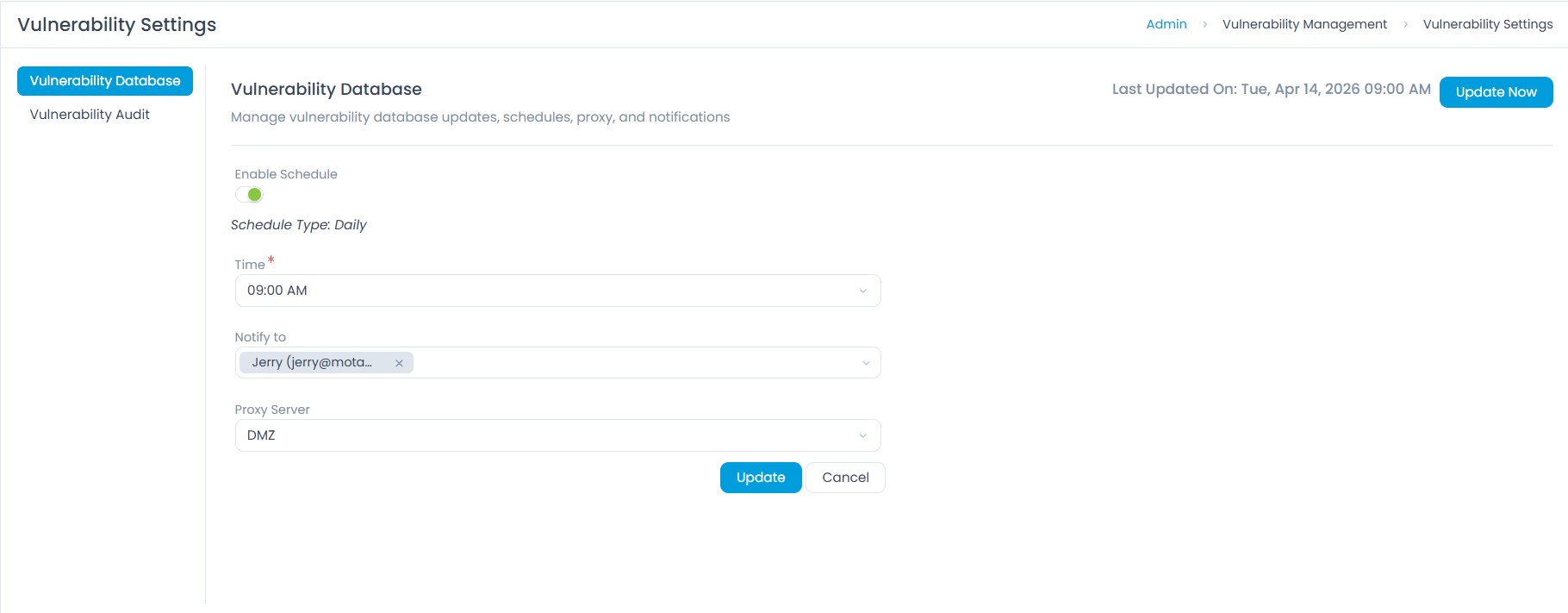
It displays the following subpages:
- Vulnerability Database
- Vulnerability Audit
Prerequisites
Before configuring Vulnerability Settings:
- ServiceOps v8.7.5 or later installed. The Vulnerability Management module does not work on earlier versions.
- Active Vulnerability license applied on your ServiceOps instance.
- Endpoint agent v8.7.5 deployed on target endpoints. The agent upgrade is required for the Vulnerabilities + Patch plan. The Vulnerabilities + Patch + Asset + CMDB plan does not require an agent upgrade to v8.7.5.
- Backend Vulnerability services running (On-Prem only). Confirm the Vulnerability services are up before proceeding with any configuration.
- Admin role in ServiceOps.
- If you plan to use a proxy server, add it to your network configuration before selecting it here.
- Confirm that your ServiceOps instance has outbound internet access to the Motadata central repository, or a configured proxy server if direct access is not available.
How Does Vulnerability Settings Work?
When you trigger an update, either manually or on schedule, ServiceOps connects to the Motadata central repository and downloads the latest vulnerability data. If you select a proxy server, ServiceOps routes all update traffic through that proxy. After each update, ServiceOps writes a log entry to the Vulnerability Audit page, recording the event time, user, change summary, and IP address. If you configure the Notify to field, ServiceOps sends an email to the selected technicians when the update completes.
Vulnerability Database
The Vulnerability Database section lets you manage database updates, schedules, and proxy settings. Keeping the vulnerability database current is critical for accurate vulnerability identification.
On SaaS, the Vulnerability repository is managed centrally by Motadata. Repo sync is not required and the Vulnerability Audit page is not shown. On On-Prem, you must sync the repository manually or on schedule before any endpoint scan returns data. Verify sync success in the Vulnerability Audit page before adding endpoints.
Manual Database Update
Click Update Now to manually update the vulnerability database from the central Motadata repository. ServiceOps logs a successful update in the Vulnerability Audit page.
Schedule Database Update
Enable the Enable Schedule toggle to configure automatic daily updates for the vulnerability database.
Fill in the fields below, then click Update to save your schedule. ServiceOps logs all scheduled updates in the Vulnerability Audit page.
Configuration Parameters
All fields in the Vulnerability Database configuration screen:
| Parameter | Description | Default | Required |
|---|---|---|---|
| Enable Schedule | Activates automatic daily database updates | Off | No |
| Schedule Type | Update frequency, fixed as Daily | Daily | Yes (when schedule is enabled) |
| Time | Time of day for the daily update | None | Yes (when schedule is enabled) |
| Notify to | Technicians who receive an email when the database updates (manual or scheduled) | None | No |
| Proxy Server | Proxy server ServiceOps uses to route all database update traffic. For On-Prem deployments, whitelist https://vulncatalog.serviceops.ai to allow repo sync. | None | No |
Vulnerability Audit
The Vulnerability Audit page provides a complete log of all vulnerability database update activities. It covers both manual and scheduled updates, with columns for event time, user, change summary, and IP address.
To access this page, navigate to Admin > Vulnerability Management > Vulnerability Audit and the following page appears.
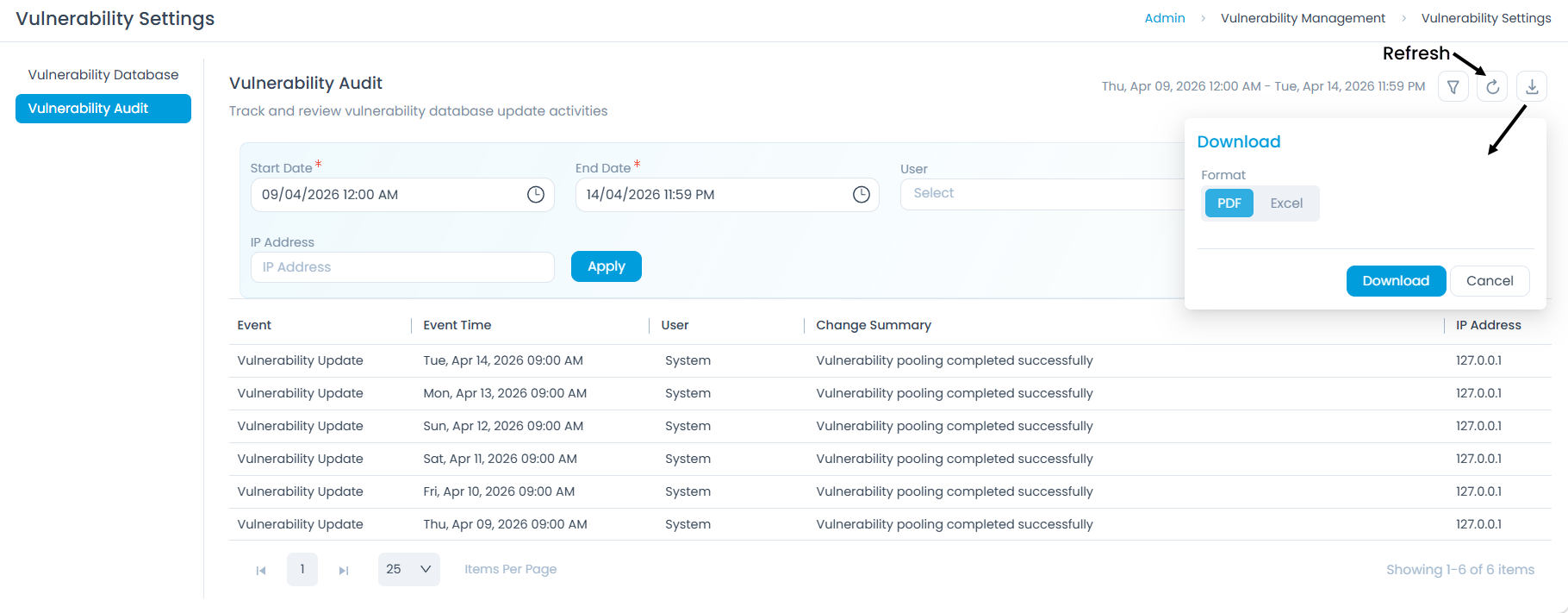
On the Vulnerability Audit page, you can:
- Filter audit logs by Start Date, End Date, User, Event, and IP Address.
- Click Refresh to load the latest log entries.
- Click Download to export the audit report in PDF or Excel format.
Example
Your organization requires the vulnerability database to refresh every night before business hours. You navigate to Admin > Vulnerability Management > Vulnerability Settings, enable the Enable Schedule toggle, set Time to 02:00 AM, and add the Security Admin group in the Notify to field. You select your corporate proxy in Proxy Server, then click Update. ServiceOps updates the database at 2:00 AM each night, routes traffic through the proxy, and emails the Security Admin group when each update completes.
Troubleshooting
Update Now does not complete successfully
Cause: ServiceOps cannot reach the Motadata central repository. A firewall or missing proxy configuration is blocking the connection.
Fix: Check that your network allows outbound traffic to the Motadata repository. If a proxy is required, select the correct server in the Proxy Server field and click Update to save.
Scheduled update runs but no notification email arrives
Cause: The Notify to field is empty, or the selected technicians don't have a valid email address configured in their profile.
Fix: Navigate to Admin > Vulnerability Management > Vulnerability Settings, confirm the correct technicians appear in the Notify to field, and verify each technician's email address in Admin > Users.
Proxy server selection does not save
Cause: The Update button was not clicked after selecting the proxy, or the page timed out before saving.
Fix: Select the proxy server again, then click Update immediately to save the configuration.
Endpoints added before the v8.7.5 upgrade show no vulnerability data
Cause: Endpoints enrolled under v8.7.4 do not trigger an automatic scan after the platform upgrade.
Fix: Open the Endpoint List page and click Initiate Scan for each existing endpoint. For customers holding separate Patch and Vulnerabilities licenses, also confirm the endpoint agent is upgraded to v8.7.5 before scanning.