Navigating the Portal
Master the Support Portal interface to efficiently access features, manage requests, and navigate between different sections with ease.
The Support Portal provides an intuitive interface designed to help you quickly find what you need and manage your IT support requests effectively. Understanding the portal layout and navigation elements will help you work more efficiently and take full advantage of all available features.
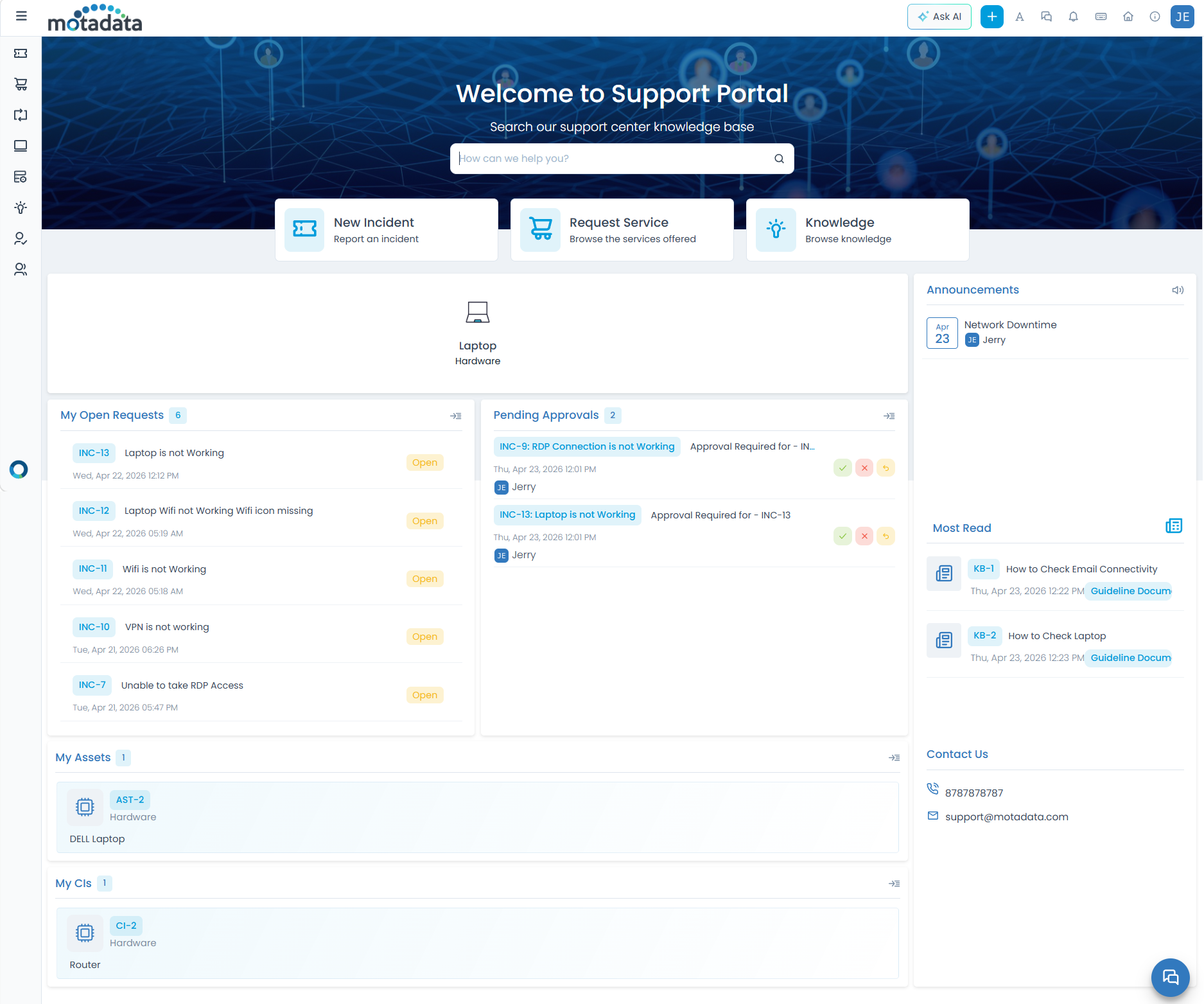
Portal Interface Overview
The Support Portal is organized into several key areas that provide quick access to different functions:
Header Navigation
The top header bar contains essential navigation and action elements:
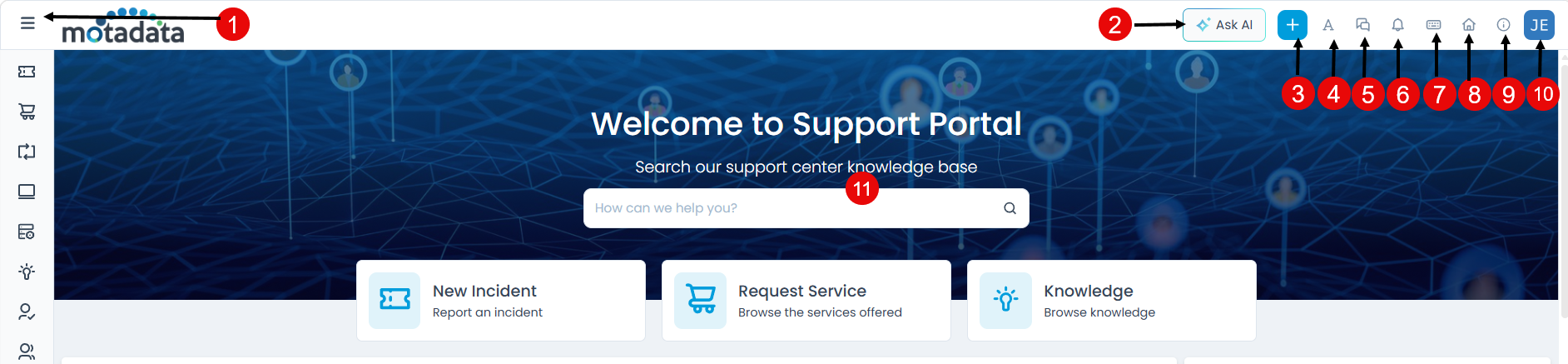
| Element | Description |
|---|---|
| Menu Toggle | Hide or view the main navigation menu |
| Ask AI | Access the AI assistant (visible only if the AI module is enabled and the user has the permission to access the AI assistant) For more details, refer to AI Assistant in the Technician User Guide. |
| + | Quick access to create new incidents or service requests |
| Font Size | Adjust text size for better accessibility (visible only if Application Accessibility is enabled) |
| Chat Console | View your chat history (visible only if enabled by administrator) |
| Notifications | View and configure notification preferences |
| Keyboard Shortcuts | View available keyboard shortcuts |
| Home Page | Return to the main dashboard |
| Help | Access help documentation (if configured) |
| Edit Profile | Access profile settings, sign out, or switch to technician portal |
| Search | Search for specific items across the portal |
The features visible in the header depend on your administrator's configuration and your user permissions. You may see variations in the available options based on your role and access level.
Ask AI (AI Assistant)
The Ask AI feature brings AI-powered assistance directly into the Support Portal. Instead of searching through the knowledge base or navigating menus manually, you can describe what you need in plain language and get immediate, intelligent guidance. Whether you need to raise a new request, check the status of an existing ticket, or find the right team to contact, the AI Assistant helps you get there faster.
Ask AI is available only if the AI module is enabled and you have permission to access the AI assistant. In the Support Portal, the AI Assistant is pre-configured to use the Support Team agent by default. Unlike the Technician Portal, you cannot select a different agent or team — the Support Team agent handles all end-user queries automatically.
What You Can Do with Ask AI
Ask AI goes beyond answering questions. Here are examples of tasks you can complete through a conversation:
| What You Want to Do | Example Query |
|---|---|
| Check request status | "What is the current status of my laptop request?" |
| Submit a new incident | "My monitor is not turning on" |
| Submit a service request | "I need access to the finance software" |
| Update an existing request | "Add a note to my open request about the VPN issue" |
| Troubleshoot a common issue | "My VPN keeps disconnecting — how do I fix it?" |
| Find a knowledge article | "Is there a guide for setting up multi-factor authentication?" |
| Get step-by-step resolution guidance | "How do I reset my email password?" |
| Find similar past issues | "Has anyone else reported this printer error before?" |
| Check approval status | "Has my software access request been approved yet?" |
| Ask about service catalog offerings | "What services are available for remote work setup?" |
| Review past request history | "Show me my last five support requests" |
Using Ask AI
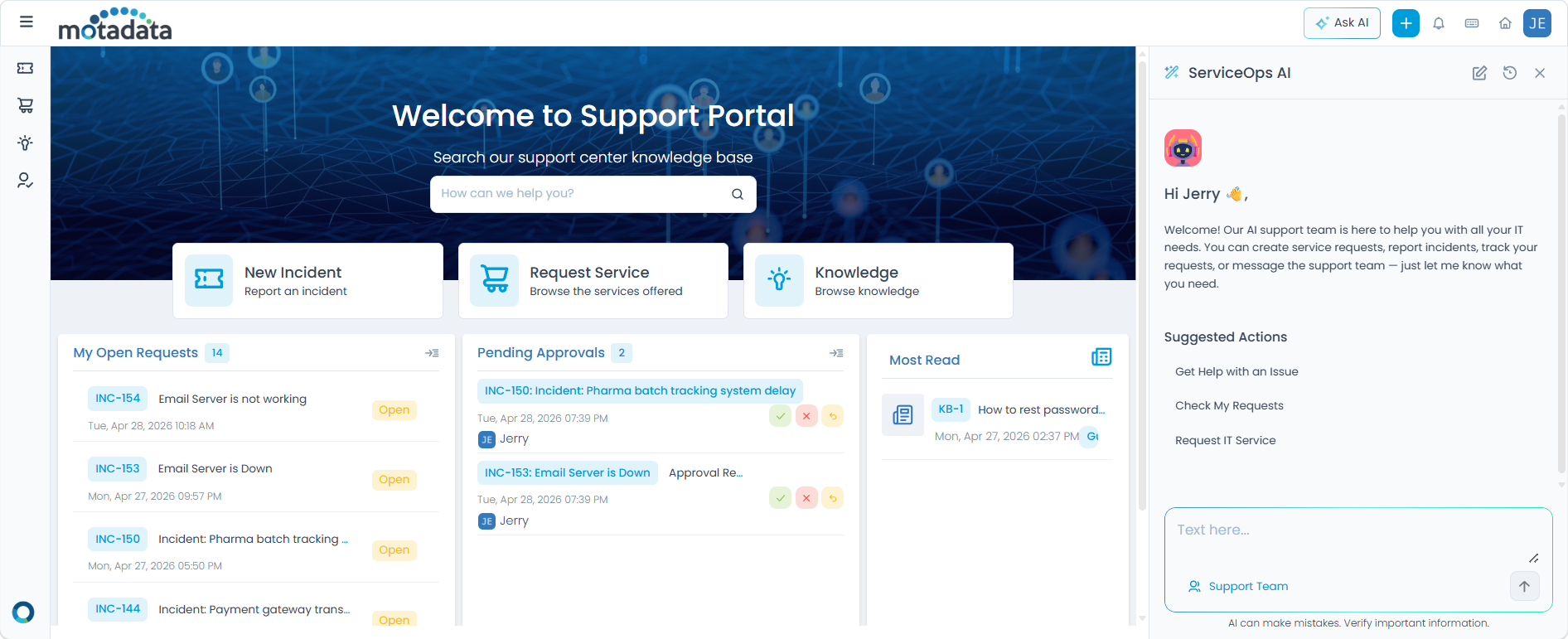
- Click Ask AI in the top header bar to open the chat window.
- Choose a suggested action or type your query in plain language.
- Review the AI response and follow the guidance provided.
- To start a new conversation, click Start a New Support Chat at the top of the chat window.
- To revisit a past conversation, click View Chat History and select the session you need.
- To close the chat window, click Close at the top right of the chat window.
Suggested Actions
When the chat window opens, suggested actions appear to help you get started quickly. Click any action to send it as a prompt instantly — no typing required.
| Suggested Action | What it does |
|---|---|
| Get Help with an Issue | Get guided help to raise a new incident or problem report |
| Check My Requests | Ask about the current status of your open or recent requests |
| Request IT Service | Browse or ask for help finding and submitting a service from the service catalog |
Type your query in your own words — the AI Assistant understands natural language. You do not need to use the suggested actions to get help.
Main Dashboard Layout
The Support Portal home page is organized into logical sections to help you quickly find what you need:
- Quick Actions
- Your Requests & Items
- Knowledge & Resources
- Assigned Resources
- Information & Communication
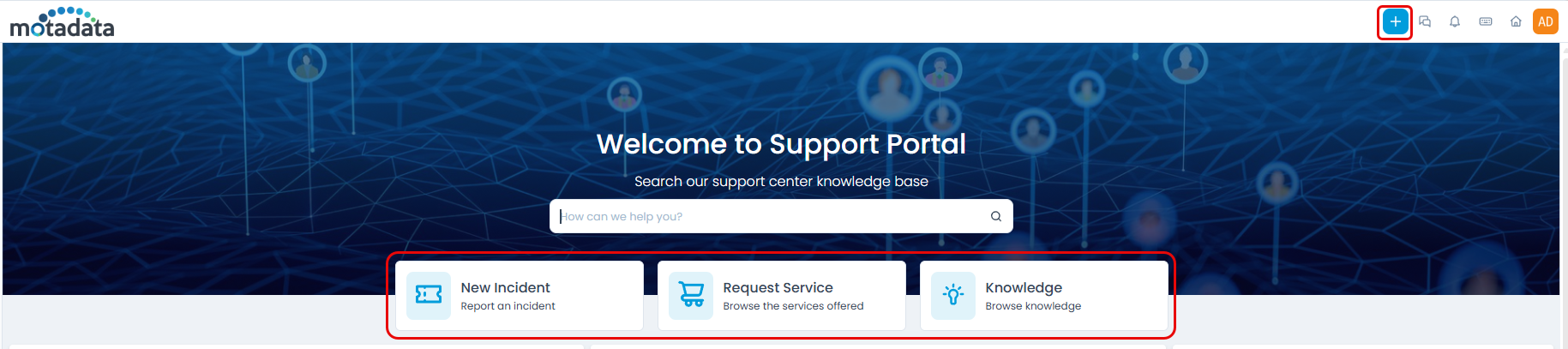
Located prominently on the dashboard, this section provides immediate access to common tasks:
- New Incident: Create incident requests for technical issues
- Request Service: Browse and request services from the catalog
- Knowledge: Browse the knowledge base to find the required answer for your query.
- +: Dropdown menu for additional creation options
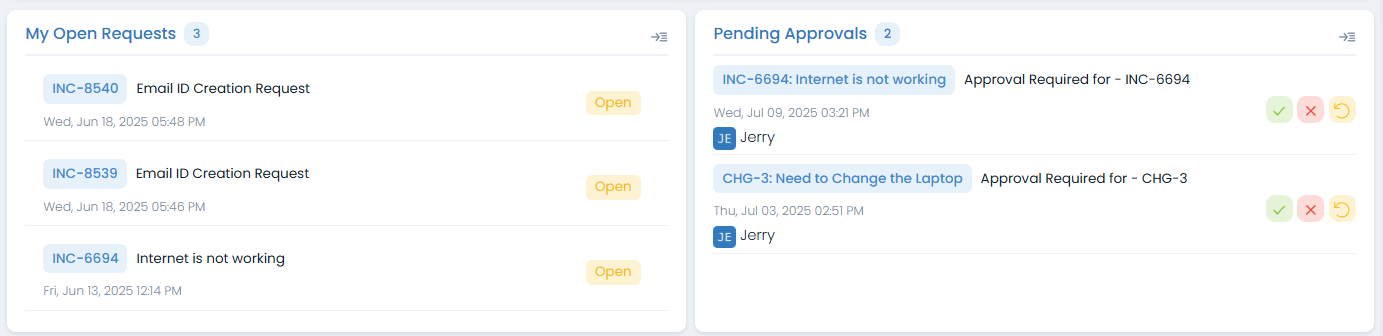
This section displays your current activities and pending actions:
- My Open Requests: View and manage your current tickets with status indicators
- Pending Approvals: Review and act on approval requests assigned to you
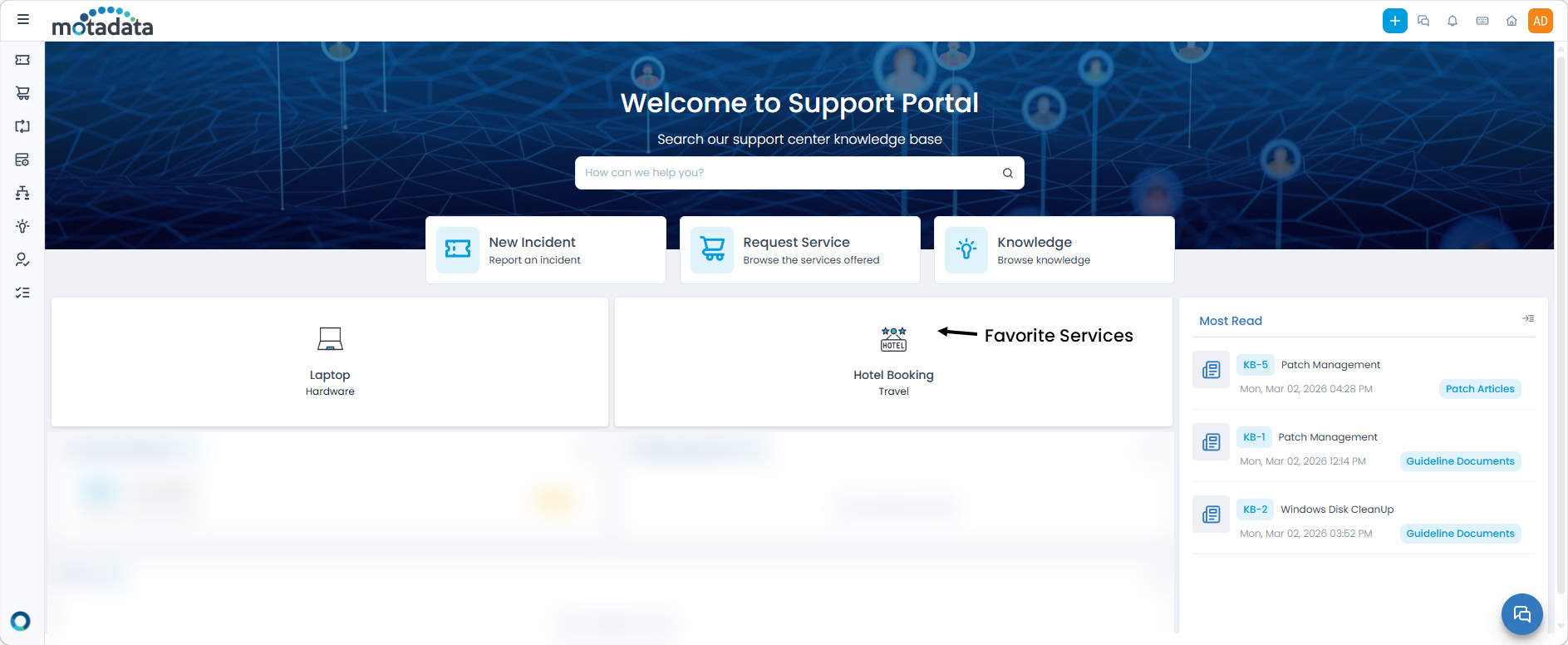
Access self-help resources and information:
- Knowledge: Access helpful articles, guides, and FAQs
- View Favorite Services: Quick access to your bookmarked services
- Most Read: Popular knowledge articles
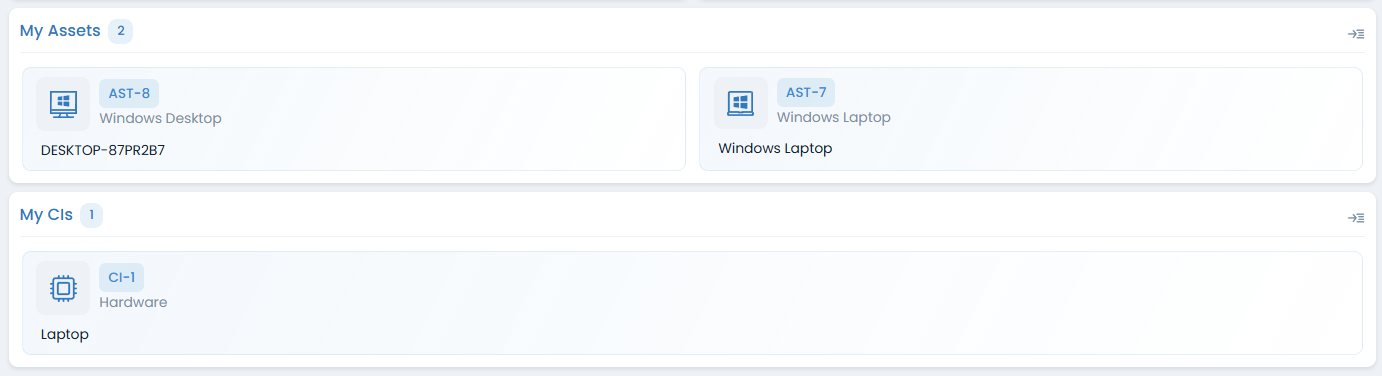
View items assigned to your account:
- My Assets: View assets assigned to you
- My CIs: View configuration items assigned to you
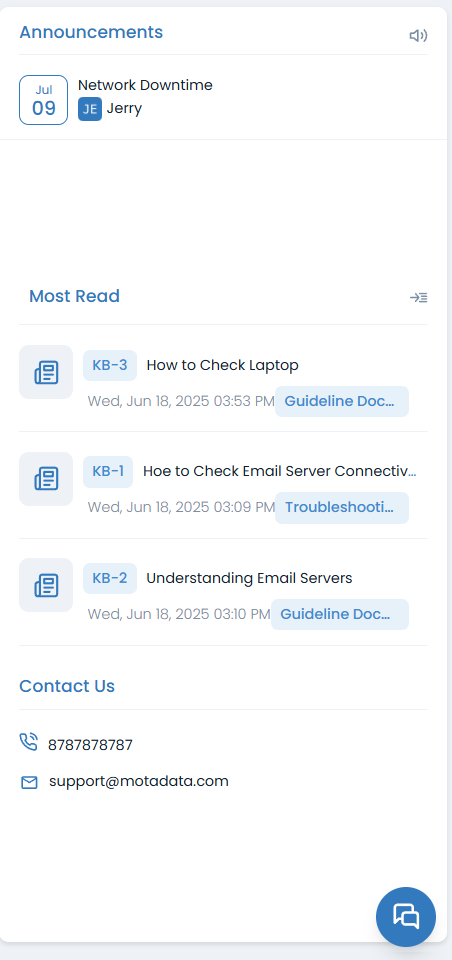
Stay informed and connected:
- Announcements: Important updates from your organization
- Contact Us: Support contact information
- Chat: Get live help from support agents
Menu Structure
The main navigation menu provides access to all portal features:
- Request Management
- Resource Management
- Knowledge & Support
- Approvals & Team
- Profile & Settings
- Requests: View and manage your incident and service requests
- Services: Browse the service catalog and create service requests
- My Assets: View hardware and software assets assigned to you
- My CIs: View configuration items assigned to you
- My Changes: Track changes that may affect your services
- My Projects: Access project information (if Project license for requester is applied)
- My Tasks: View assigned project tasks (if Project license for requester is applied)
- Knowledge: Browse help articles and documentation
- Chat: Get immediate assistance from support agents
- My Approvals: Review and act on approval requests
- My Team: View team information and manage delegations
- My Profile: Manage your account settings and preferences
Search Functionality
The portal includes powerful search capabilities to help you find information quickly:
Global Search
- Search Bar: Located in the header, allows you to search across all portal content
- Search Results: Displays relevant requests, knowledge articles, and other items
- Advanced Filters: Refine search results by type, date, status, and other criteria
Contextual Search
- Request Lists: Search within your requests using specific criteria
- Knowledge Base: Search articles by keywords, tags, or categories
- Asset Lists: Search your assigned assets by name, type, or location
- Use specific keywords for better results
- Combine multiple search terms to narrow results
- Use the filter options to refine your search
Notifications
The portal keeps you informed through a comprehensive notification system:
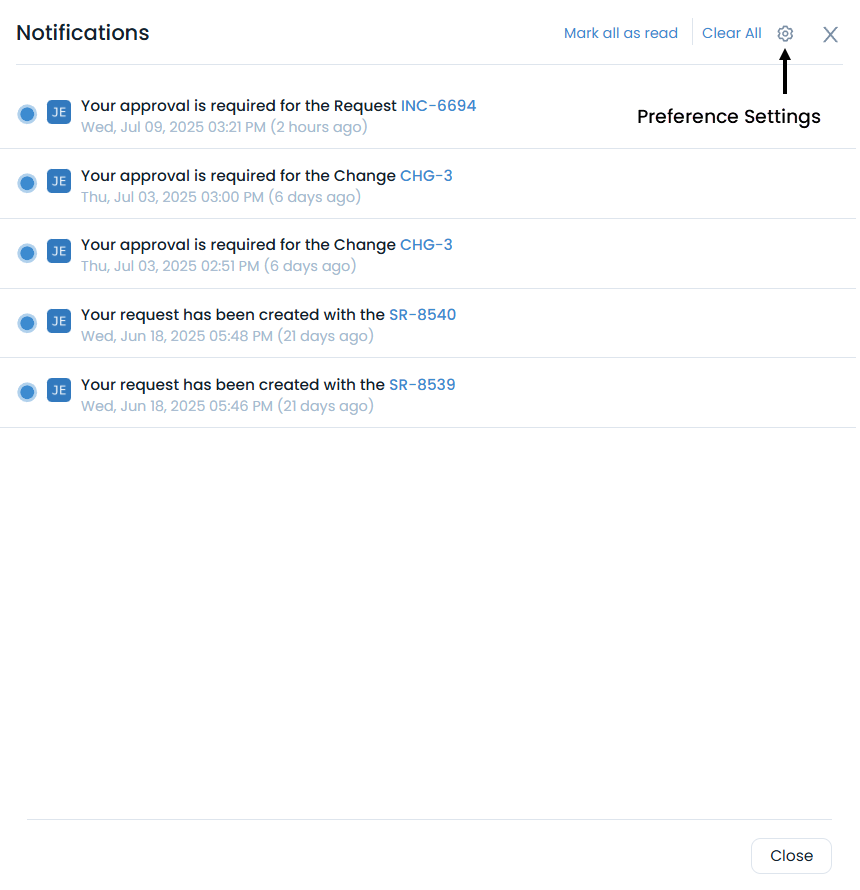
Managing Notifications
Step 1: Click the notification bell icon in the header.
Step 2: View notifications. If required you can mark as read or clear all notifications.
Step 3: Configure preferences for which notifications to receive.
Step 4: Set up email notifications for important events as shown below. You can also enable the option to show notifications on the screen. This will be helpful for users who are using the portal on a mobile device.
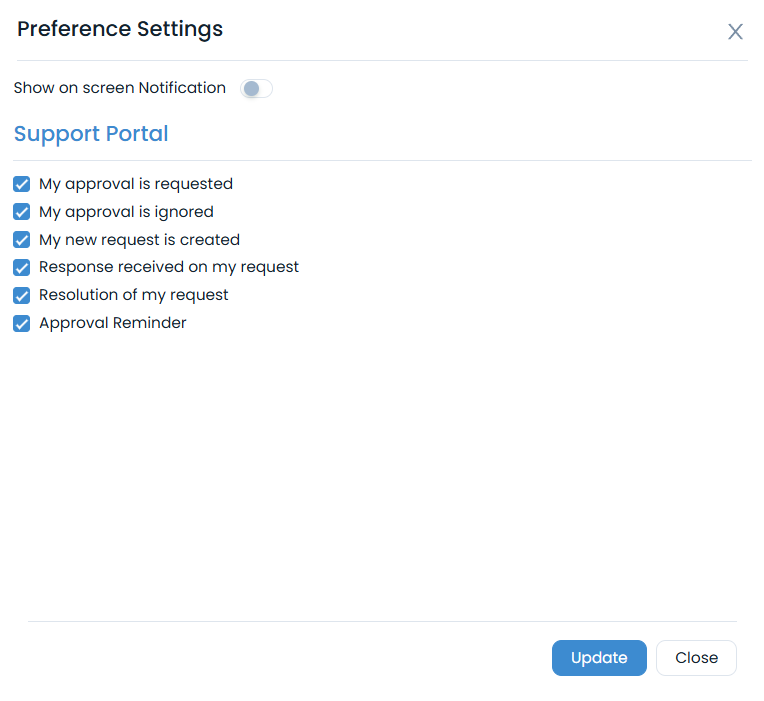
Notification Types
| Notification Type | Description |
|---|---|
| My approval is requested | When someone needs your approval |
| My approval is ignored | When an approval request is bypassed |
| My new request is created | Confirmation of your ticket creation |
| Response received on my request | Updates on your tickets |
| Resolution of my request | When your issue is resolved |
| Approval Reminder | Reminders for pending approvals |
Accessibility Features
The Support Portal includes several accessibility features to ensure all users can effectively use the platform:
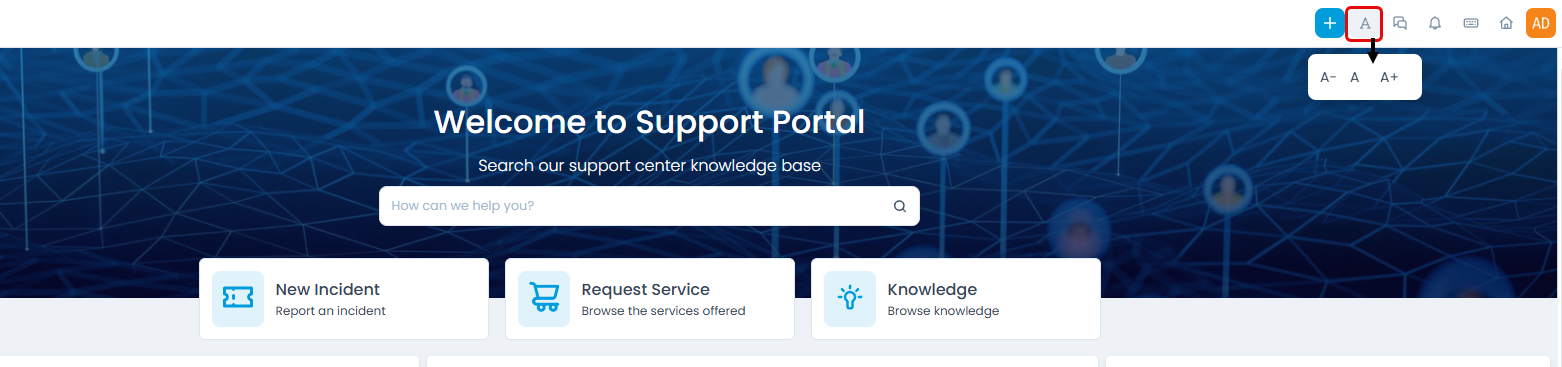
Font Size Adjustment
- Click the Font Size button in the header to increase, decrease, or reset text size
- This feature is only visible if Application Accessibility is enabled by your administrator.
Keyboard Shortcuts
The portal supports keyboard shortcuts for power users:
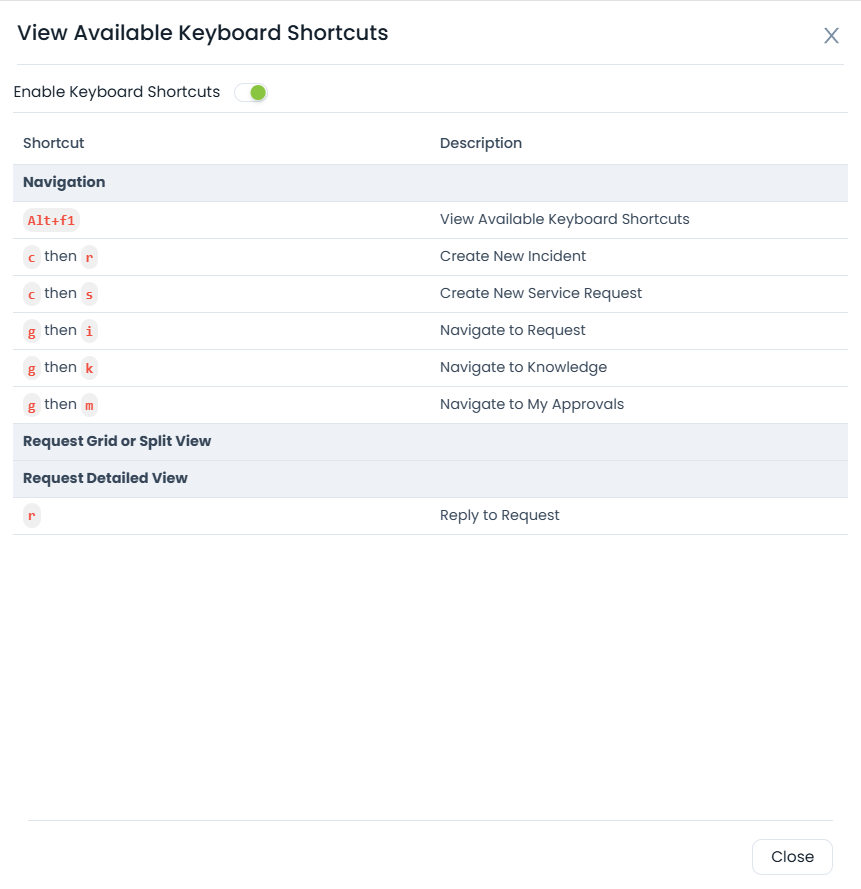
Navigation Shortcuts
| Shortcut | Action |
|---|---|
| Alt + H | Go to Home page |
| Alt + M | Toggle menu |
| Alt + N | Create new request |
| Alt + S | Open search |
| Alt + C | Open chat (if available) |
Request Management
| Shortcut | Action |
|---|---|
| Ctrl + F | Search within current page |
| Ctrl + R | Refresh current page |
| Escape | Close dialogs and popups |
Keyboard shortcuts may vary based on your browser and operating system. Use the Keyboard Shortcuts option in the header to view all available shortcuts.
Profile Customization
The portal allows you to personalize your experience. Access these settings by clicking your profile icon in the header and selecting My Profile. The profile editor has several tabs:
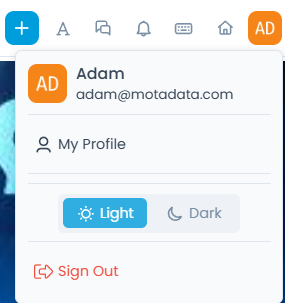
- Profile Tab
- Preferences Tab
- Change Password Tab
- Delegate Approval Tab
The Profile Tab provides a centralized place to manage and update your personal information, including your name, contact details, and locale settings.
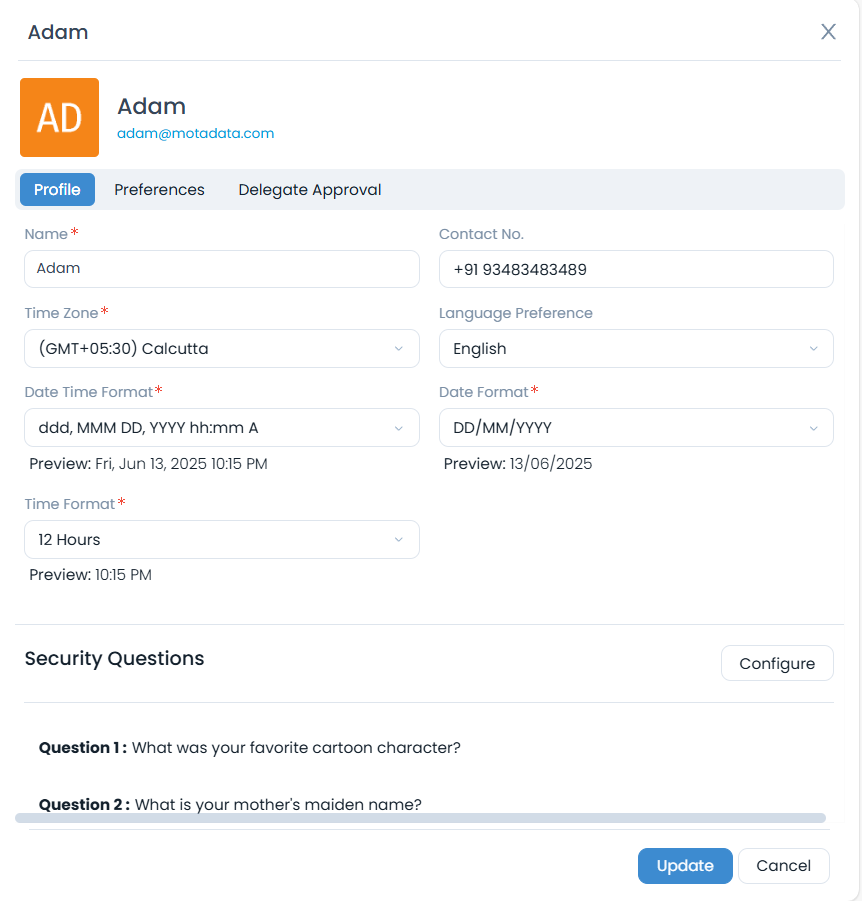
| Setting | Description |
|---|---|
| Name | Update your display name |
| Contact No | Change your contact number |
| Time Zone | Set your local time zone to ensure all timestamps are accurate for your location |
| Language Preference | Choose your preferred language for the portal interface |
| Date & Time Format | Customize the display format for dates and times |
| Signature | Create a signature for your email communications from the portal |
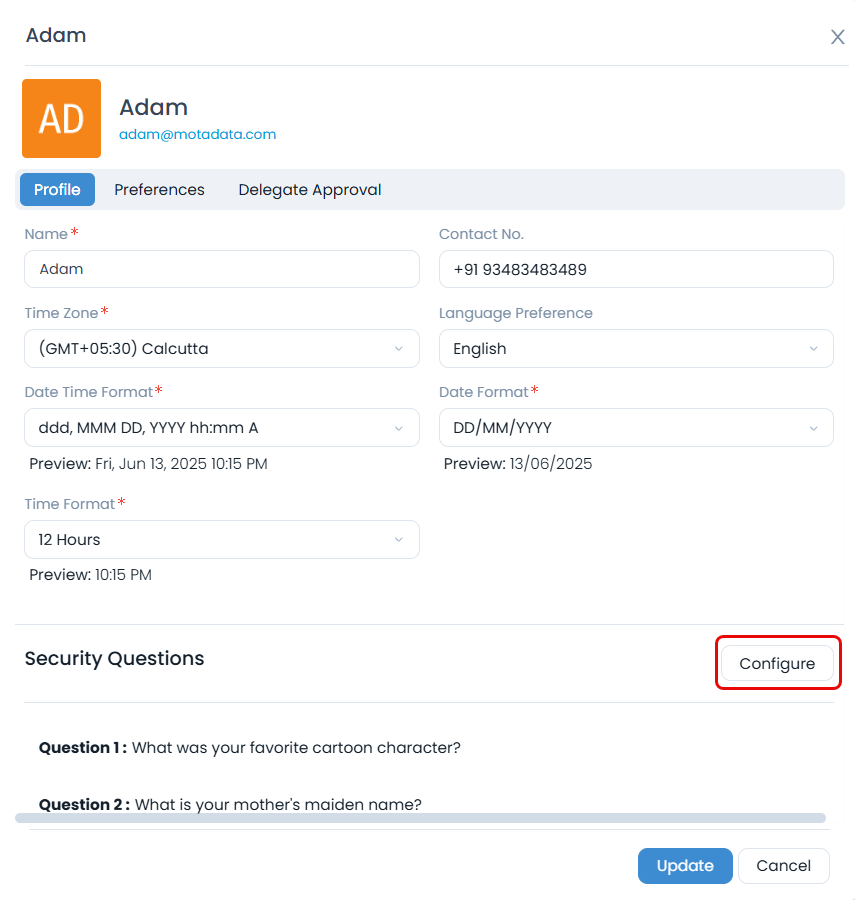
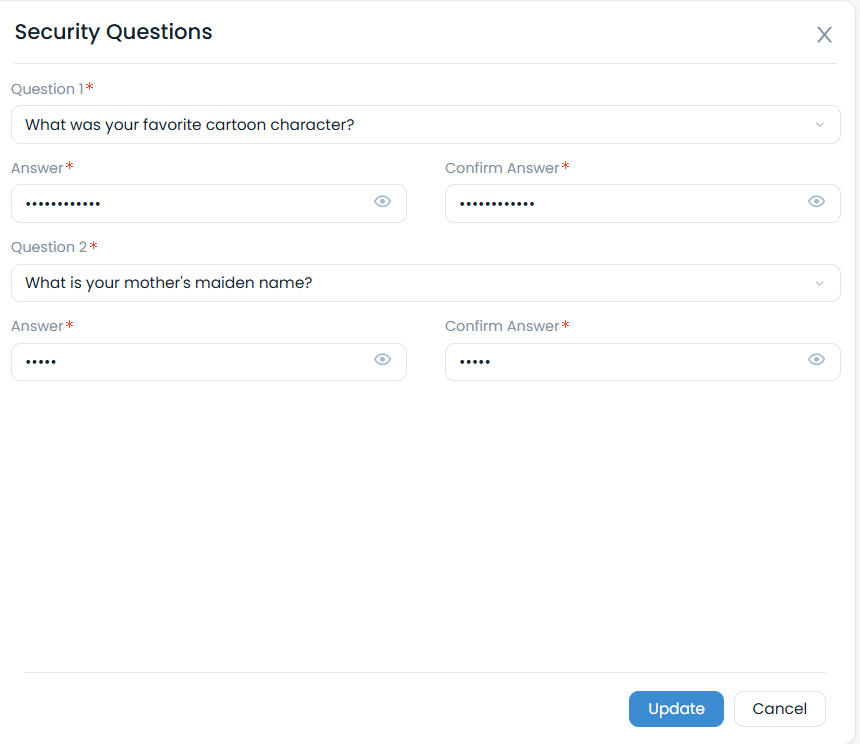
| Security Questions | If Active Directory Self-Service is enabled by your administrator, you can configure security questions here. These questions are used to verify your identity if you need to reset your password or unlock your account |
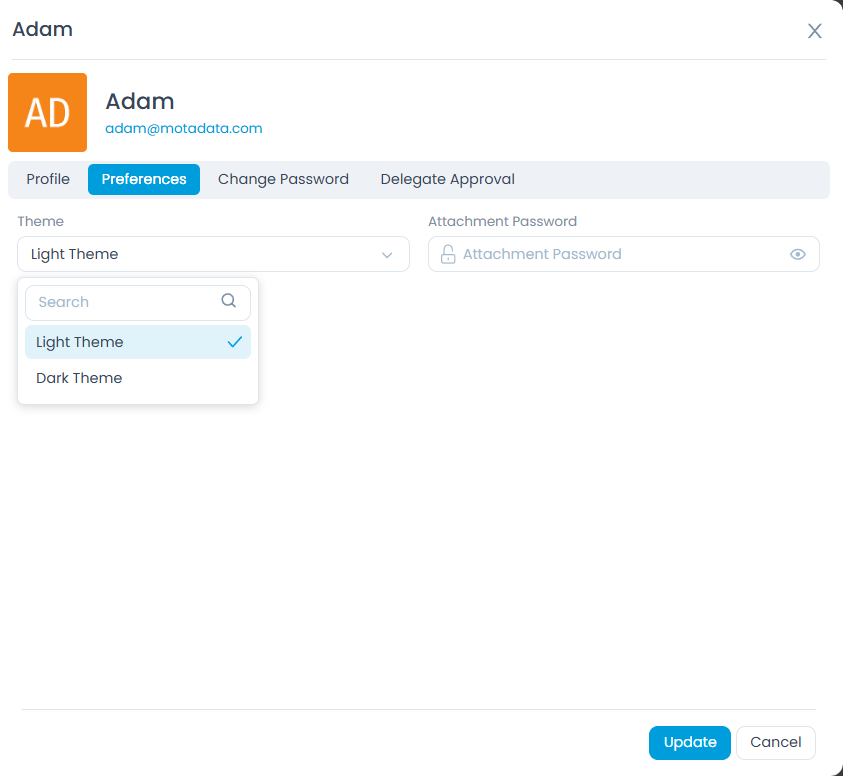
Within the Preferences Tab, you can personalize the portal's appearance and configure various settings, such as the theme and attachment password.
| Setting | Description |
|---|---|
| Theme | Switch between a light or dark theme for the user interface |
| Attachment Password | Set, change, or remove a default password for reports and attachments. This password is used to secure attachments in PDF, Excel, and Word formats |
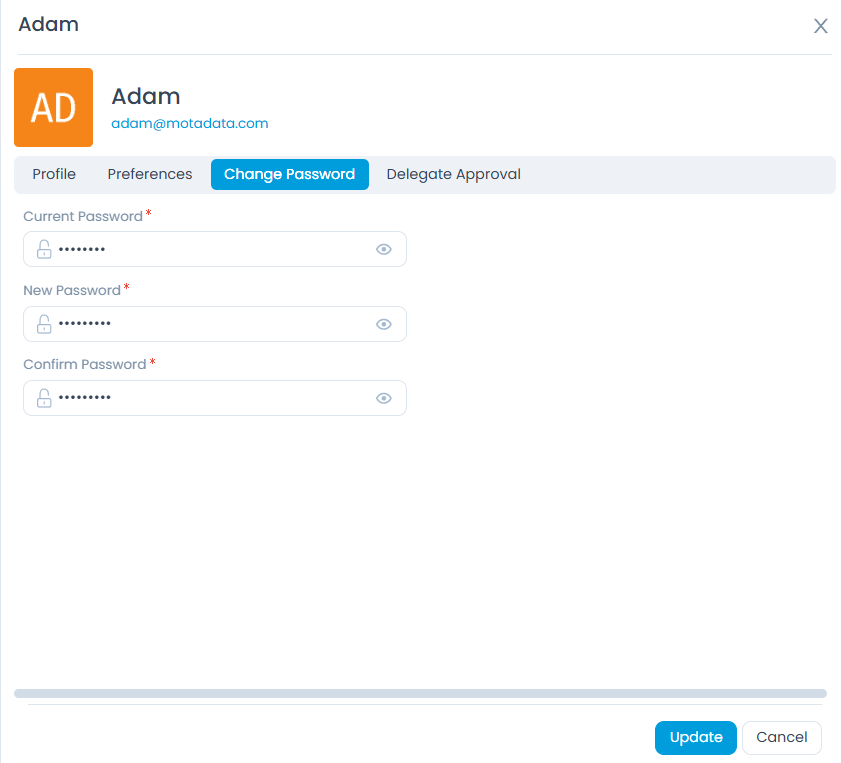
To securely update your portal login password, navigate to the Change Password Tab where you'll first provide your current password.
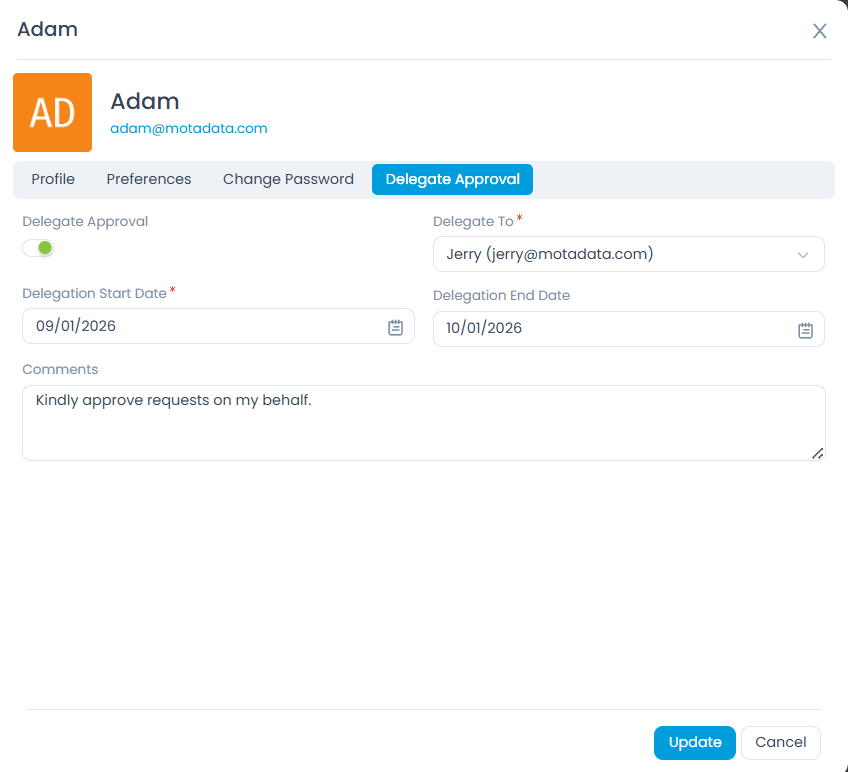
When you are unavailable, the Delegate Approval Tab allows you to temporarily assign your approval responsibilities to another user.
| Setting | Description |
|---|---|
| Enable Delegate Approvals | Activate the delegation feature |
| Delegate To | Select the user who will receive your approval requests |
| Delegation Period | Set a start and end date for the delegation period. The selected user will be notified and can approve or reject requests on your behalf |
| Comments | Add optional comments for context |
Troubleshooting
Common Navigation Problems
| Problem | Solution |
|---|---|
| Menu not visible | Check if the menu toggle button is available, try refreshing the page, contact your administrator if the issue persists. |
| Search not working | Verify your search terms are spelled correctly, try using different keywords. |
| Notifications not appearing | Check your notification preferences or contact your administrator. |
Getting Help with Navigation
If you encounter navigation issues:
- Use Chat Support for immediate assistance from support agents.
- Contact Your Administrator for permission or access-related issues.
- Review Help Documentation if configured.
Best Practices
Organizing Your Workflow
- Bookmark Common Services: Add frequently used services to favorites.
- Use Search Effectively: Learn to use search filters and keywords.
- Set Up Notifications: Configure notifications for important events.
- Customize Your View: Adjust column selections and filters.