Managing AI Teams
View and configure out-of-the-box AI teams in ServiceOps.
The Teams tab in AI Studio provides access to the pre-built AI teams available in ServiceOps. By attaching knowledge collections and enabling PII detection, administrators can tailor each team's responses to their organization's data and security requirements — without building teams from scratch.
ServiceOps provides a fixed set of out-of-the-box (OOB) AI teams. Creating new teams or cloning existing ones is not supported. Administrators can only configure and preview the teams provided.
Teams List View
The Teams List View presents all available OOB AI teams.
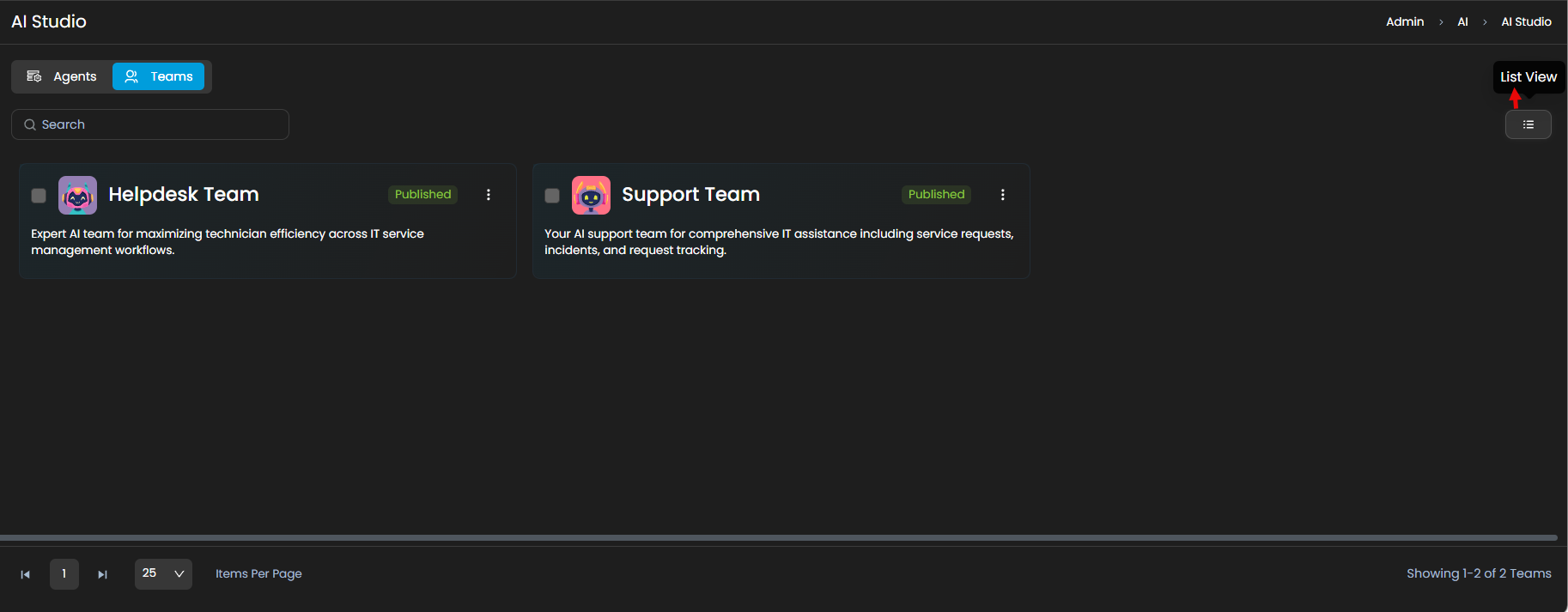
The list view provides the following options:
- Search: Use the "Search" field to search for the required team based on keywords.
- View Toggle: Switch between Card View and List View. The default display is Card View.
- Team Actions: Each team entry includes a three-dot menu with two available actions:
- Edit: Open the team configuration to attach knowledge collections or enable PII detection.
- Preview: Open the View Team page to inspect the team's current configuration.
Editing an AI Team
To configure a team, click the three-dot menu on the team card or row and select Edit. The Edit Team page opens.
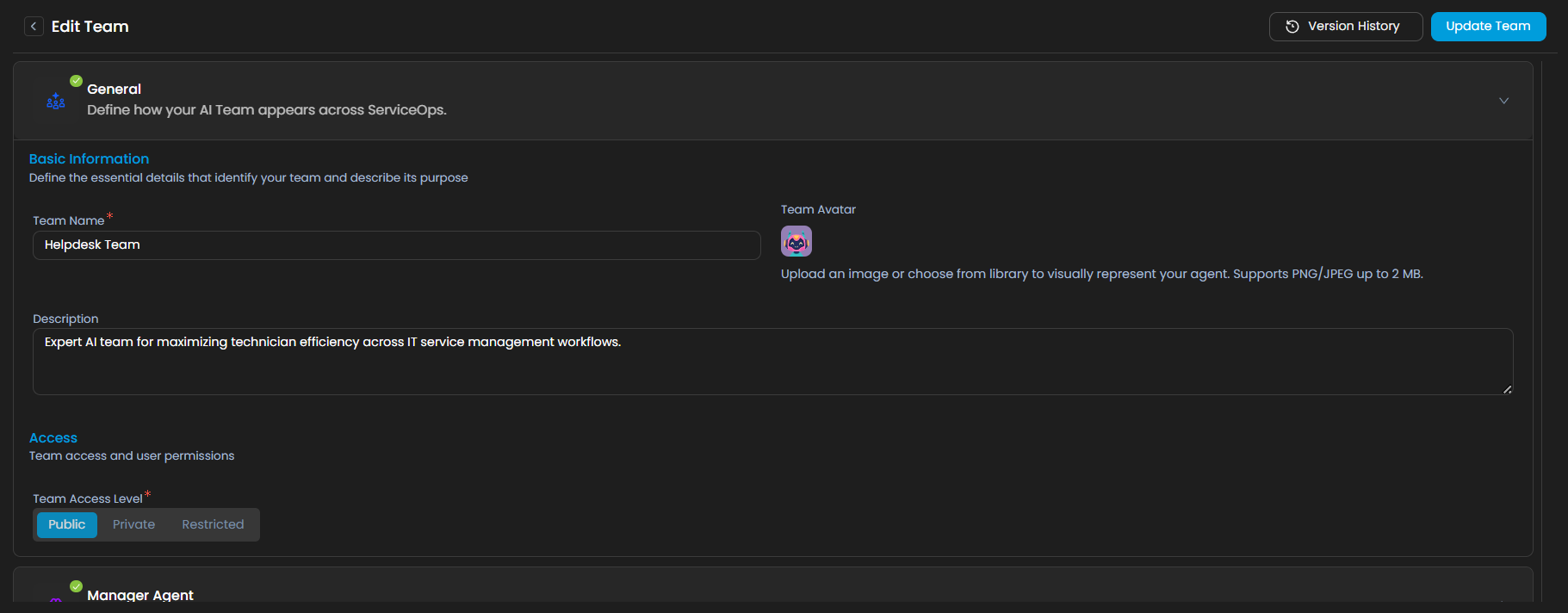
Editing is limited to two configuration areas: Knowledge & Tools and Responsible AI (PII Detection).
Knowledge & Tools
Attach knowledge collections to the team so it can reference relevant content when generating responses.
Knowledge collections must be created before they can be attached here. See Knowledge Collections for instructions on setting them up.
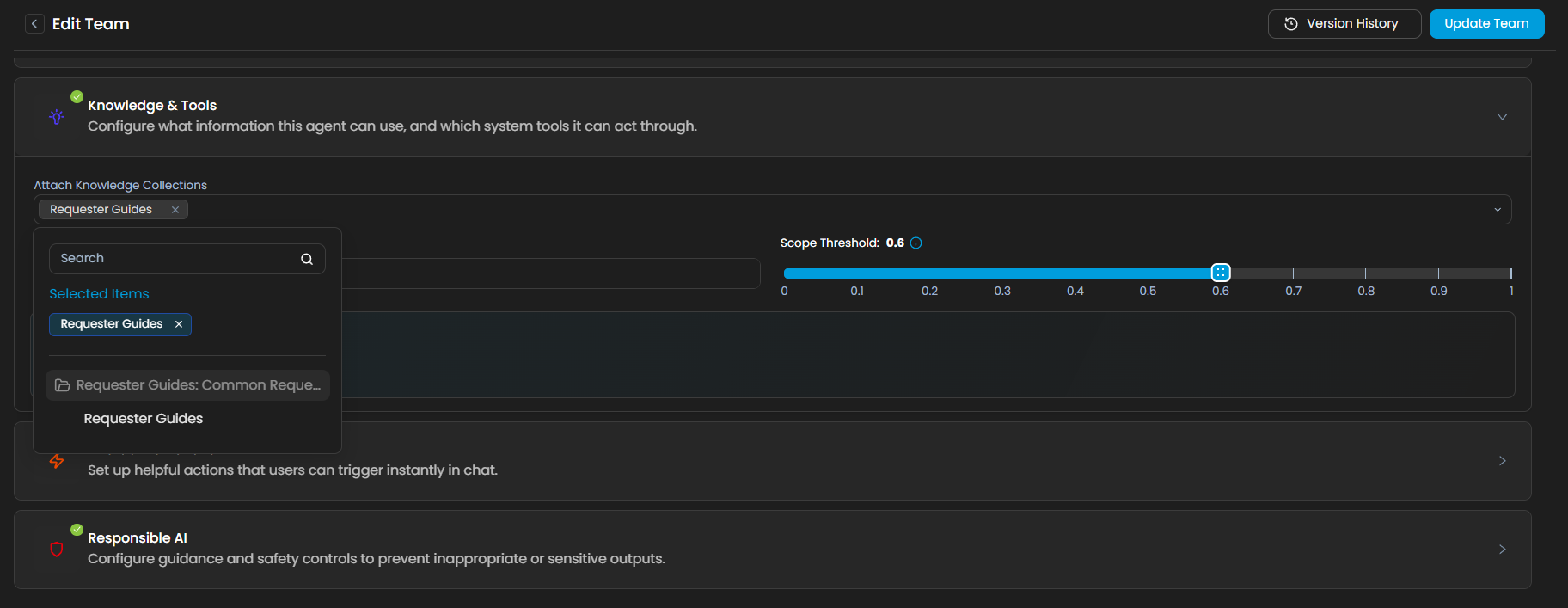
Attach Knowledge Collections: Select one or more existing knowledge collections from the dropdown to associate with the team.
Top K Values: Set the number of most relevant articles or documents the team's agents retrieve from the attached collections per query.
Scope Threshold: Adjust the similarity threshold for knowledge retrieval. A higher threshold returns only closely matching content; a lower threshold broadens the match but may reduce precision.
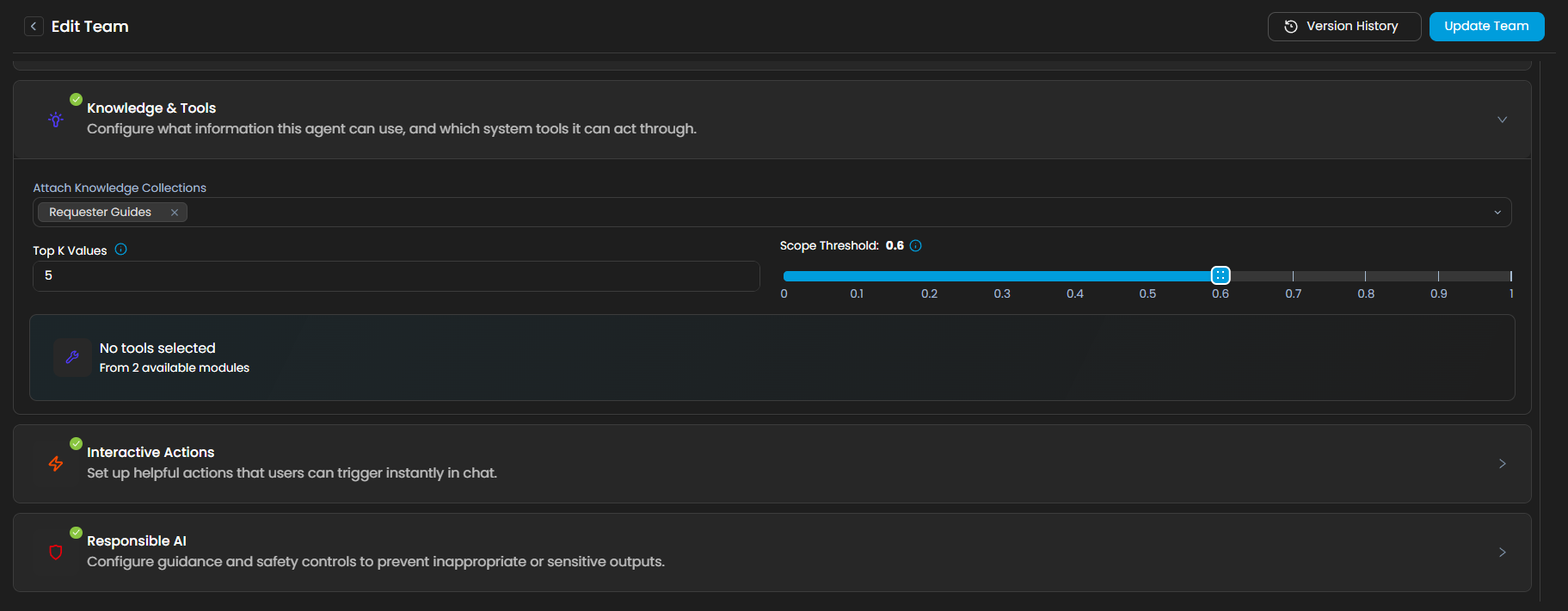
Responsible AI — PII Detection
Enable and configure Personally Identifiable Information (PII) detection to prevent sensitive data from being exposed or processed inappropriately.
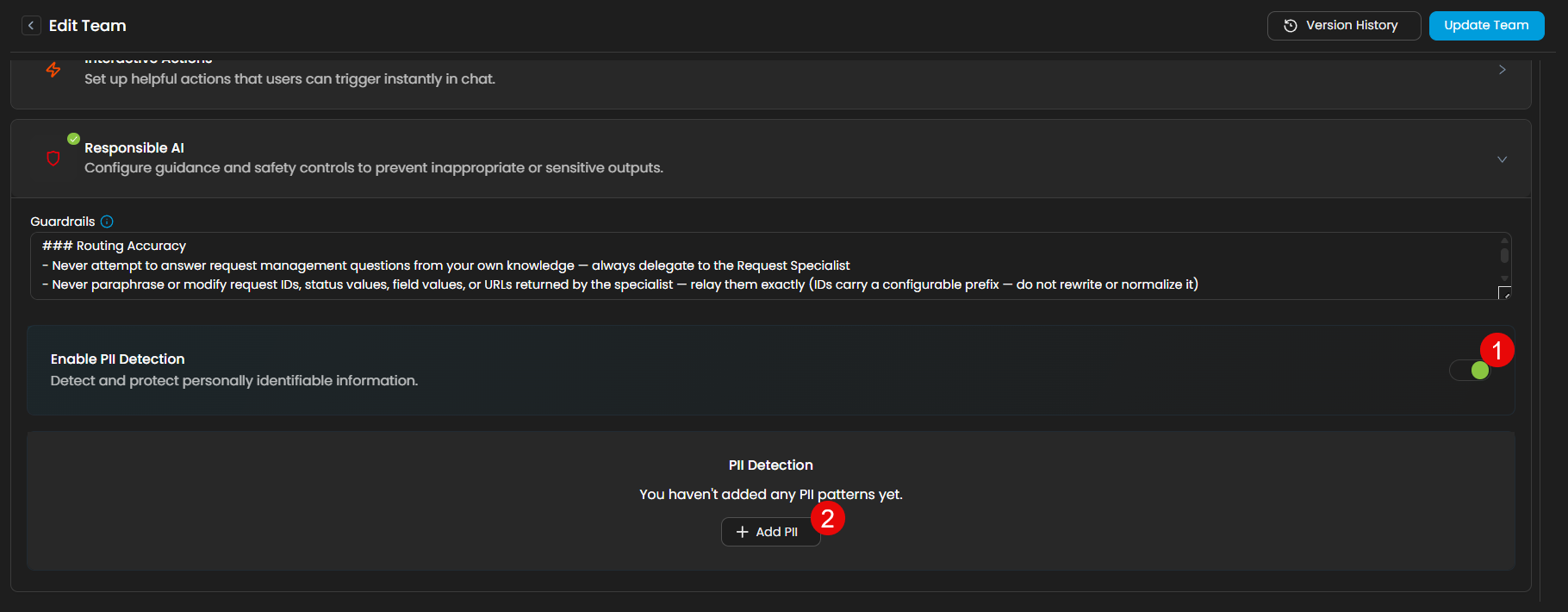
Enable PII Detection: Toggle this option to activate PII protection for the team.
Add PII Patterns: Click
+ Add PIIto configure patterns the team should detect. Two types of patterns are available:Predefined: Select from a list of built-in PII patterns such as
CREDIT_CARD,EMAIL_ADDRESS,PHONE_NUMBER, etc. For each pattern, choose whether toMaskorBlockthe detected value during input processing, output processing, or both.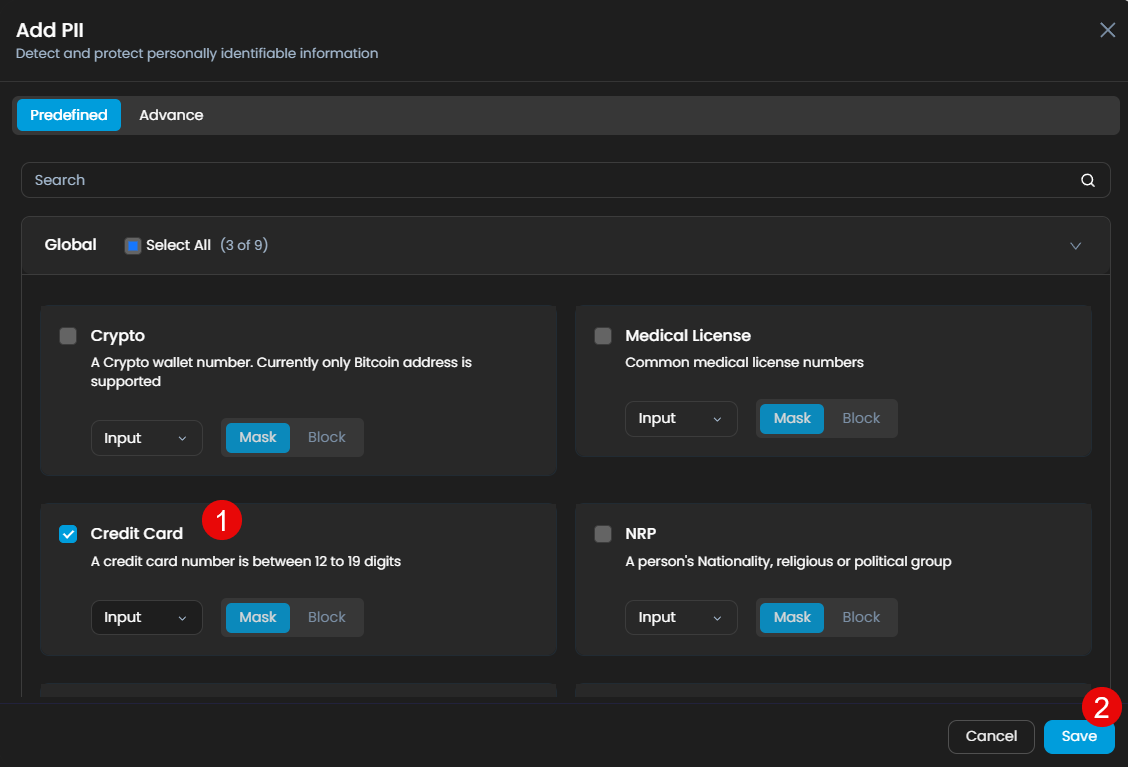
Advanced (Custom Regex Pattern Library): Create your own PII patterns using regular expressions for data types not covered by predefined options. For each custom pattern, fill in the following fields:
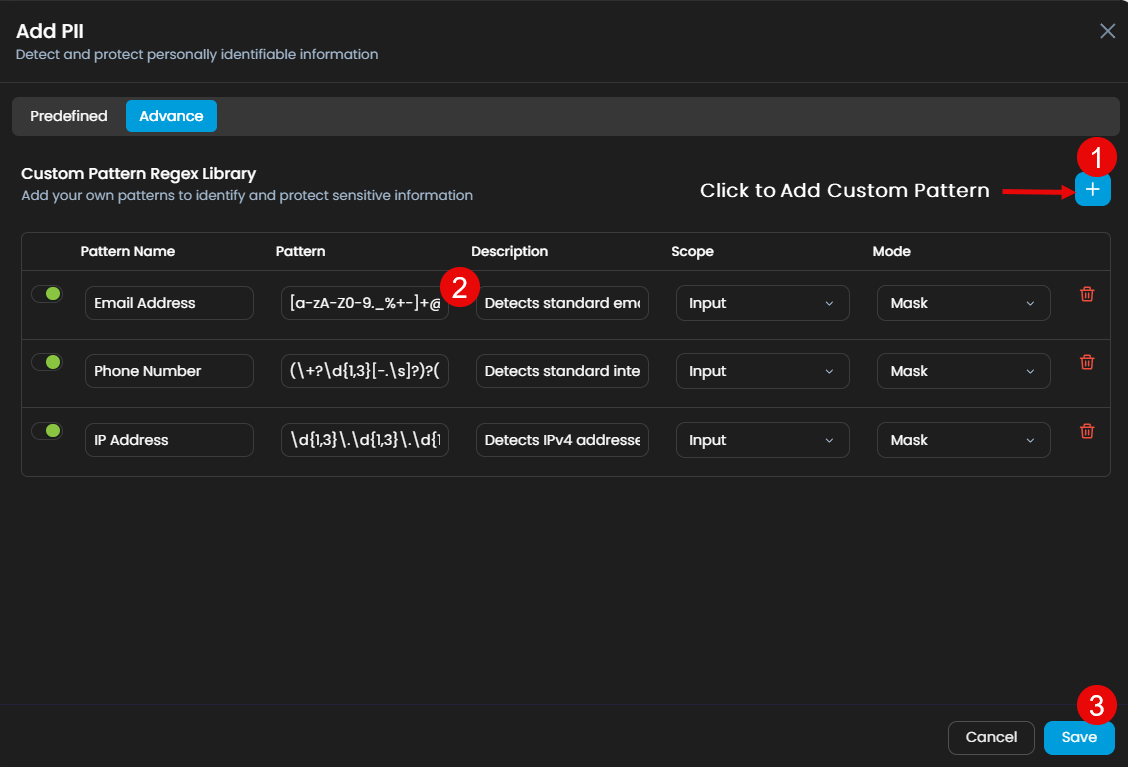
Field Description Pattern Name A unique label for the pattern (e.g., Employee_ID).Pattern A valid regular expression that matches the sensitive value (e.g., \bEMP-\d{6}\bto match IDs likeEMP-123456).Description A short note describing what the pattern detects. Scope Input: scans user messages sent to the team.
Output: scans the team's responses. Select both to cover the full conversation.
Mode Mask: replaces detected values with a placeholder (e.g.,
[REDACTED]).Block: prevents the message from being sent or received entirely.
Click
+ Add New Patternto add another custom pattern row.
Click Save to apply the PII configuration.
Once all changes are made, click Update Team to save the configuration. Once applied, if you enter any PII content in the Ask AI input field, the AI team will mask or block the content as per the configuration.
Version History
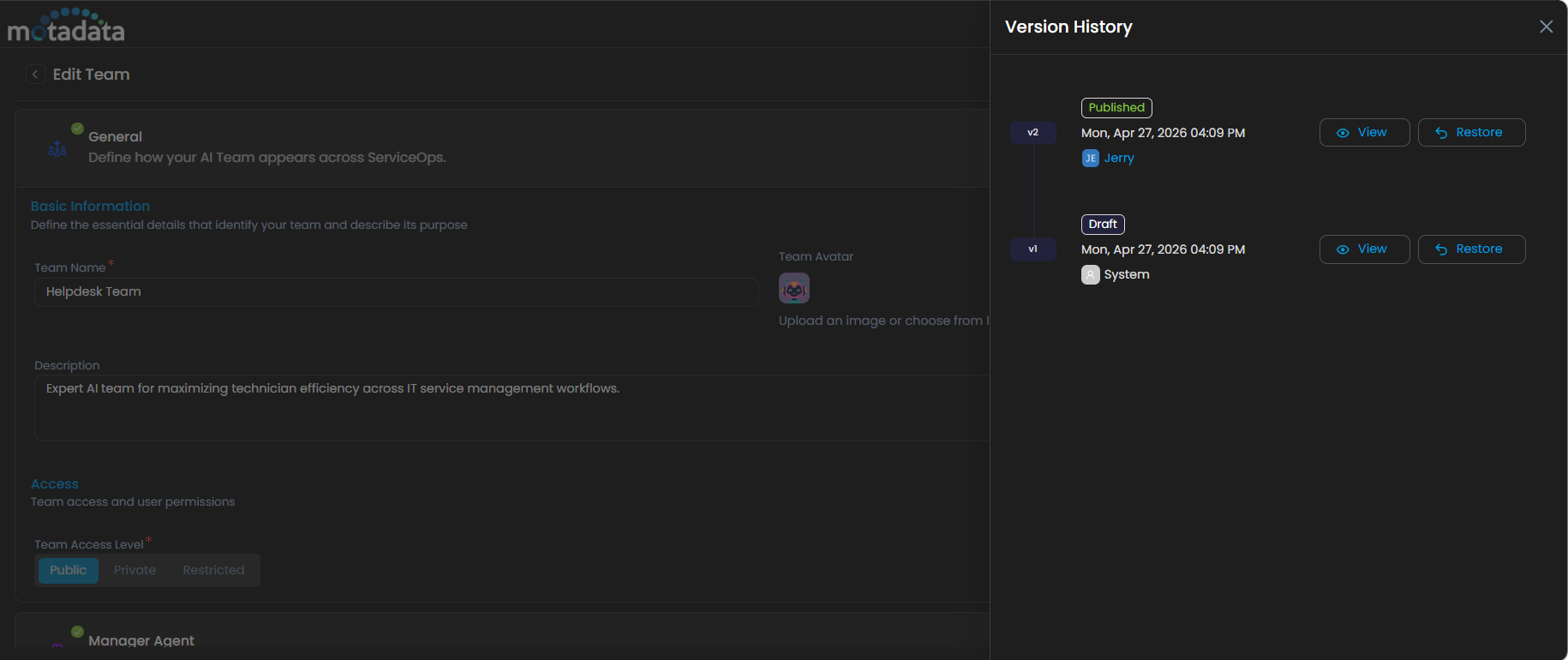
Click Version History on the Edit Team page to view a complete record of all changes made to the team, including the date, time, and the user who made each change. From here, you can also Restore a previous version if needed.
Previewing an AI Team
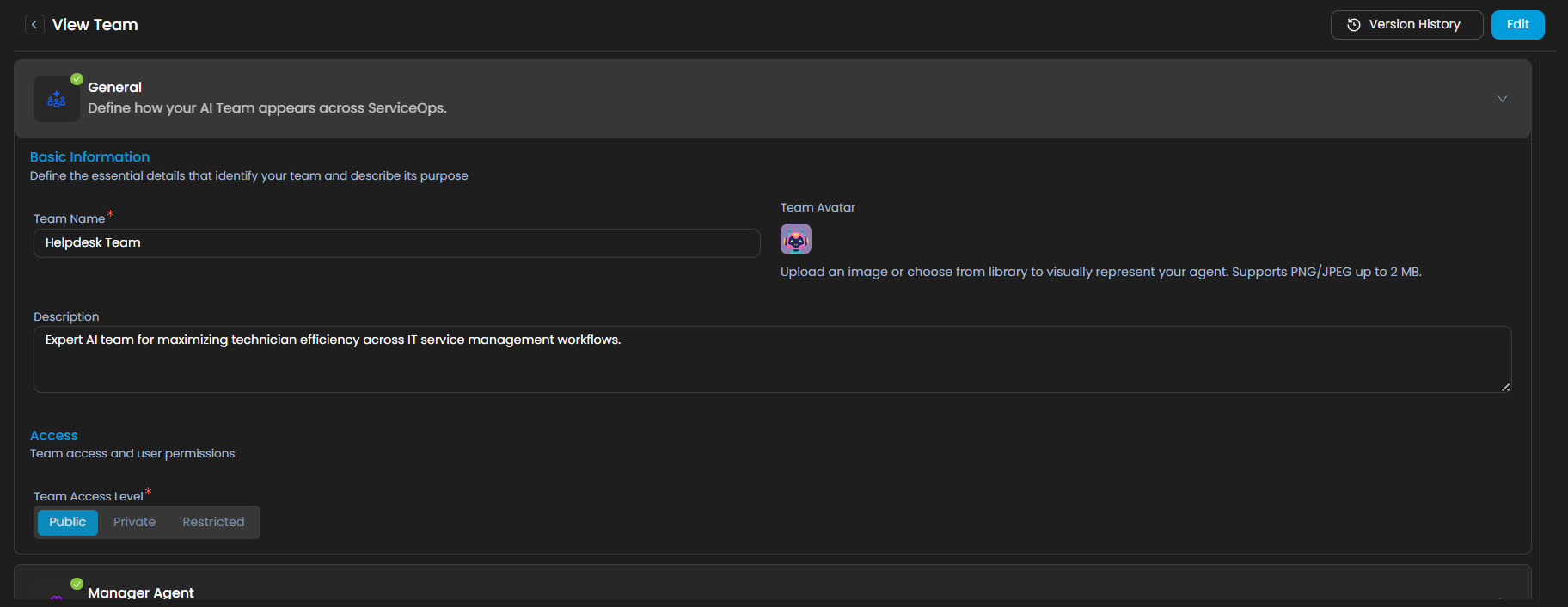
To inspect a team's current configuration without making changes, click the three-dot menu and select Preview. This opens the read-only View Team page, which displays the team's settings and version history. Use the available buttons on this page to navigate to Edit if changes are needed.
Using the Team in the Portal
Once a team is configured, end users and technicians can interact with it directly from the portal using the Ask AI feature.
To start a conversation with a team:
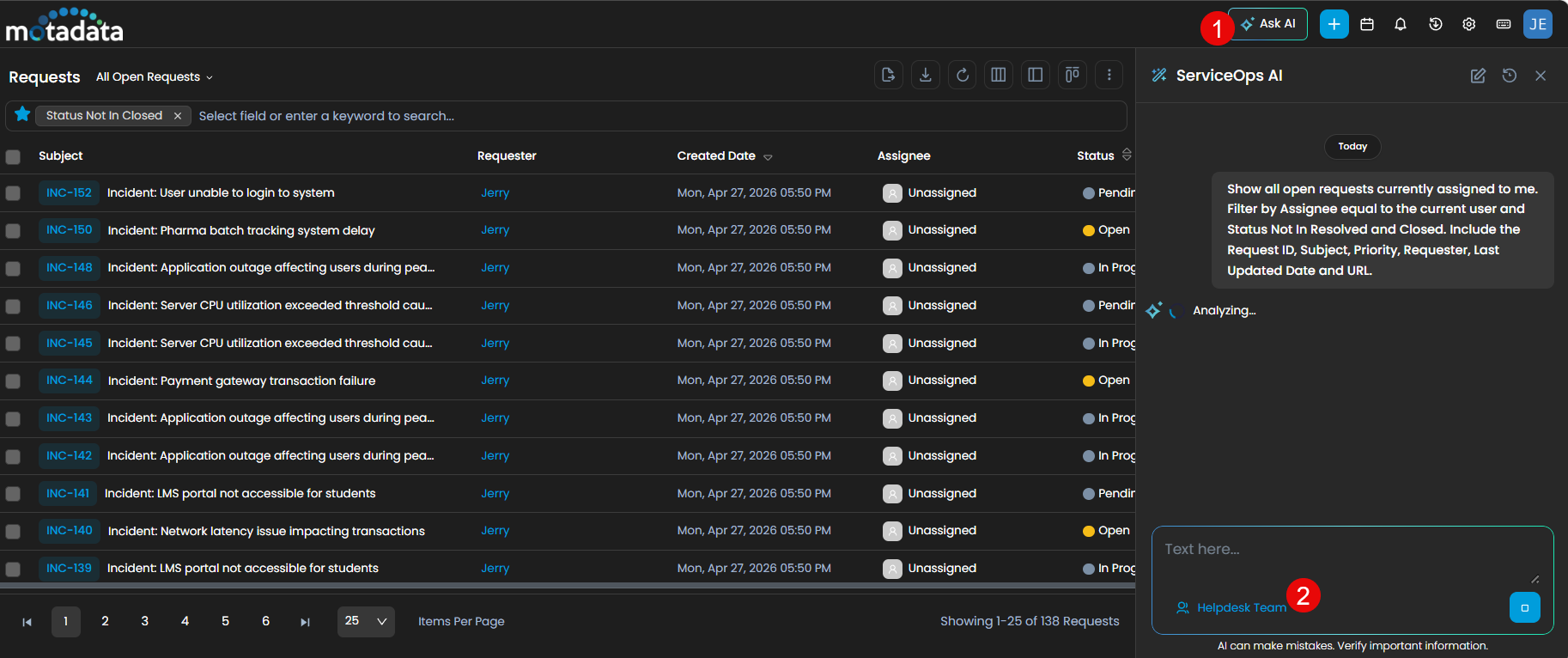
- Open the portal and click Ask AI to launch the AI chat interface.
- From the agent selector, choose the required AI team.
- Type your query or select a suggested action to begin the interaction. The manager agent routes the request to the appropriate team member based on the query context, drawing from the team's configured knowledge collections and responsible AI policies.
If the team does not appear in the selector, verify that it has been published and that the user has the appropriate access permissions.