MotadataPXE Utility Installation
The MotadataPXE Utility (MotadataPXE.msi) turns a Windows machine into a MotadataPXE (Preboot Execution Environment) boot server. Target machines contact this server when they boot over the network to receive the boot file that initiates the OS Deployment process.
Prerequisites
Admin access to the Windows machine that will act as your MotadataPXE boot server.
The Windows Poller (
Poller_V87500.msi) must be installed on the same machine. The Poller is required for the TFTP service in the MotadataPXE package to communicate with ServiceOps. After installing the Poller, confirm that theServerIpfield inappsettings.jsonis set to the correct IP address of this machine and then restart it. The file is located at:C:\Program Files (x86)\Motadata\poller_service\appsettings.json
Installation Steps
Download
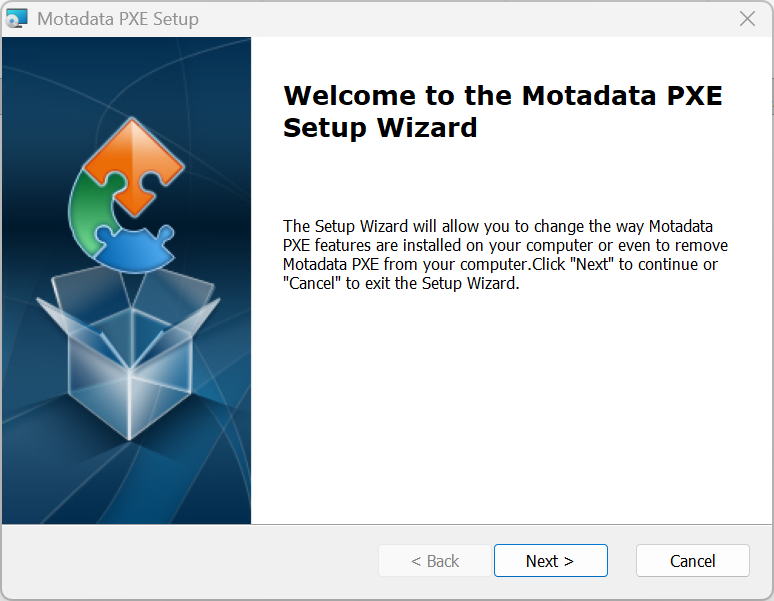
MotadataPXE.msifrom the Download Links page.Run the installer on the Windows machine designated as your MotadataPXE boot server. The Setup Wizard welcome screen appears. Click Next.
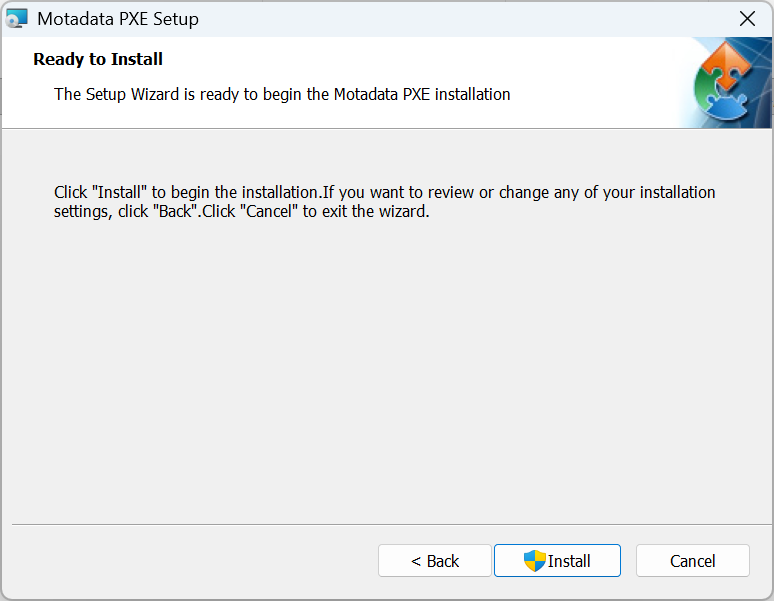
When the Ready to Install screen appears, click Install.
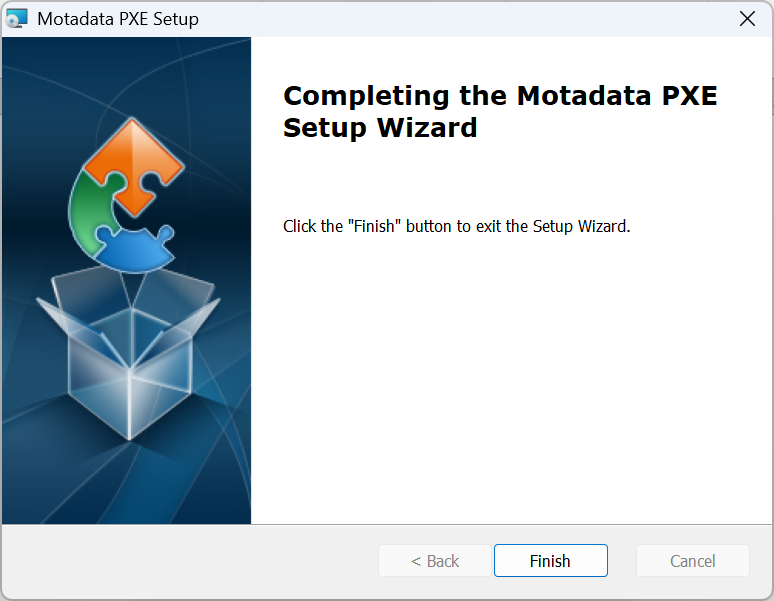
When the Completing the Motadata PXE Setup Wizard screen appears, click Finish. The TFTP service starts automatically.
Note the IP address of this machine. You need it when configuring DHCP options for MotadataPXE boot.
After installation completes, verify the setup by navigating to
C:\Program Files (x86)\Motadata\PXE. The installer creates this folder with all the files and components required for MotadataPXE boot and image capture. Confirm the folder exists and contains the following items: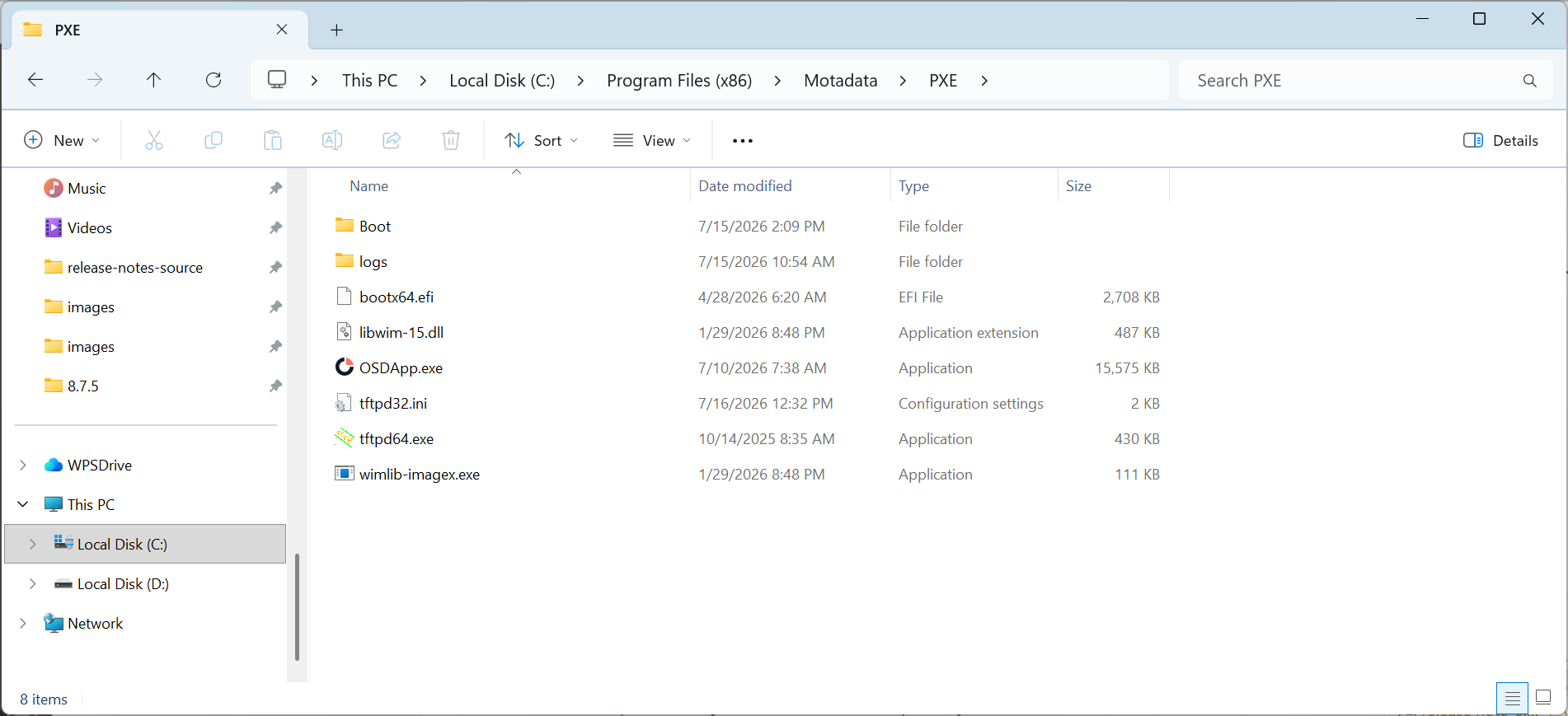
Name Type Purpose bootx64.efiEFI file The MotadataPXE boot file served to target machines by the TFTP service. This file must be present for MotadataPXE boot to work. Set the TFTP base directory to this folder so tftpd64.execan serve it.OSDApp.exeApplication The Image Creator tool. Run this on the golden machine to capture an OS image. Right-click and select Run as administrator before use. tftpd64.exeApplication The TFTP server that serves bootx64.efito MotadataPXE-booting target machines. Must be running as Administrator during every deployment.