Endpoint List View
The Endpoint List View lets you track and manage all enrolled endpoints from one place. Filter by health status or OS, search for a specific device, and take bulk actions across multiple endpoints at once.
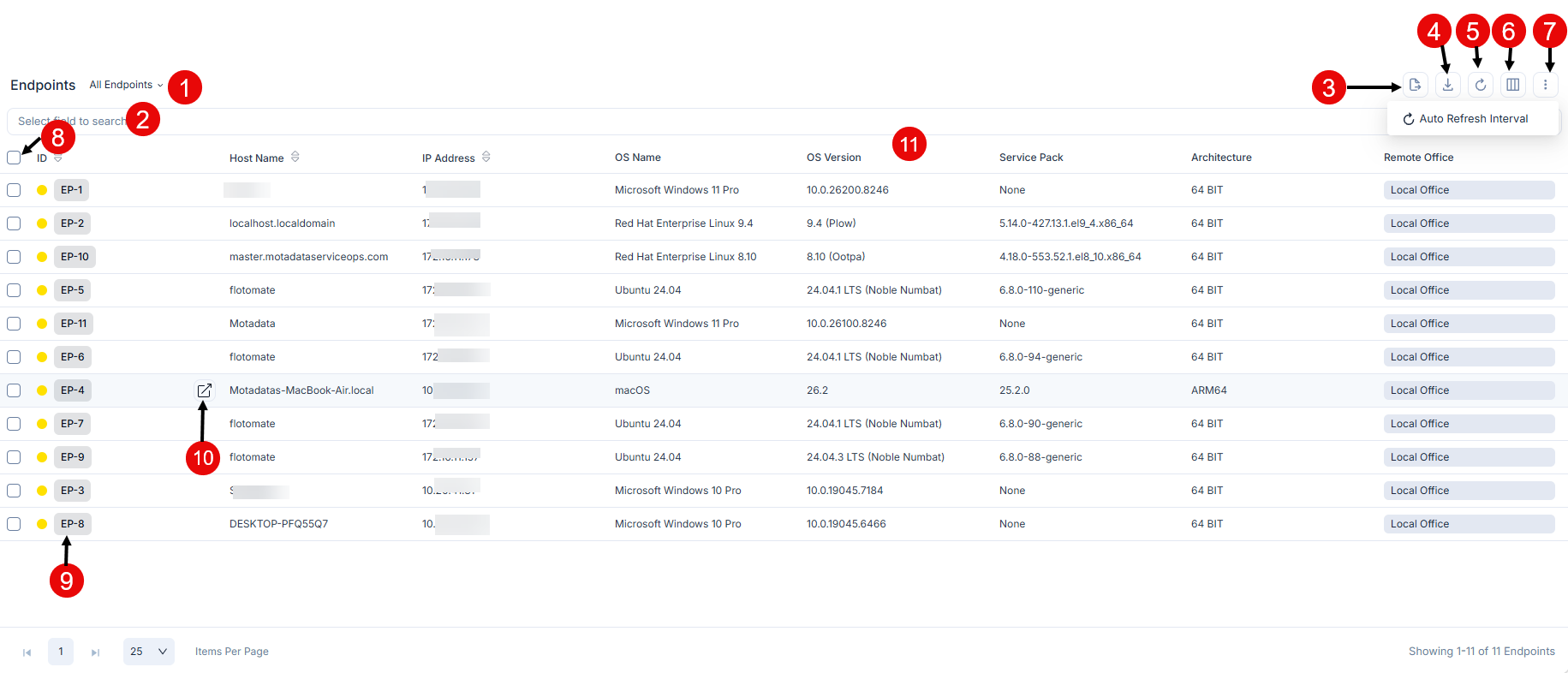
The page has the following controls:
- Filter: Switches between saved endpoint filters. Select All Endpoints to view every enrolled device, or choose a saved filter to narrow the list.
- Search: Filters the list by any field. The search uses faceted filtering so you can find endpoints by specific criteria. See the Search section for details.
- Export Endpoints: Exports the endpoint list as a CSV or PDF file.
- Download: Downloads the endpoint list as CSV or Excel. Enable Password Protected to secure the Excel file.
- Refresh: Reloads the list to show the latest scan data. Use this when multiple technicians are working on the same endpoints simultaneously.
- Column Selection: Adds or removes columns from the list. Your preferences are saved per technician.
- More Options: Opens additional actions, including Auto Refresh Interval to set how often the list reloads automatically. Available intervals are None, 5 minutes, 10 minutes, 20 minutes, 25 minutes, and 30 minutes.
- Bulk Operations: Select multiple endpoints and click Take Action to apply one of the following actions:
- Scan: Triggers an immediate patch scan on the selected endpoints.
- Reboot: Restarts the selected endpoints.
- Remove: Removes the selected endpoints from the list and from the Endpoints Scope.
- View Details Page: Click an endpoint's Agent ID to open its Endpoint Details page.
- View Details in New Tab: Click the arrow icon next to the Agent ID to open the details page in a new browser tab.
- Grid: Displays enrolled endpoints with their details as per the selected columns.
Export Endpoints
This section walks you through exporting the endpoint list to a file for offline reference or reporting.
To export the endpoint list:
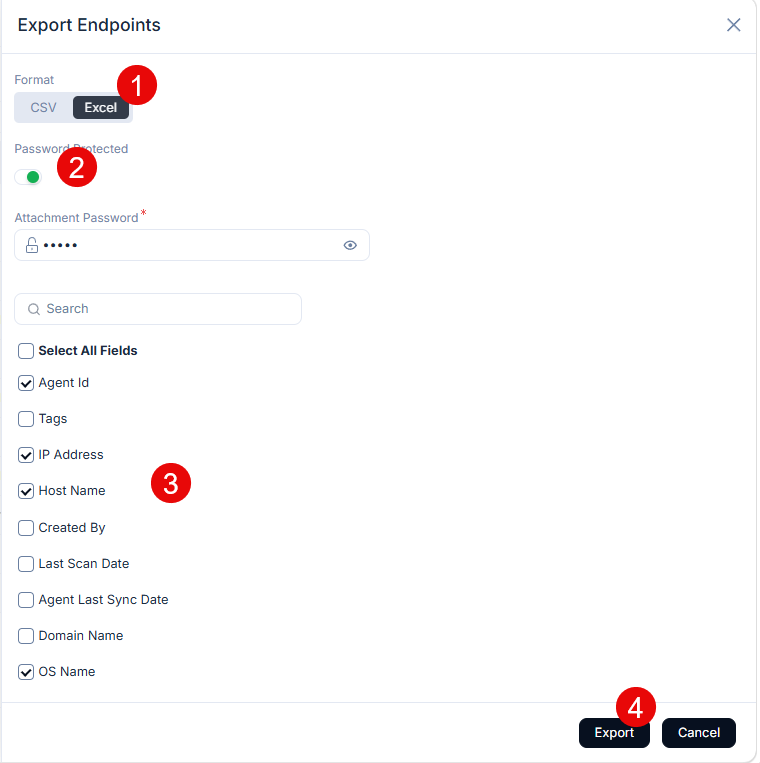
- Click the Export icon. A popup appears.
- Select the Format as CSV or Excel.
- If you select Excel, enable Password Protected to secure the file. Enter an Attachment Password, or leave it blank to use the password set in Edit User Profile.
- Select the fields to include in the export.
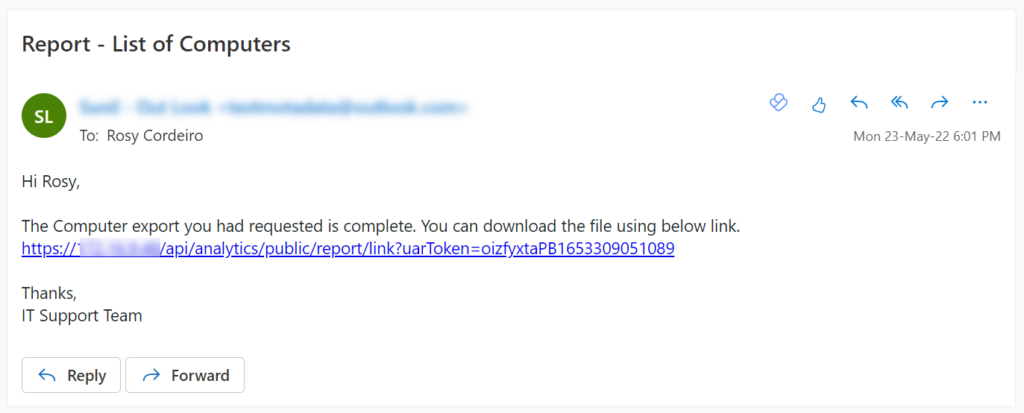
- Click Export. ServiceOps sends an email to your registered address with a download link.