Vulnerabilities in ServiceOps
Vulnerability management in ServiceOps organizes detected vulnerabilities by patch. Each row in the list is a patch record (PCH-XX) that consolidates all CVEs resolved by that patch. You can see how many CVEs a patch resolves, how many endpoints are missing it, and approve patches in bulk to create a patch deployment, all from a single page.
Prerequisites
Before you access the Vulnerabilities list, ensure:
- You have the Vulnerability Manager or Vulnerability Specialist Technician role, or your role has View Vulnerability enabled under Admin > Users > Roles
- A Vulnerability license is active in ServiceOps
- At least one endpoint is enrolled in Admin > Discovery and Agents > Endpoint Management > Endpoint Scopes
- The vulnerability database has synced at least once via Admin > Vulnerability Management > Vulnerability Settings
If the Vulnerabilities list is empty after setup, confirm the patch database has synced. Go to Admin > Patch Management > Patch Administration > Patch Repository and click Update Now to trigger the first sync.
How Does the Vulnerabilities List Work?
ServiceOps compares the OS and software inventory collected from each enrolled endpoint against the local vulnerability database. When installed software matches a known CVE, ServiceOps creates or updates the corresponding patch record. Each patch record (PCH-XX) groups together all CVEs that a single patch resolves, and shows how many endpoints are missing that patch.
The list updates after each scan completes. Scans run automatically when the database updates, when you enroll new endpoints, or when new discovery data arrives. They also run when an endpoint's configuration changes. You can refresh the list manually at any time.
To remediate, select one or more patch records and approve them. Approving a patch creates a patch deployment in the Patch Management module. Each patch record is otherwise read-only; ServiceOps updates it automatically when patch data changes in the central repository or when endpoint scan results change.
Vulnerabilities List Page
The Vulnerabilities List page shows all detected vulnerability patches across your enrolled endpoints. Use the filters and export options to review and prioritize findings and act quickly.
Go to Vulnerability Management > Vulnerabilities.
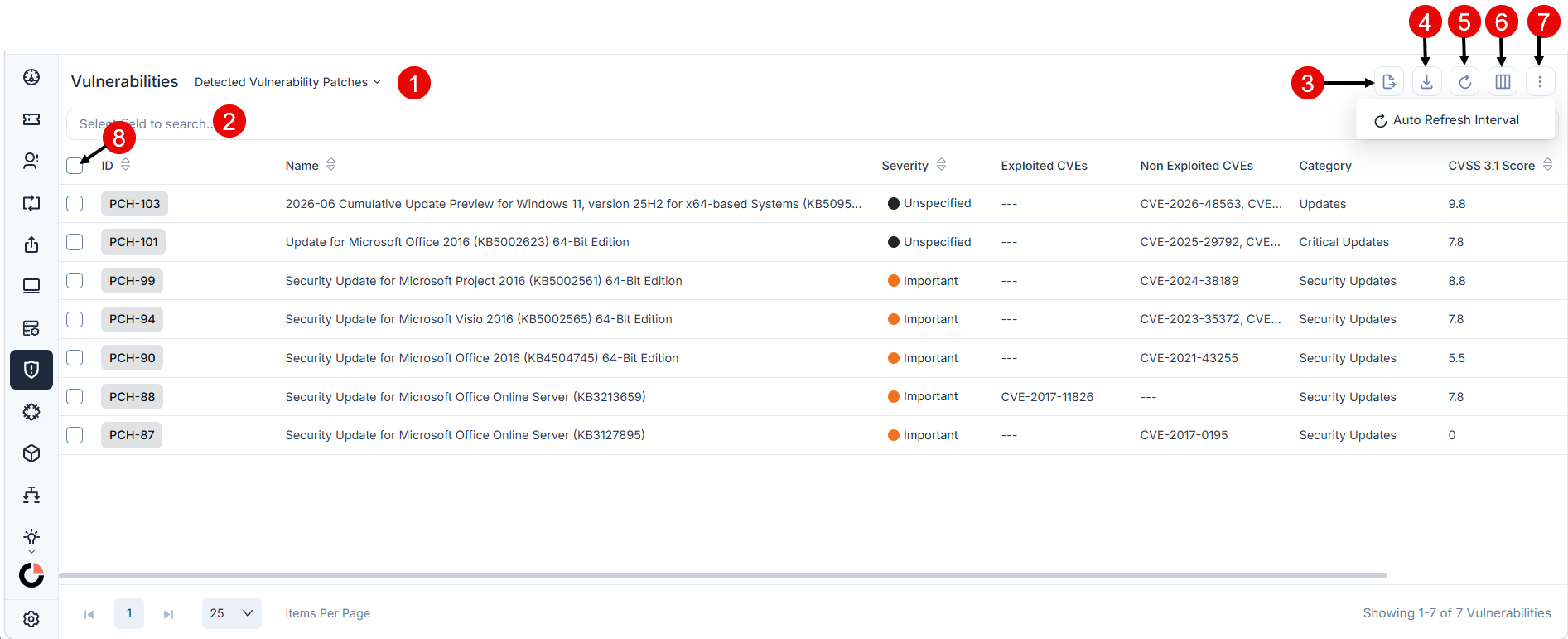
The page has the following controls:
- Filter dropdown: Switches between saved filters. Shows Detected Vulnerability Patches by default. The out-of-the-box filters are:
| Filter | Description |
|---|---|
| Detected Vulnerability Patches (default) | No condition; shows all vulnerability patches detected to date |
| Critical Vulnerability Patches | Severity = Critical |
| Reboot Required Patches | Reboot Required = Yes |
| Approved Patches | Approval Status = Approved |
| Unapproved Patches | Approval Status = Unapproved |
Search bar: Filters the list by any field. Select a field from the dropdown then type a value.
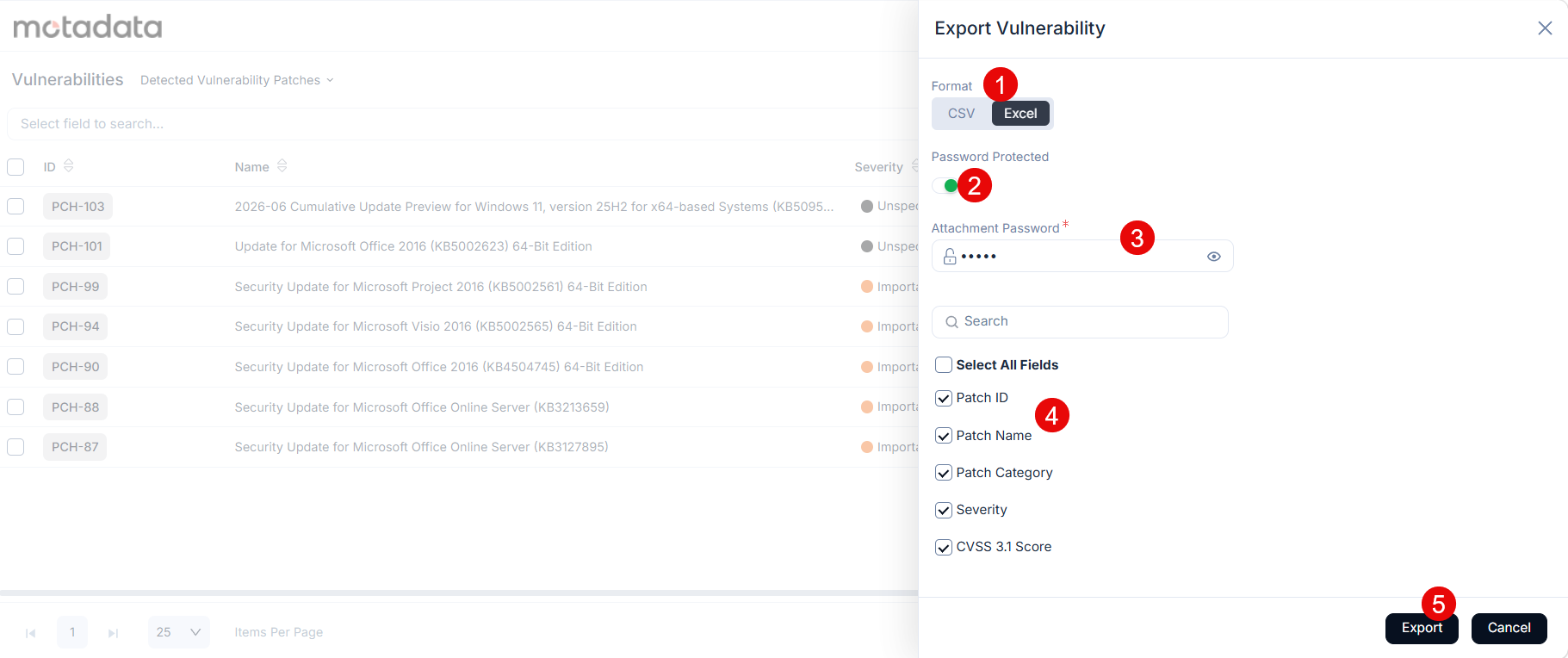
Export: Sends selected columns to your logged-in Technician email address as CSV or Excel. Also, you can password protect the Excel file.
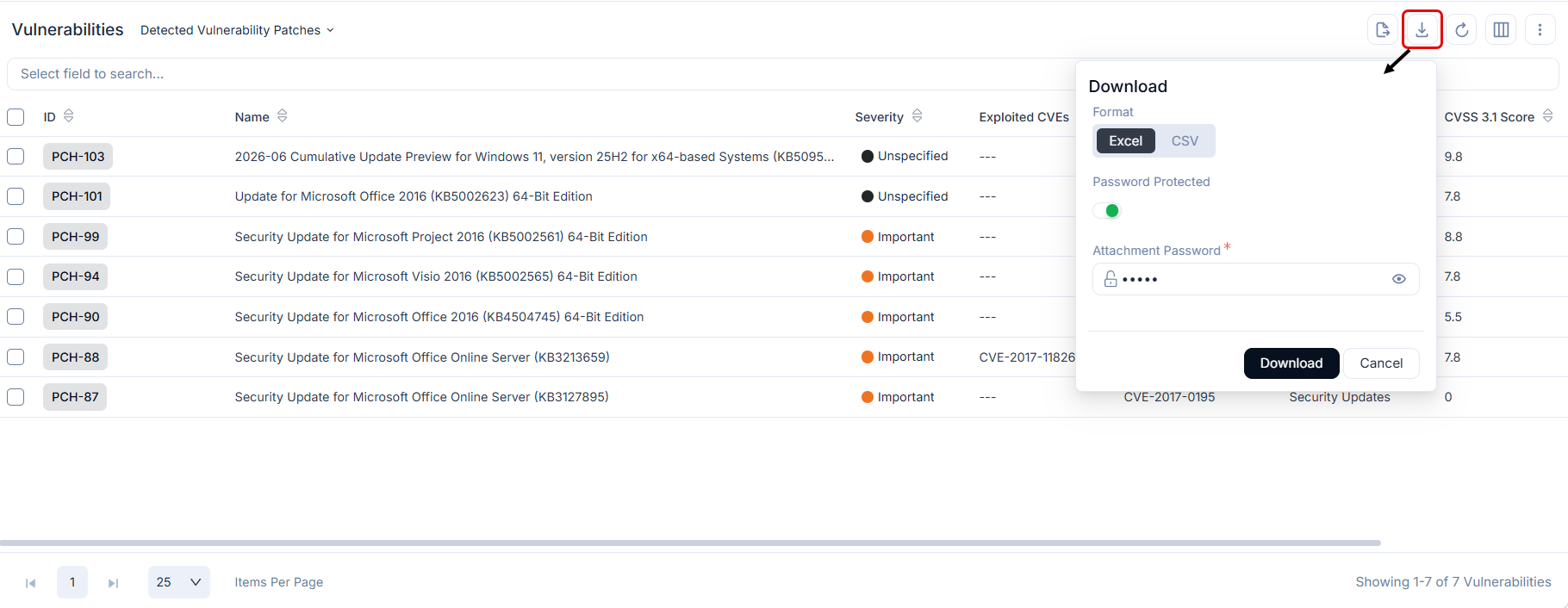
Download: Downloads the full list as CSV or Excel with optional password protection.
Refresh: Reloads the list to show the latest scan data.
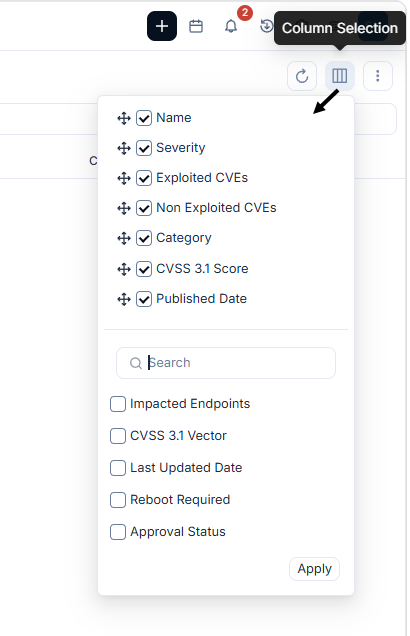
Column Selection: Adds or removes columns from the list view. Preferences are saved per Technician.
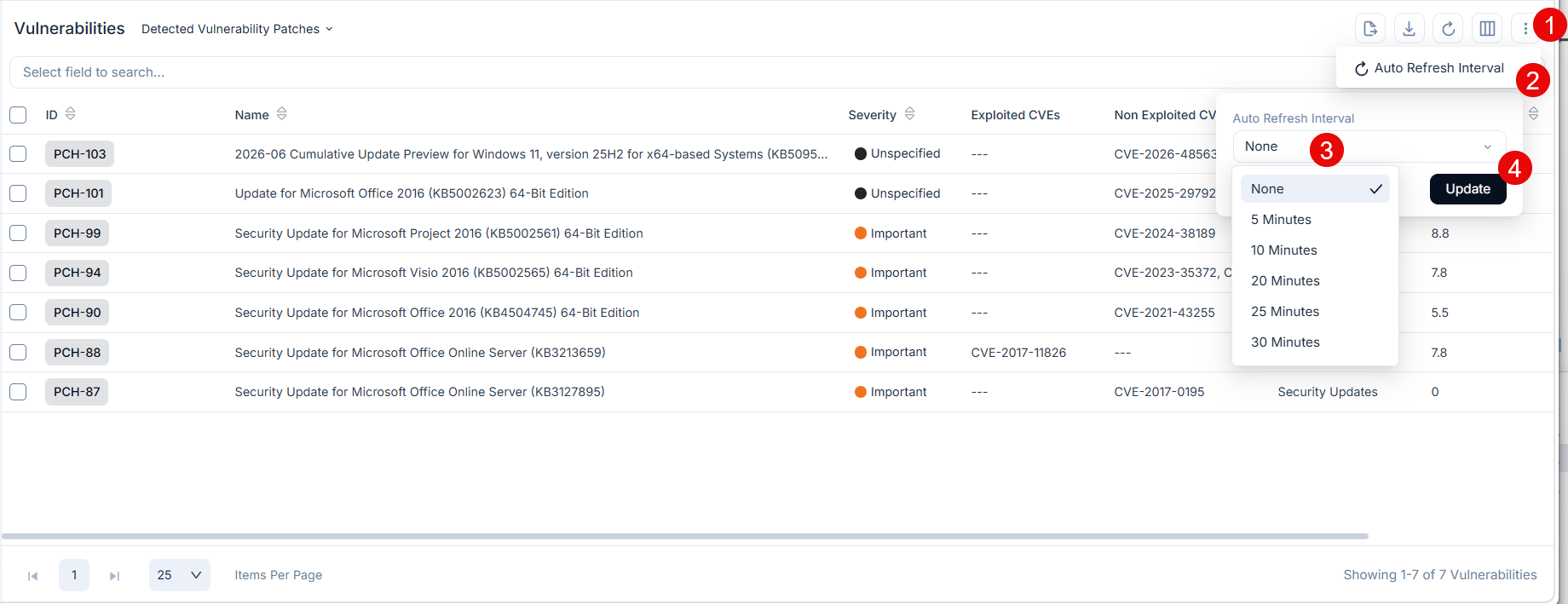
More Options: Opens additional actions including Auto Refresh Interval to set how often the list refreshes automatically. You can set the interval of 5, 10, 20, 25, or 30 minutes.
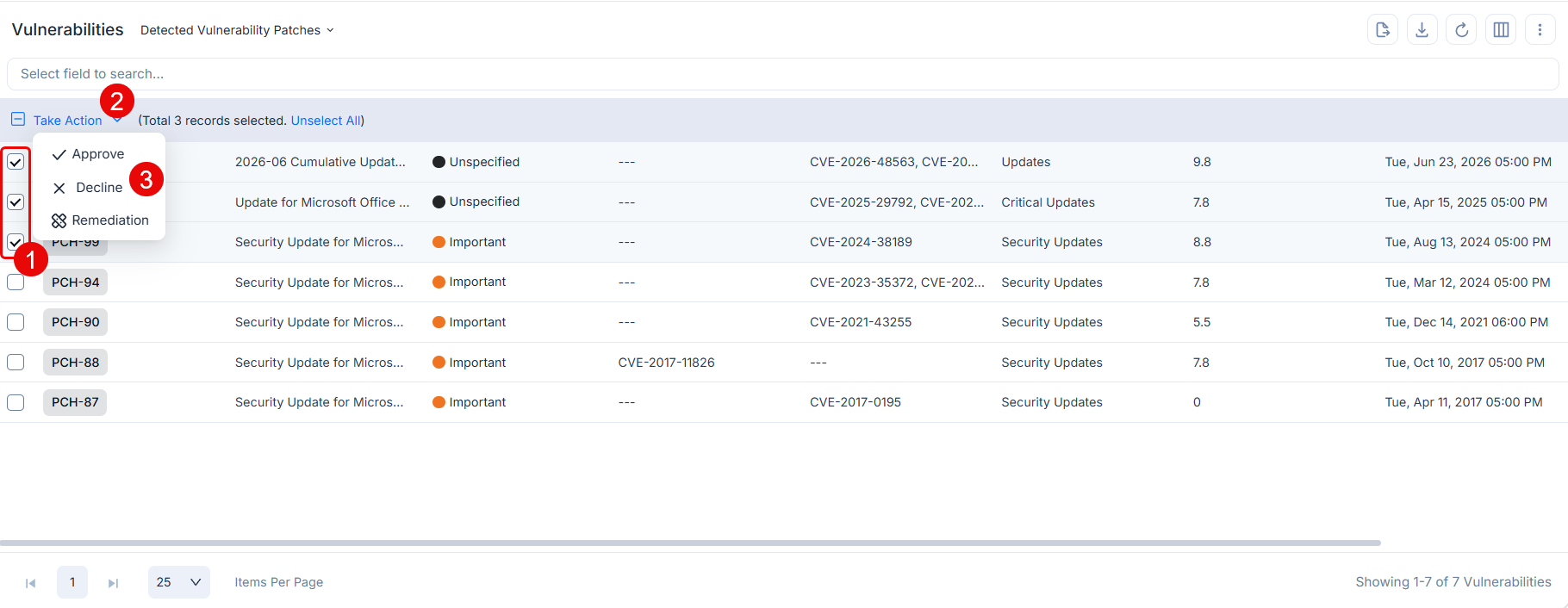
Bulk Operations: Select one or more patch rows and click Take Action to apply one of the following actions:
- Approve: Changes the status of declined patches to approved.
- Decline: Changes the status of approved patches to declined, excluding them from deployment workflows.
- Remediation: Available for approved patches only. Redirects you to the Patch Deployment creation page, where you can configure and publish the deployment.
Grid: The grid displays the Detected Vulnerability Patches by default. Each row is a patch record (PCH-XX) that groups one or more CVEs. The default visible columns are:
| Field | Description |
|---|---|
| ID | Unique patch identifier in PCH-XX format |
| Name | Full patch name including KB number |
| Severity | Risk level assigned to the patch |
| Exploited CVEs | CVE IDs in this patch that have known active exploitation |
| Non Exploited CVEs | CVE IDs in this patch with no known active exploitation |
| Impacted Endpoints | Count of enrolled endpoints where this patch is missing |
| Category | Patch category, for example Updates, Security Updates |
Additional fields are available through Column Selection.
Patch Details page
The Patch Detail page shows full patch context: severity, approval status, impacted endpoints, linked CVEs, and installation history.
Click any patch ID in the list to open the Patch Detail page. The following page appears.
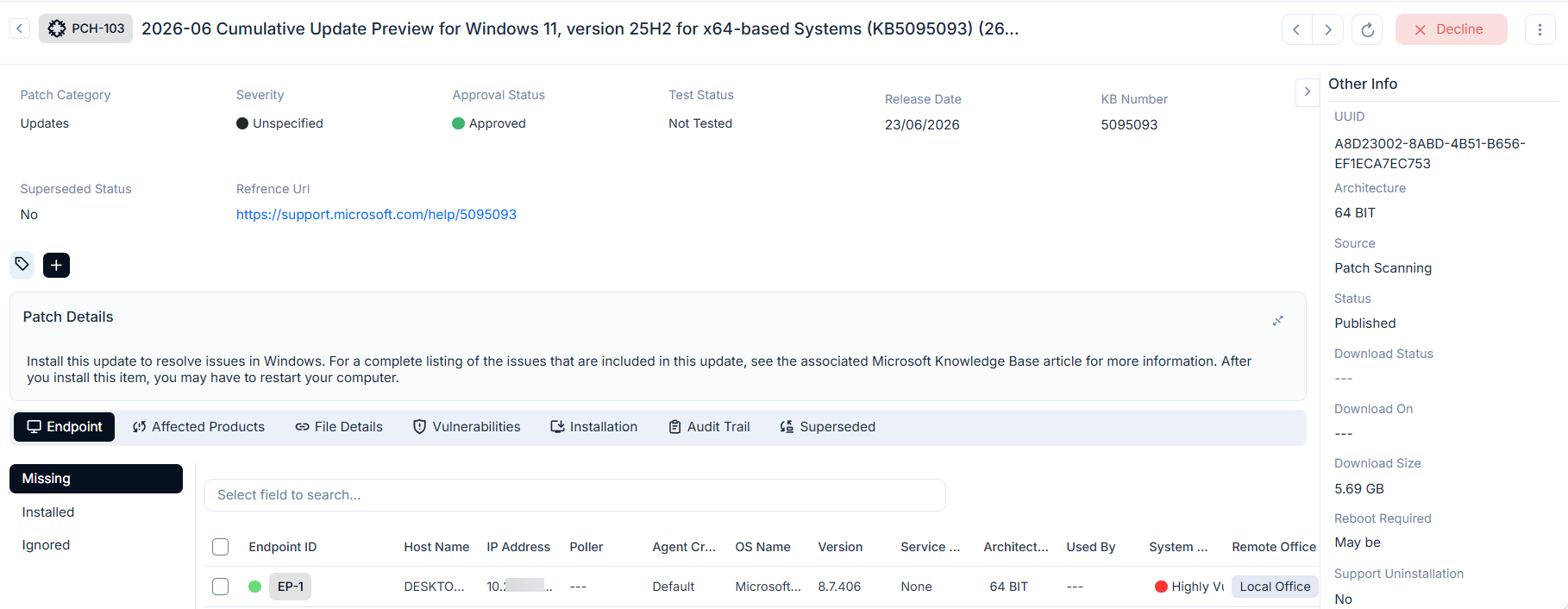
Header fields
The top section shows the patch's key attributes:
| Field | Description |
|---|---|
| Patch Category | Category of the patch, for example Updates or Security Updates |
| Severity | Severity level assigned to the patch |
| Approval Status | Current approval state, for example Approved or Pending |
| Test Status | Whether the patch has been tested, for example Not Tested |
| Release Date | Date the patch was released by the vendor |
| KB Number | Microsoft Knowledge Base article number for the patch |
| Superseded Status | Whether a newer patch supersedes this one |
| Reference URL | Vendor support article link for the patch |
| Tags | Tags can be added or removed below the header fields. |
| Patch Details | The full patch description from the vendor. Click the expand icon to view it in full. |
A. Associated Actions
Each tab gives you a different view, from impacted endpoints and linked CVEs to installation status and audit history.
- Endpoint
- Affected Products
- File Details
- Vulnerabilities
Shows the endpoints where this patch is Missing, Installed, or Ignored. Use the sub-filter on the left to switch between the three states.
| Field | Description |
|---|---|
| Endpoint ID | Unique endpoint identifier in EP-XX format. Click to open the endpoint's detail page, where you can view the CVEs detected on that device. |
| Host Name | Hostname of the enrolled device |
| IP Address | Current IP address of the device |
| Poller | Poller assigned to this endpoint, if applicable |
| Agent Version | Version of the Motadata agent installed on the device |
| OS Name | Operating system name, for example Microsoft Windows Server 2019 |
| OS Version | Full OS build version string |
| Service Pack | Service pack level installed on the device |
| Architecture | Processor architecture, for example 64 BIT |
| Used By | User currently associated with the device |
| Remote Office | Remote office assignment for the device |
Lists the products and OS versions this patch applies to.
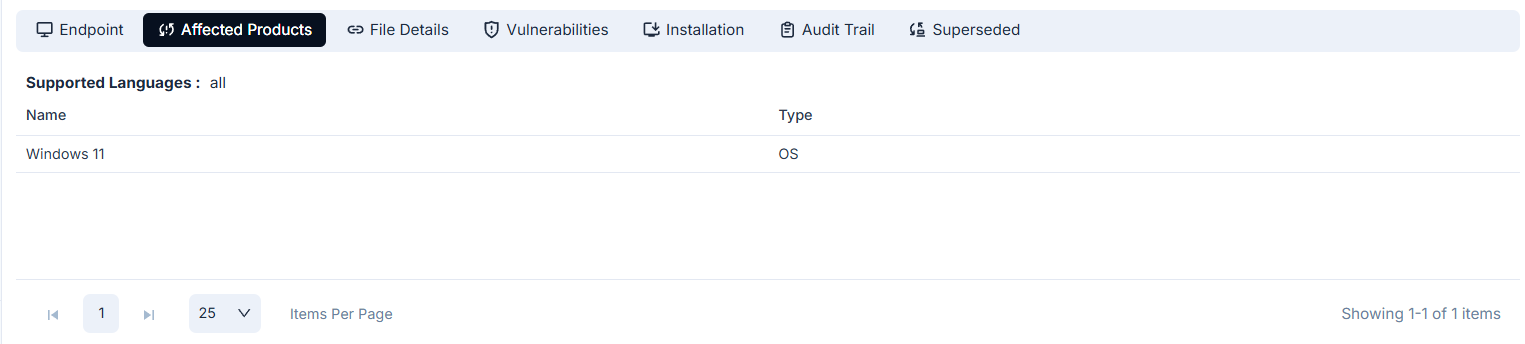
| Field | Description |
|---|---|
| Supported Languages | Languages this patch supports, for example All or specific locale codes |
| Name | Product name this patch applies to, for example Windows Server 2019 |
| Type | Product classification: OS for operating system patches, Application for third-party software |
Lists the patch files available for download with their size and language details. Also, you can copy its url if required.

| Field | Description |
|---|---|
| Sr. No | Sequential number for the file in this patch |
| File Name | Full filename of the patch package |
| Size | Size of the patch file, for example 850.58 MB |
| Language | Language the patch file applies to, for example All |
| Actions | Copy the file path to clipboard, or download the file directly |
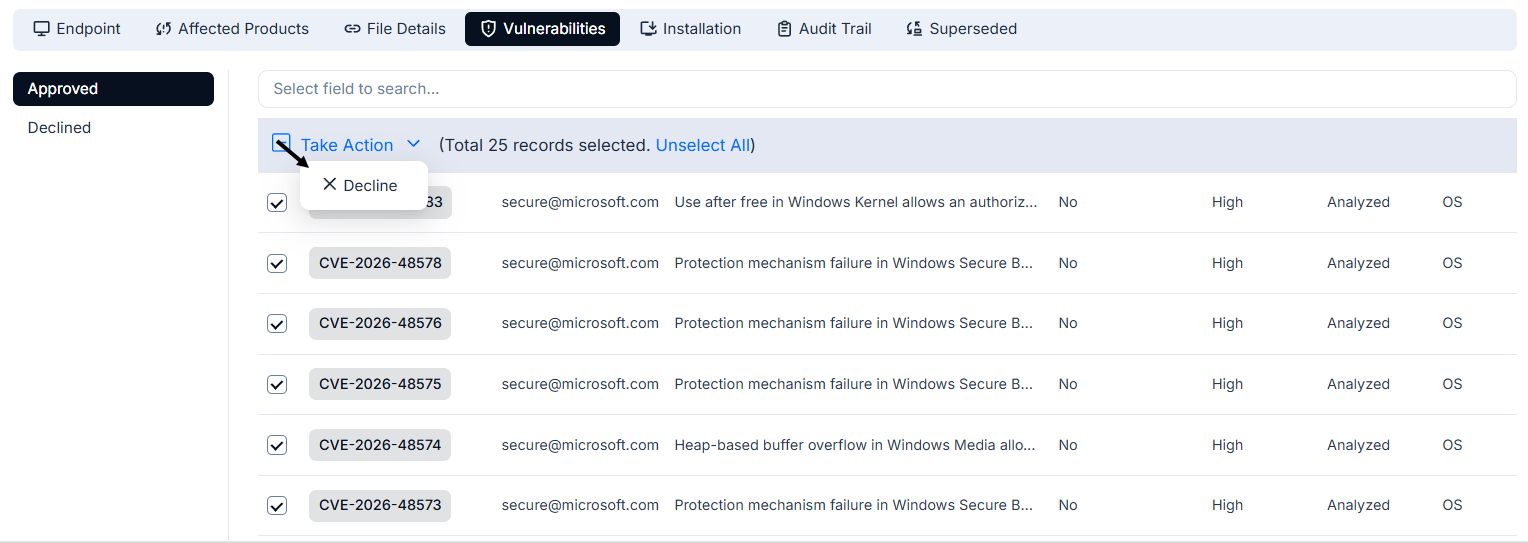
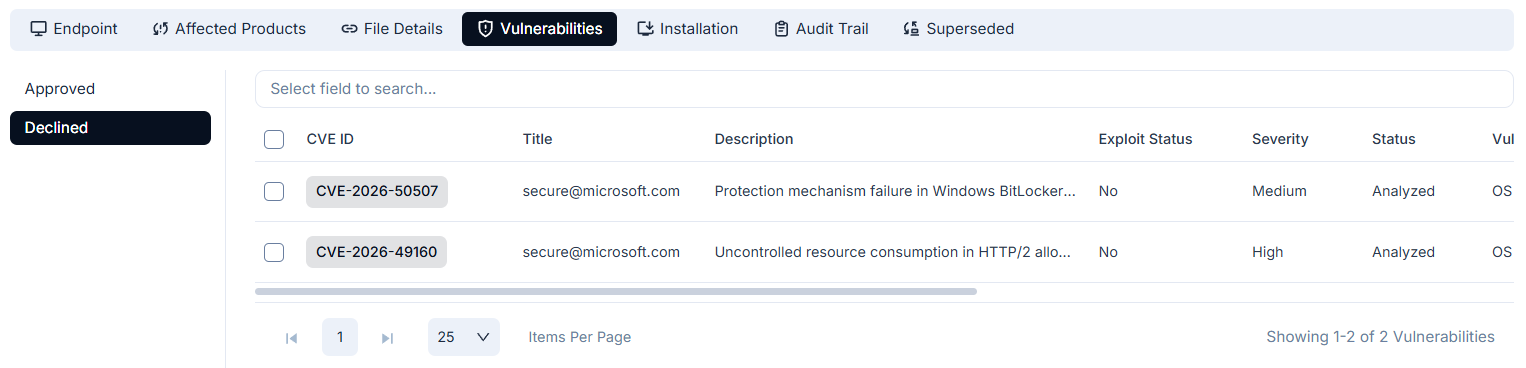
Lists the individual CVEs that this patch addresses. Use the sub-filter on the left to switch between Approved and Declined CVEs. Click a CVE ID to view the full CVE record in the Detected CVEs list.
Approved shows CVEs that are approved for remediation. You can select one or more CVEs and click Bulk Decline to move them to the Declined list.
Declined shows CVEs that have been declined and excluded from remediation workflows. You can select one or more CVEs and click Bulk Approve to move them back to the Approved list.
| Field | Description |
|---|---|
| CVE ID | Unique CVE identifier. Click to open the full CVE record. |
| Title | The CVE Numbering Authority (CNA) that assigned the CVE, for example secure@microsoft.com |
| Description | Short summary of the vulnerability |
| Impacted Endpoints | Count of enrolled endpoints where this CVE was detected |
| Vulnerability Type | Classification of the vulnerability, for example OS or Application |
| CVSS 3.1 Score | CVSS 3.1 base score indicating overall severity |
| CVSS 3.1 Vector | Full CVSS 3.1 vector string describing the attack characteristics |
| Patch Availability | Yes if a patch file is available to resolve this CVE |
| Exploit Status | Whether the CVE has confirmed active exploitation in real-world attacks. Yes indicates known exploitation; No indicates no confirmed exploits. |
| Severity | Risk level assigned to the CVE: Critical, High, Medium, or Low |
| Published Date | Date the CVE was first published to the vulnerability database |
| Last Updated Date | Date the CVE record was last modified in the vulnerability database |
| Status | Current state of the CVE record, for example Active or Resolved |
B. Associated Actions
- Installation
- Audit Trail
- Superseded
Shows the deployment and installation status of this patch per endpoint.
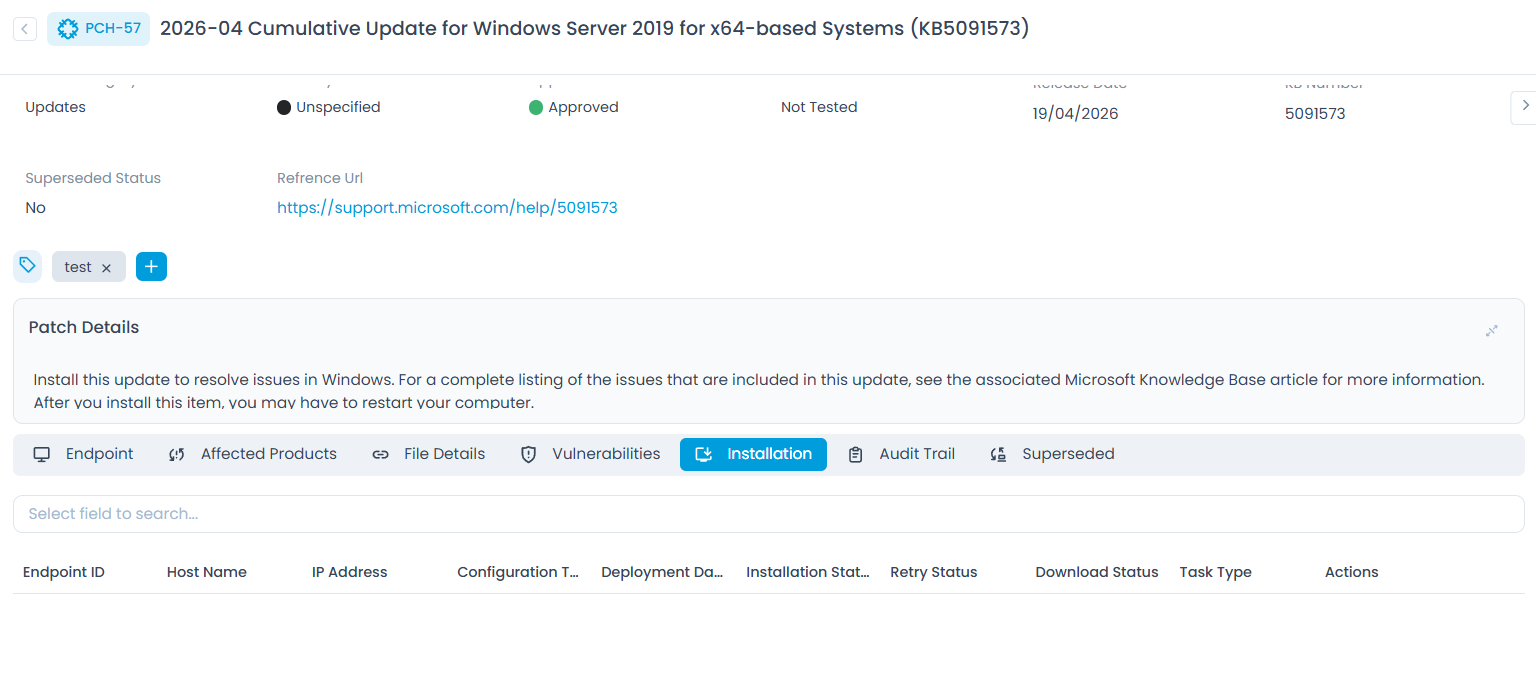
| Field | Description |
|---|---|
| Endpoint ID | Unique endpoint identifier in EP-XX format |
| Host Name | Hostname of the enrolled device |
| IP Address | Current IP address of the device |
| Configuration Type | Deployment configuration used for this patch |
| Deployment Date | Date and time the patch was deployed to the endpoint |
| Installation Status | Current state of the patch on the endpoint, for example Installed or Failed |
| Retry Status | Whether a retry attempt was made after a failed installation |
| Download Status | Whether the patch file was successfully downloaded to the endpoint |
| Task Type | Type of deployment task, for example Patch Deployment |
| Actions | Available actions for this installation record |
Shows a chronological log of all events for this patch record. Use the date range filter to narrow entries. Click the download icon to export the log.
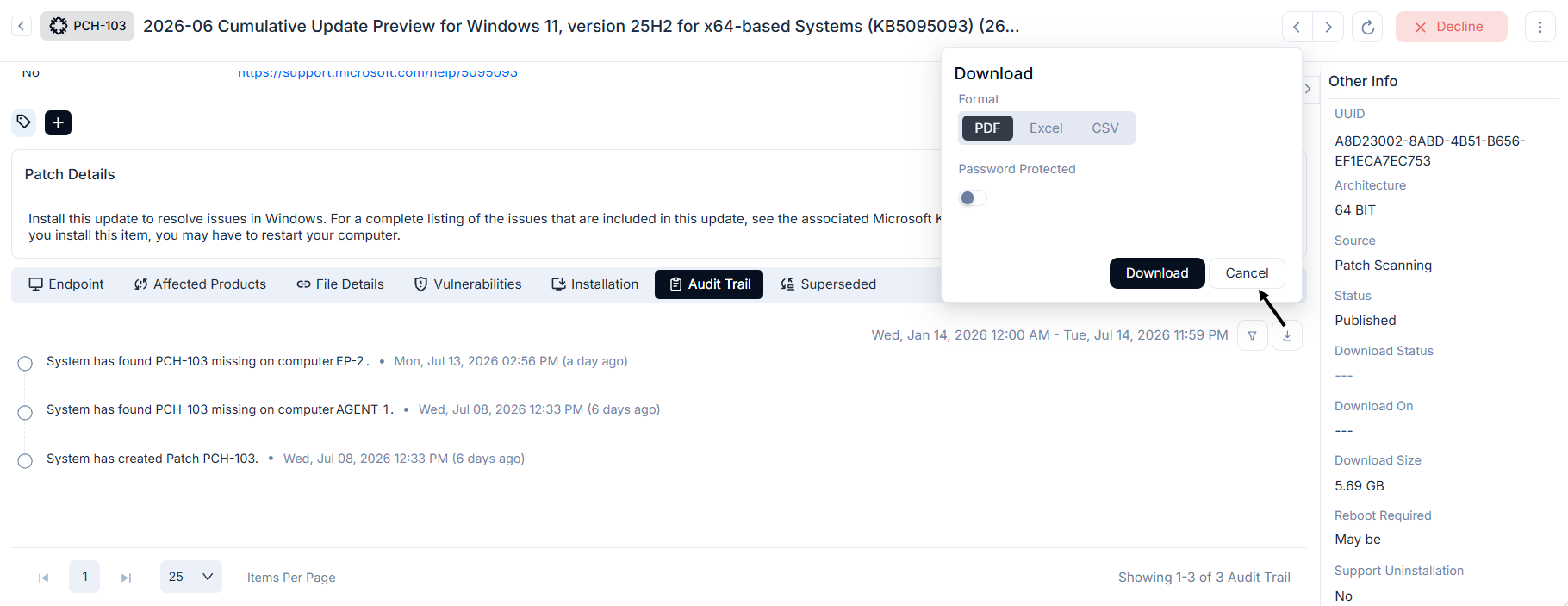
| Field | Description |
|---|---|
| Event | Description of what changed, for example System has created Patch PCH-XX, System has found patch missing on endpoint, or a user has added Tags |
| Date | Date and time the event was recorded |
Lists the older patches that this patch supersedes. Each entry links to the older patch record it replaces.
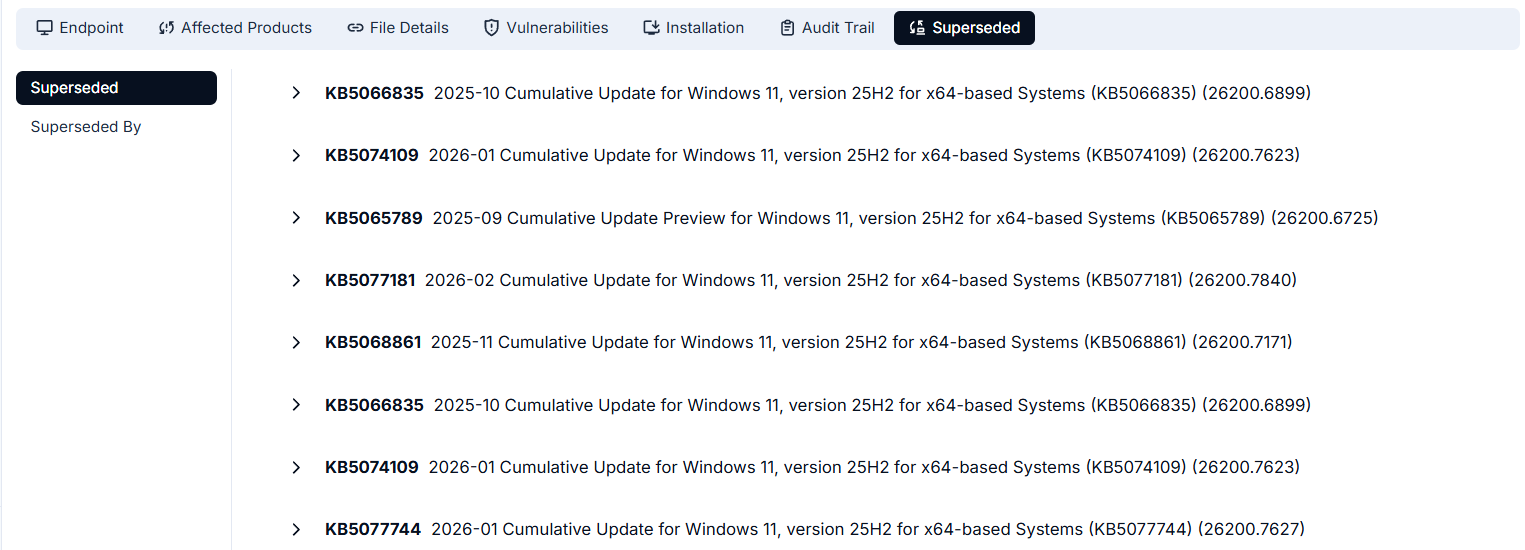
| Field | Description |
|---|---|
| Patch ID | Unique identifier of the older patch in PCH-XX format. Click to open that patch record. |
| Name | Full name of the older patch including its KB number |
More Options
Three actions are available from the top-right of the detail page:
| Action | Description |
|---|---|
| Refresh | Reloads the list to show the latest scan data. |
| Decline | Marks the patch as declined. Declined patches are excluded from deployment. |
| Download to File Server | Available from the More Options menu. Downloads the patch file to the configured file server for offline distribution. |
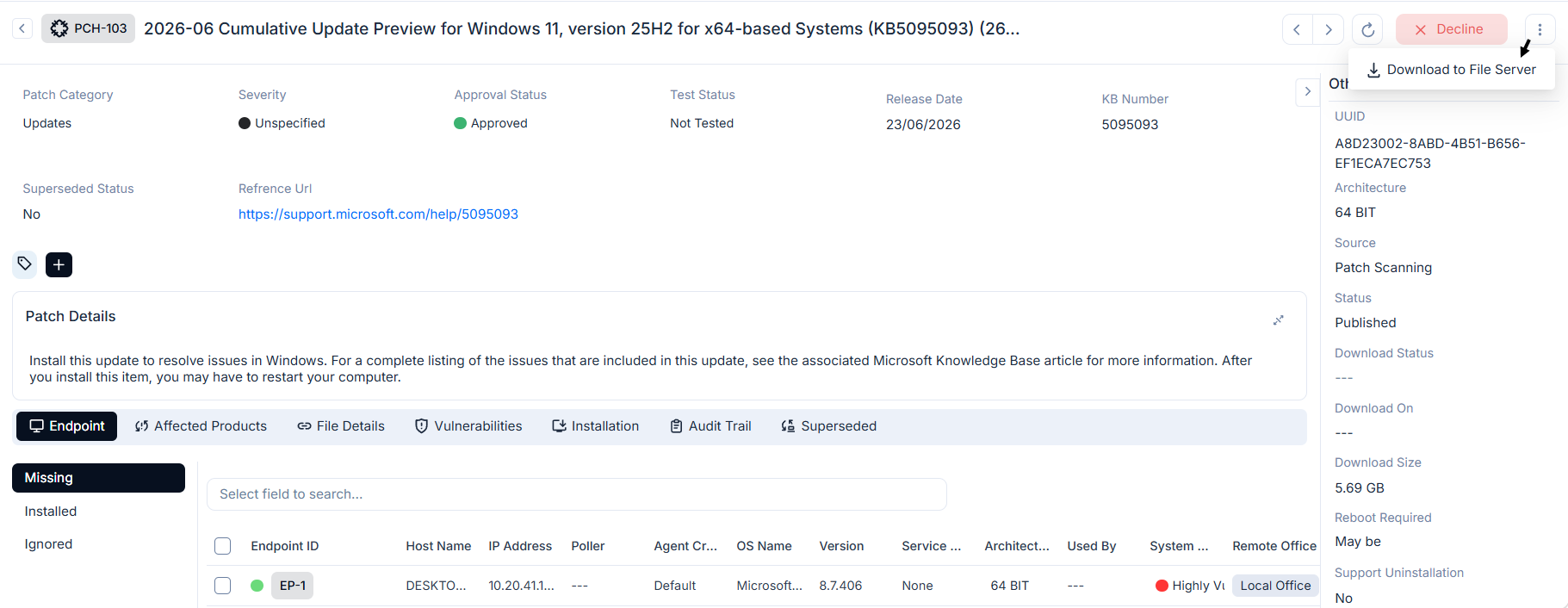
The vulnerability detail page fields are read-only. ServiceOps updates the record automatically when patch data changes in the central repository or when endpoint scan results change.
Other Info
The Other Info panel on the right side shows additional metadata:
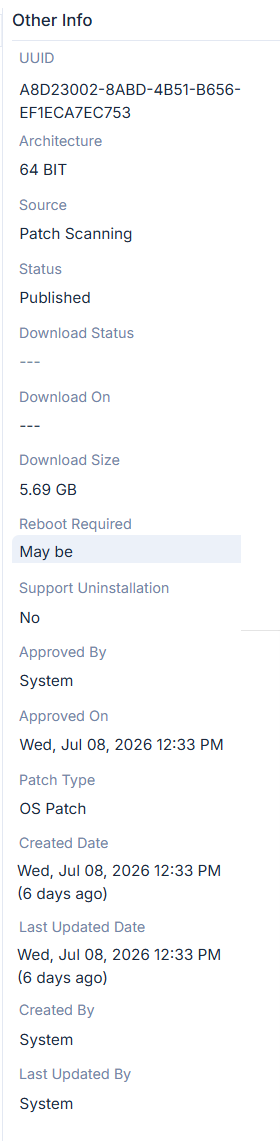
| Field | Description |
|---|---|
| UUID | Unique system identifier for the patch record |
| Architecture | Target architecture, for example 64 BIT |
| Source | How the patch was detected, for example Patch Scanning |
| Status | Publication status, for example Published |
| Download Status | Whether the patch file has been downloaded to the server |
| Download On | Date and time the patch was downloaded |
| Download Size | Size of the patch file |
| Reboot Required | Whether a device restart is needed after installation |
| Support Uninstallation | Whether the patch can be uninstalled |
| Approved By | Technician or system that approved the patch |
| Approved On | Date and time of approval |
| Patch Type | Type classification, for example OS Patch |
| Created Date | Date the patch record was created in ServiceOps |
| Last Updated Date | Date the record was last modified |
| Created By | User or system that created the record |
| Last Updated By | User who last modified the record |
Example
Your security team receives a vendor alert about a new Critical CVE affecting a widely installed application. You open Vulnerability Management > Vulnerabilities and apply the Critical Vulnerabilities filter. The relevant patch record appears with Exploit Status = Yes and 47 Impacted Systems. You click the patch ID to open the Patch Detail page, review the linked CVEs on the Vulnerabilities tab, and check the Endpoint tab to see which devices are missing the patch. You click an Endpoint ID to open the endpoint detail page and confirm the CVEs detected on that device. Back on the Vulnerabilities list, you select the patch record and click Take Action > Approve. ServiceOps creates a patch deployment in the Patch Management module, and the fix is queued for the 47 affected endpoints.
Troubleshooting
If something isn't working as expected, expand the relevant item below for the cause and fix.
Vulnerabilities list is empty after setup
Cause: The local vulnerability database has not synced yet, or no endpoints are enrolled.
Fix: Go to Admin > Vulnerability Management > Vulnerability Settings and click Update Now. Confirm at least one endpoint is enrolled in Admin > Vulnerability Management > Endpoints Scope.
A known CVE is missing from the list
Cause: The local database is stale, or the affected endpoint is not enrolled in scope.
Fix: Trigger a manual database update from Vulnerability Settings. Confirm the affected endpoint appears in the Endpoints Scope list.
Download produces an empty file
Cause: The active filter returns zero results.
Fix: Clear the active filter or switch to Detected Vulnerabilities before downloading.
CVE IDs are not clickable in the Impacted Endpoints view
Cause: Your role has View Vulnerability but not the permission to navigate to CVE records from that context.
Fix: Ask your administrator to review the role permissions under Admin > Users > Roles.
Detail page shows fewer impacted endpoints than expected
Cause: Some affected endpoints are not enrolled in scope, or an agent is offline and not reporting.
Fix: Check the Vulnerability Endpoints list to confirm enrollment and agent status for the missing devices.