Overview
ServiceOps continuously compares OS and software on your enrolled endpoints against a maintained CVE database, rates each finding by severity, and lets your team remediate through the integrated Patch Management module without switching tools.
With Vulnerability Management, you can:
- Detect known CVEs automatically across all enrolled endpoints.
- Prioritize remediation by severity (Critical, High, Medium, Low) and exploit status.
- Monitor your security posture from the out-of-the-box Vulnerability Dashboard.
- Export vulnerability data for compliance audits.
Currently, Vulnerability Management supports Windows endpoints only.
Prerequisites
Before you can use Vulnerability Management, confirm the following with your administrator:
- ServiceOps v8.7.5 or later installed. The module does not work on earlier versions.
- Active Vulnerability license applied on your ServiceOps instance.
- Endpoint agent v8.7.5 deployed on target endpoints.
- Agent-based discovery configured for all endpoints. Every license plan uses agent-based discovery only. An endpoint must appear in the Endpoint List before vulnerability data shows against it.
- Windows endpoints only. Vulnerability detection runs on Windows machines only. Mac and Linux are not supported.
- OS and software inventory available on each endpoint. The vulnerability scan runs against the OS and software data the agent collects.
- Technician account with the Vulnerability Manager or Vulnerability Specialist role, or an equivalent custom role with the View Vulnerability permission enabled.
Before you can run scans, an administrator must confirm the Vulnerability services are running (On-Prem), sync the Vulnerability repository, and whitelist https://vulncatalog.serviceops.ai if a proxy is in use. See Vulnerability Settings and Endpoint Management.
How Does Vulnerability Management Work?
ServiceOps syncs a local copy of the Motadata Central Vulnerability Repository on a daily schedule or on demand. When the database updates, a new endpoint is enrolled, or discovery data changes, ServiceOps scans affected endpoints by comparing installed OS and software against the database. Each match creates a vulnerability record with the CVE ID, severity, exploit status, and impacted endpoints.
Scans also trigger automatically when an endpoint's configuration changes in a way that affects vulnerability identification.
After you add a new endpoint, wait 10-15 minutes before clicking Initiate Scan. Running the scan too early returns no results because the agent has not yet sent its OS and software inventory to the server.
Architecture
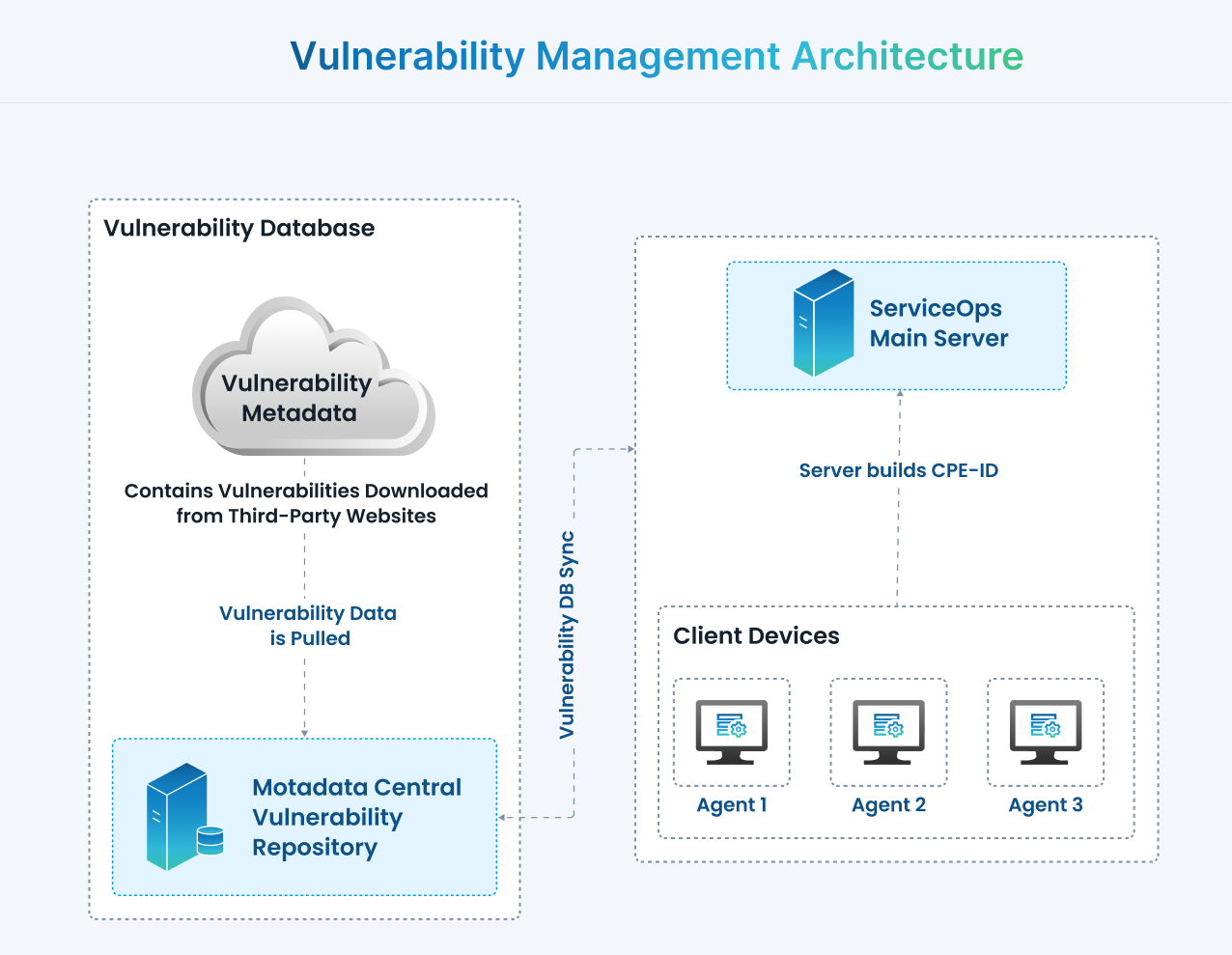
Motadata maintains the Central Vulnerability Repository. Your ServiceOps server syncs it on schedule. Each endpoint agent sends its OS and software inventory to the server, which matches it against the local database to identify applicable CVEs.
Use Vulnerability Management
Before technicians can use Vulnerability Management, an administrator must configure the vulnerability database schedule and define the endpoint scope. See Vulnerability Settings and Endpoint Management.
Vulnerability Management Structure
Vulnerability Management is organized around a detect-prioritize-remediate workflow. You start with the Dashboard to understand your exposure, drill into Vulnerabilities or Detected CVEs to investigate findings, act on affected Endpoints, review vulnerability data in context on an Asset, and generate Reports for compliance. The diagram below shows how these pages connect.
Permissions and Roles
Vulnerability Management uses a three-level permission node under Admin > Users > Roles:
| Permission | Effect when enabled |
|---|---|
| View Vulnerability | Vulnerability and Endpoint sections visible in the navigation menu. Records can be viewed but not modified. Must be enabled before the two manage permissions below can be activated. |
| View + Manage Vulnerability | All of View, plus modification of vulnerability records is allowed. |
| View + Manage Endpoint | All of View, plus modification of endpoint records is allowed. |
The Report node has two permissions:
| Permission | Effect |
|---|---|
| View Vulnerability Reports | Read access to vulnerability reports. Must be enabled before Manage can be activated. |
| Manage Vulnerability Reports | Create, edit, and delete vulnerability reports. |
Best Practices
- Scope endpoints deliberately. Only enroll endpoints you actively manage. Enrolling everything inflates your license count and floods the list with noise from systems that aren't your responsibility.
- Prioritize by severity and exploit status together. A high-severity CVE with active exploitation (Exploit Status = Yes) is more urgent than a critical one with no known exploits in real-world attacks.
- Use Fixable Vulnerabilities filter first. Starting with CVEs where Patch Availability = Yes gives your team actionable work immediately rather than findings they can't yet remediate.
- Review the audit log before compliance audits. Export the Vulnerability Audit report in PDF or Excel and attach it directly to your GDPR, HIPAA, or PCI DSS audit packages.
- Expect patch data after the Patch Cycle job, not immediately. Vulnerability data appears right after Initiate Scan completes. Patch data only appears after the scheduled Patch Cycle job runs. Set team expectations accordingly so missing patch results are not mistaken for scan failures.
Example
A Vulnerability Manager opens the Vulnerability Dashboard before a PCI DSS audit and sees 18 Critical Vulnerabilities across 40 enrolled servers. They filter the Vulnerabilities list by Severity = Critical and Exploit Status = Yes, approve the three patches that resolve all flagged CVEs, and trigger deployment. After patching, they click Scan Now on each server to confirm the Critical count drops to zero, then export the Vulnerability Audit log and attach it to the compliance package.
FAQs
Does Vulnerability Management automatically remediate vulnerabilities?
A: Yes. The Vulnerabilities page lets you trigger patch remediation directly. ServiceOps uses the integrated Patch Management module to deploy the patch to affected endpoints. You can track remediation progress by running an on-demand scan on the endpoint after the patch is applied.
What license do I need to use Vulnerability Management?
You need an active Vulnerability license.
Can I scan a single endpoint on demand?
Yes. Open the endpoint's Details page from Vulnerability Endpoints and click Scan Now.
Can I see which vulnerabilities affect a specific endpoint without leaving the Asset view?
Yes. Open the endpoint record in Asset Management or CMDB and select the Vulnerability tab. The tab is read-only and lists all detected vulnerabilities for that device. Clicking a CVE ID navigates to the full vulnerability detail page if you have the View Vulnerability permission.
Troubleshooting
Use these steps to resolve common issues when running vulnerability scans.
Scan returns no results on a newly added endpoint
Cause: The agent has not yet sent its OS and software inventory to the server. Scanning before the inventory arrives produces empty results.
Fix: Wait 10-15 minutes after the endpoint is added, then click Initiate Scan again.
Endpoints added before the v8.7.5 upgrade show no vulnerability data
Cause: Endpoints enrolled under v8.7.4 do not trigger an automatic scan after upgrade.
Fix: Open the Endpoint List page and click Initiate Scan for each existing endpoint. Vulnerability data appears after the scan completes.
Patch data is missing after a successful scan
Cause: Vulnerability data and patch data populate at different times. Vulnerability results appear right after Initiate Scan completes, but patch results only appear after the scheduled Patch Cycle job runs.
Fix: Wait for the Patch Cycle job to complete, then refresh the Vulnerabilities list. Contact your administrator if the Patch Cycle job has not run recently.