Vulnerability Reports
Vulnerability Reports are part of the standard ServiceOps Reporting module. The Vulnerability module adds three view types, Vulnerabilities, Detected CVEs, and Endpoints, to the report builder. You can run OOB reports in seconds, or build custom tabular, summary, matrix, and query reports for any audience, from executive risk reviews to endpoint-level remediation task lists.
Prerequisites
Before you create and view Vulnerability Reports, ensure:
- You have the Vulnerability Manager or Vulnerability Specialist Technician role, or your role has View Vulnerability Reports enabled under Admin > Users > Roles
- A Vulnerability license is active in ServiceOps
- At least one vulnerability scan has completed so there's data to report on
- To create, edit, or delete reports, Manage Vulnerability Reports must also be enabled on your role
View Vulnerability Reports must be enabled before Manage Vulnerability Reports can be activated. The system won't let you enable Manage without View turned on first.
How Does Vulnerability Reporting Work?
The Vulnerability module adds its own view types to the ServiceOps report builder. When you create a report, you choose a primary view type (Vulnerabilities, Detected CVEs, or Endpoints) and optionally a co-related view type to join data from both sides. This lets you combine vulnerability records, specific CVE detections, and endpoint data in a single report output.
All standard ServiceOps reporting features apply: scheduling, column selection, export, saved filters, and role-based access. Report data reflects the state of your vulnerability database at the time you run or schedule the report.
Vulnerability Reports Screen
Navigate to Reports > Vulnerability.
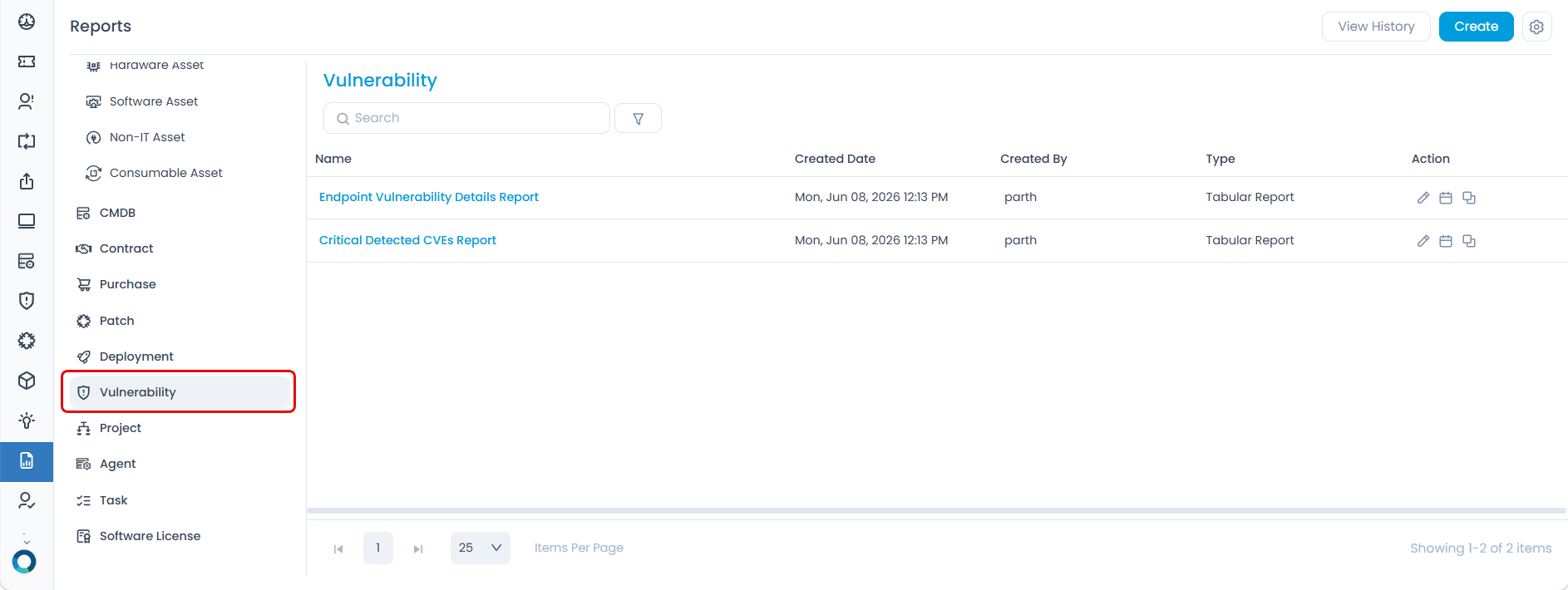
The two out-of-the-box reports are available immediately:
| Report Name | Type | What it shows |
|---|---|---|
| Endpoint Vulnerability Details Report | Tabular | Vulnerability details per enrolled endpoint |
| Critical Detected CVEs Report | Tabular | All CVEs detected with Critical severity |
Configuration
Creating tabular, summary, matrix, and query reports follows the same steps as any other module. See Creating a Report for step-by-step instructions. When building a Vulnerability report, select Vulnerability as the module and choose Vulnerabilities, Detected CVEs, or Endpoints as the view type.
Example
Your security lead needs a report listing every Critical CVE currently affecting enrolled endpoints. Navigate to Reports > Vulnerability and click Create. Under Basic Details, enter the name "Package showing all Critical CVEs", set Module to Vulnerability, View Type to Vulnerabilities, Type to Tabular, and Report Access Level to Private. Under Filters, set Date Filter to Publish Date and add the condition Severity | In | Critical. Set Co-Related Module to Vulnerability and Co-Related View Type to Detected CVEs. Under Columns, select CVE ID, Discovered Date, Description, Severity, Impacted Systems, and Patch Availability. Click Save, run the report, and share the export with your security lead for the remediation review.
Troubleshooting
No data in a custom report
Cause: Conditions are too restrictive, or no scans have run yet.
Fix: Remove all conditions and run the report to confirm data exists. Then add conditions back one at a time.
Co-Related Module option isn't available
Cause: A primary View Type hasn't been selected yet.
Fix: Select a View Type first. Co-Related Module options only appear after the primary view is set.
Manage Vulnerability Reports is greyed out
Cause: View Vulnerability Reports isn't enabled on your role.
Fix: Enable View Vulnerability Reports first. The system requires it before Manage can be activated. Go to Admin > Users > Roles.
Exported report file is empty
Cause: The active filter or condition returns zero records.
Fix: Remove all conditions and run the report first to confirm data exists, then re-apply filters.
Cannot see the Vulnerability Reports section
Cause: View Vulnerability Reports isn't enabled on your role.
Fix: Ask an administrator to enable it under Admin > Users > Roles.