Managing Knowledge Folders
Folders are the top-level containers that organize your knowledge collections in ServiceOps AI.
Before creating a knowledge collection or adding sources, you must first create a folder. Think of folders as departments or domains — each folder groups related collections together, making them easier to manage and assign to AI agents.
Accessing Knowledge Collections
Navigate to Admin > AI > Knowledge Collections. The Knowledge Collections page appears.
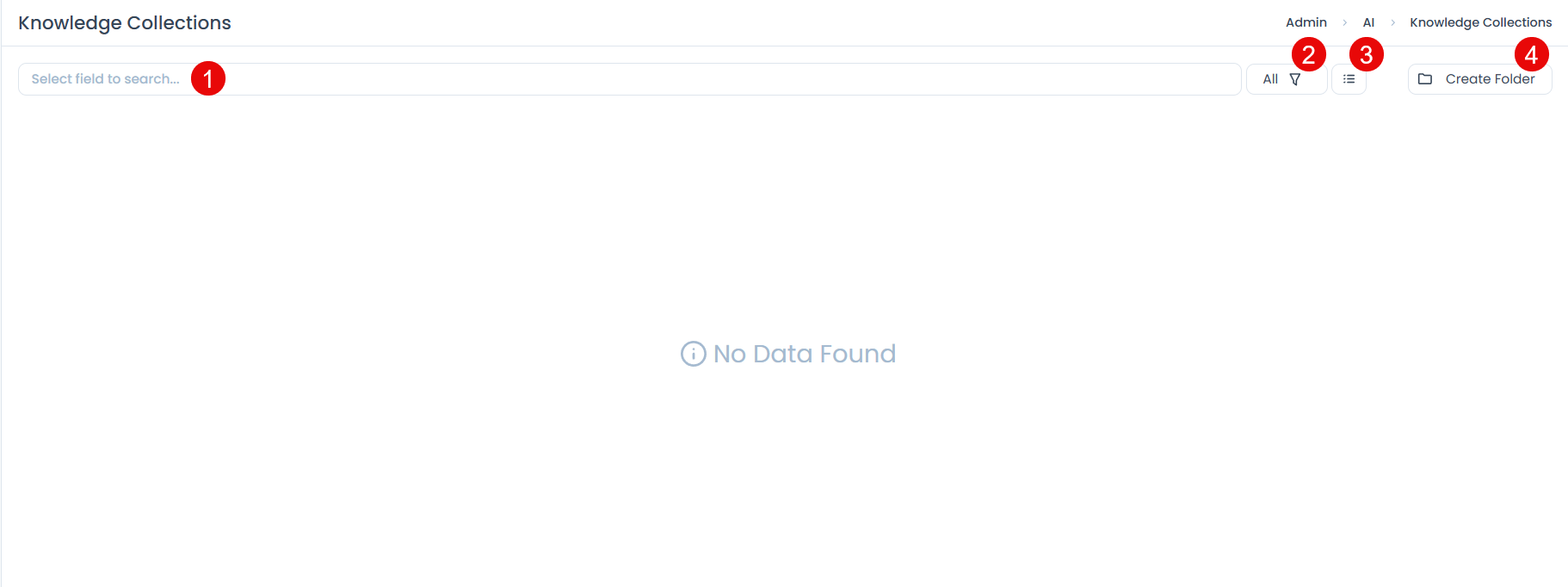
The page provides the following options:
- Search Bar: Quickly find folders by name or created date.
- Filter Options: Toggle between active and archived folders.
- View Toggle: Switch between card view (default) and list view.
- Create Folder: Opens the dialog to create a new knowledge folder.
Creating a Knowledge Folder
Click Create Folder. The Create Folder dialog appears.
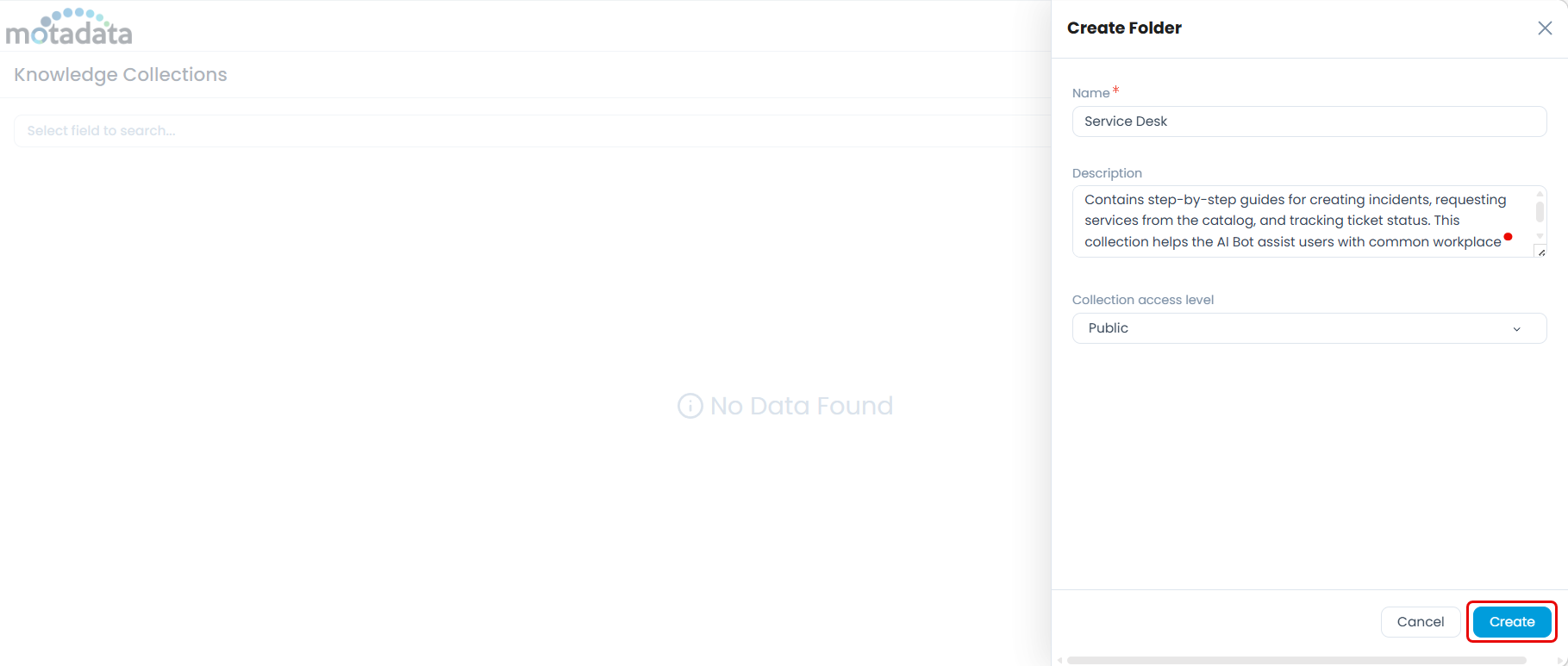
Enter the following details:
Name (Mandatory): Enter a unique, descriptive name. For example,
Service DeskorHR Policies.Description (Optional): Briefly describe the folder's purpose. For example, "Contains step-by-step guides for creating incidents and tracking ticket status."
Collection Access Level: Controls who can view and use this folder's collections. Choose based on the sensitivity of the content:
Access Level Who Can Access When to Use Public All users General-purpose knowledge with no sensitivity (e.g., FAQs, how-to guides) Private Only users with explicit permission Internal policies or restricted documentation Restricted Specific user groups and individual users you define Sensitive content scoped to a team or department If you select Restricted, define access using one or more of the following:
Option Who Gets Access User Group Access Level All users belonging to the selected user groups User Access Level Specific individual users you select Company All users belonging to the selected company. Only those company users will be able to view the folder.
Click Create to save the folder. It appears in the list immediately.
Managing Existing Folders
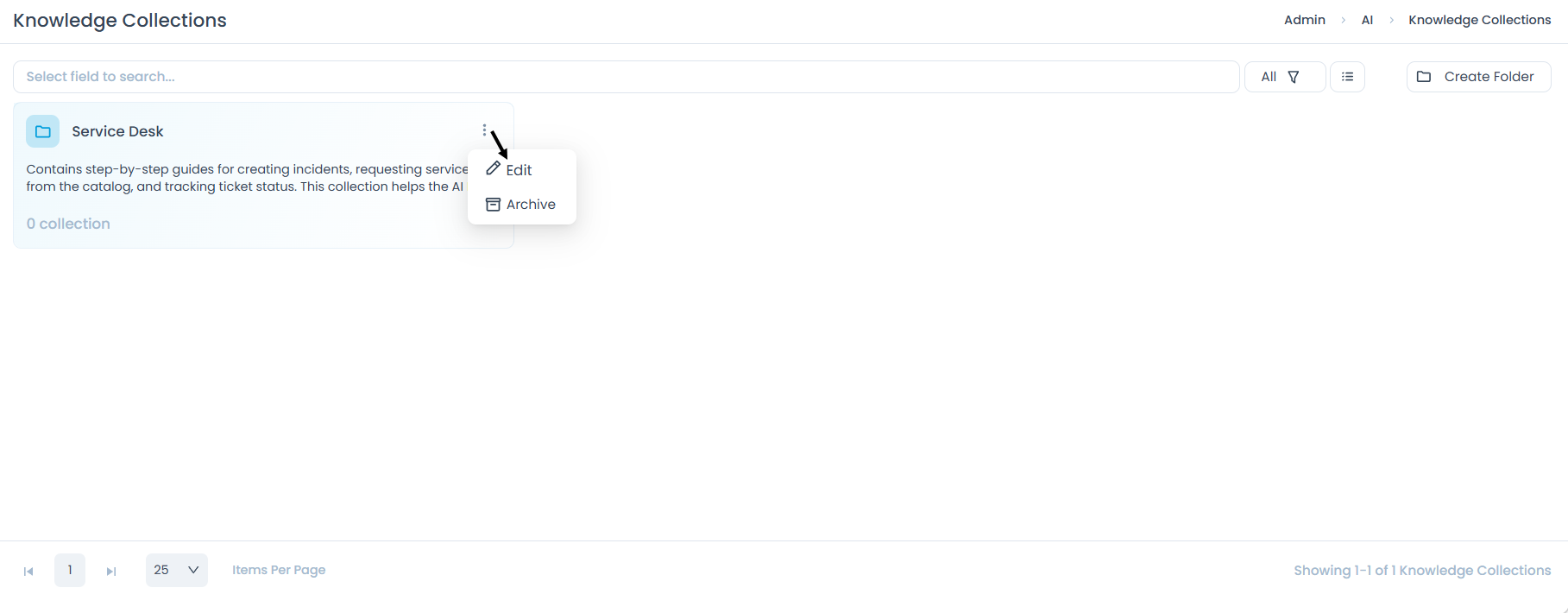
Each folder card provides a three-dot menu with the following actions:
- Edit: Update the folder name, description, or access level.
- Archive: Hides the folder from active use. Archived folders can be restored later and are not permanently deleted.
Archiving a folder also makes its collections unavailable to AI agents. Use this when a folder is temporarily out of scope, not when you want to delete it permanently.
Accessing Archived Folders
To manage archived folders, select the Archive filter on the main Knowledge Collections page.
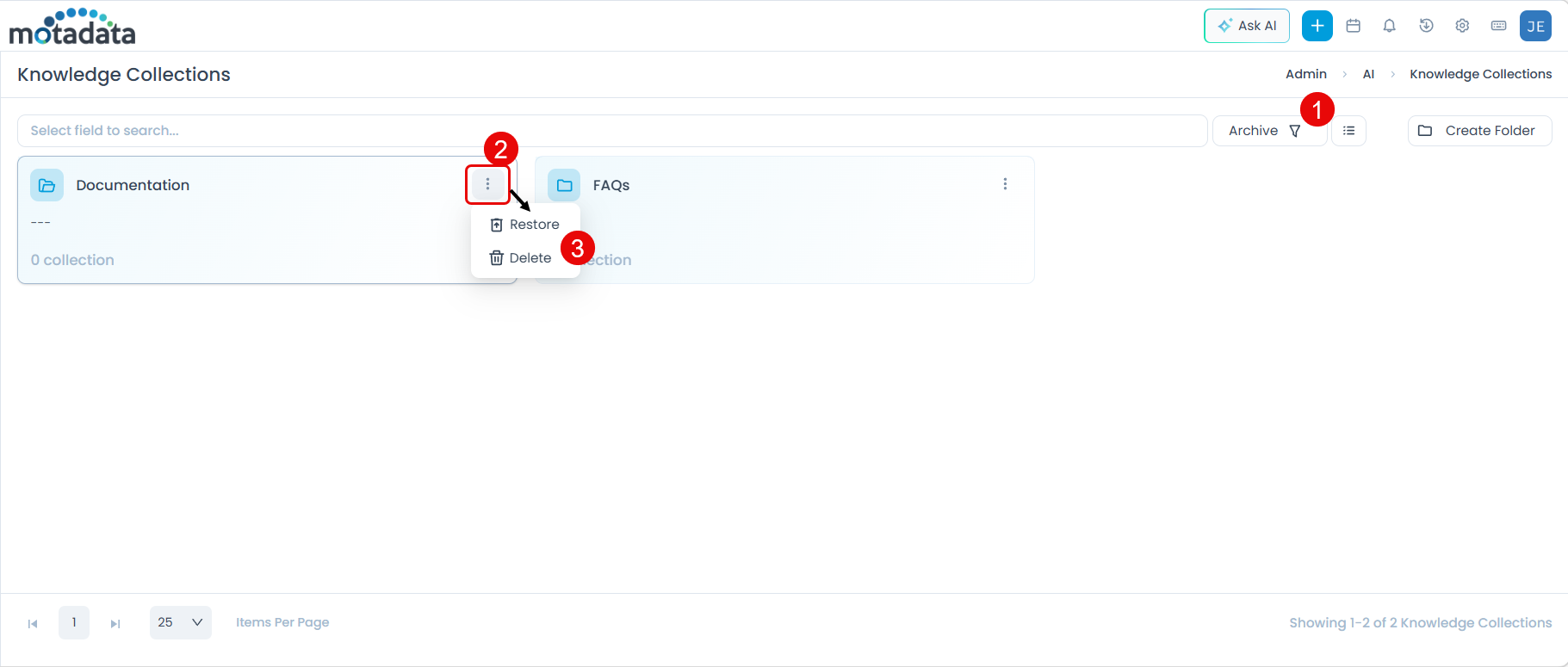
From the three-dot menu on an archived folder:
- Restore: Returns the folder to the active list.
- Delete: Permanently removes the folder and all its collections. This action cannot be undone.
Next Step
Once a folder is created, add knowledge collections to it. See Creating a Knowledge Collection.