Similarity
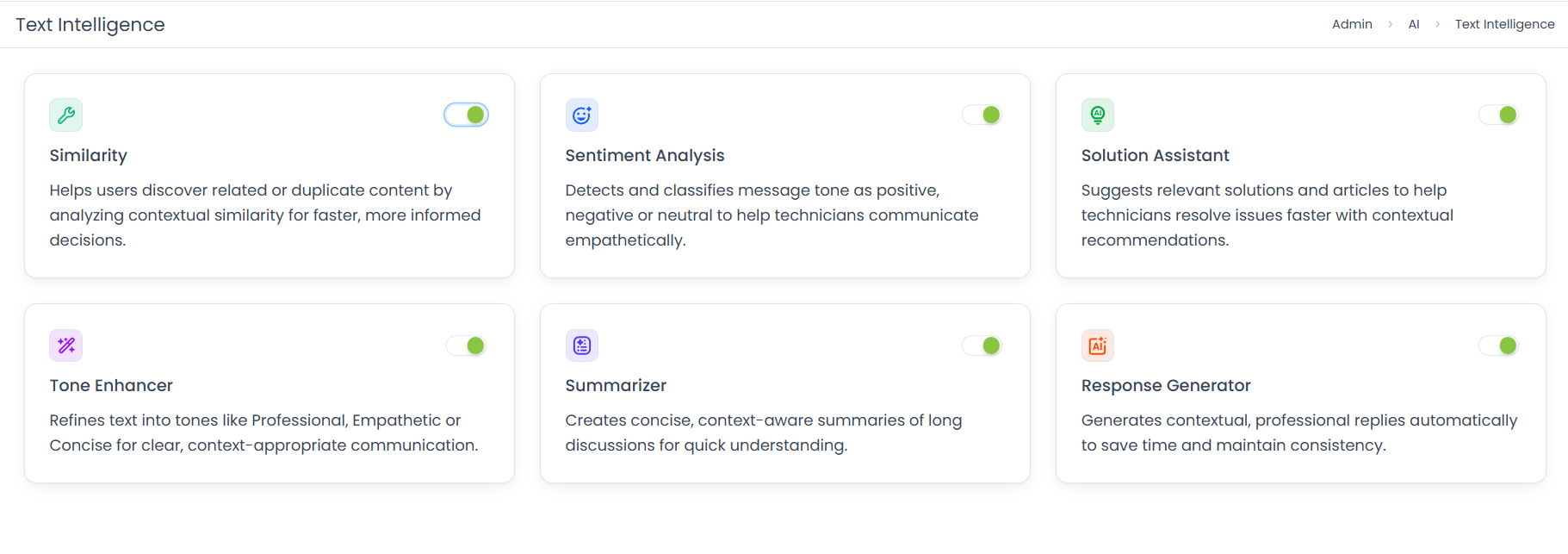
ServiceOps Similarity displays related and duplicate records in real time so technicians can reuse existing resolutions, avoid redundant work, and resolve issues faster.
When someone raises a ticket, there is a good chance a similar issue has already been reported and may even have a fix. Similarity catches that automatically and surfaces matching records right on the screen, so your team spends less time on duplicates and more time on resolutions.
- Similarity is enabled by default. No additional configuration is required to start using it.
- Ensure you have the Manage Text Intelligence permission assigned to your role to access this feature.
- Contact your administrator if the feature is not visible.
How It Works
When you type a subject and description on a new record, or open an existing one, ServiceOps reads the content and compares it against all records in the system using semantic matching. It does not look for exact keyword matches. It understands meaning, so a ticket about "laptop not turning on" can match a past record about "device not powering up." Results appear in real time, covering records across Request, Problem, Change, Release, and Knowledge Base modules.
Business Use Cases
The following scenarios show where Similarity delivers real, measurable impact in day-to-day service operations:
Preventing Duplicate Tickets: A user raises a ticket about "printer not working." Before saving, the Similar Incident panel shows three existing tickets about the same printer, one already resolved with a fix attached. The technician closes the new ticket and applies the existing resolution instead of starting from scratch.
Reusing Existing Resolutions: A VPN connectivity issue is raised again. The Similar Tickets tab shows an identical issue resolved last month with a specific workaround documented. The technician applies the same fix in minutes rather than spending hours investigating independently.
Managing Outage-Driven Ticket Floods: During a system outage, 20 users raise tickets for the same underlying issue. Similarity flags them as related, allowing the team to manage them as one coordinated group rather than 20 separate investigations, reducing noise and response time significantly.
Accelerating New Technician Productivity: A new technician opens a ticket for the first time. The Suggested Knowledge panel presents a knowledge base article that directly addresses the issue, preventing unnecessary escalation to a senior technician and reducing the learning curve.
Proactive Resolution Before Ticket Creation: While filling in a new ticket, a technician notices the Similar Incident panel showing a matching record that is already being worked on. They coordinate with the assigned technician instead of duplicating the investigation.
Where Similarity Appears
Similarity is available in two places within the Technician Portal, depending on what you are doing at the time.
While Creating a New Record
As soon as you begin filling in the Subject and Description fields on a new record, a Similar Incident panel appears automatically on the right side of the screen. It updates in real time as you type, showing existing records that are contextually related to what you are describing.
Directly below the Similar Incident panel, a Suggested Knowledge section also appears. This displays relevant knowledge base articles related to the subject, giving you a chance to find an existing answer or resolution before the ticket is even saved.
Each result in the Similar Incident panel shows the ticket ID, subject, date, and time. Click any result to open the full record in a new tab and review its resolution or history.
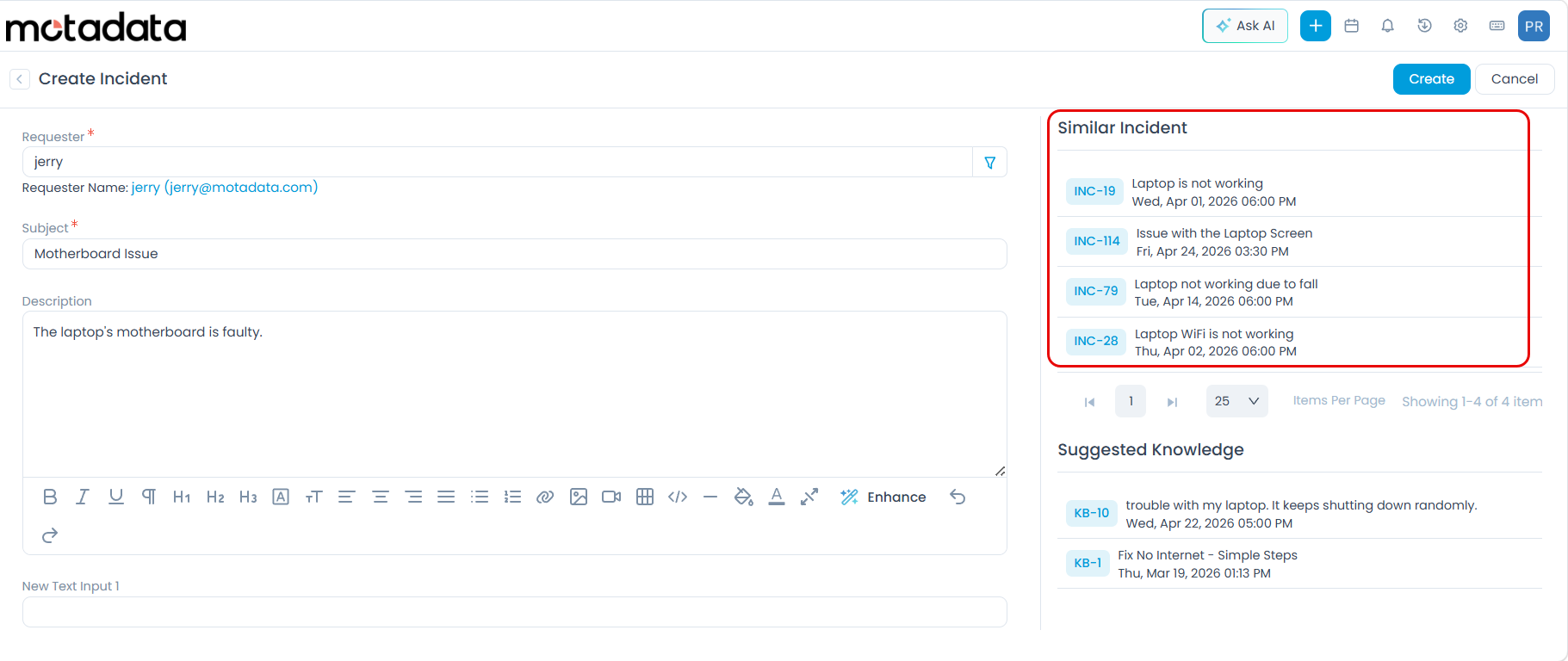
Example: Typing "Motherboard Issue" as the subject immediately displays INC-19, INC-114, INC-79, and INC-28 in the Similar Incident panel, along with related knowledge base articles (KB-1 and KB-10) in the Suggested Knowledge section below. This happens before the new record is saved.
Inside an Existing Record
When you open any existing record, a Similar Tickets tab appears in the record's tab bar alongside Work, Tasks, Relations, and other tabs. Clicking it displays a list of records from across the system that are contextually related to the one currently open.
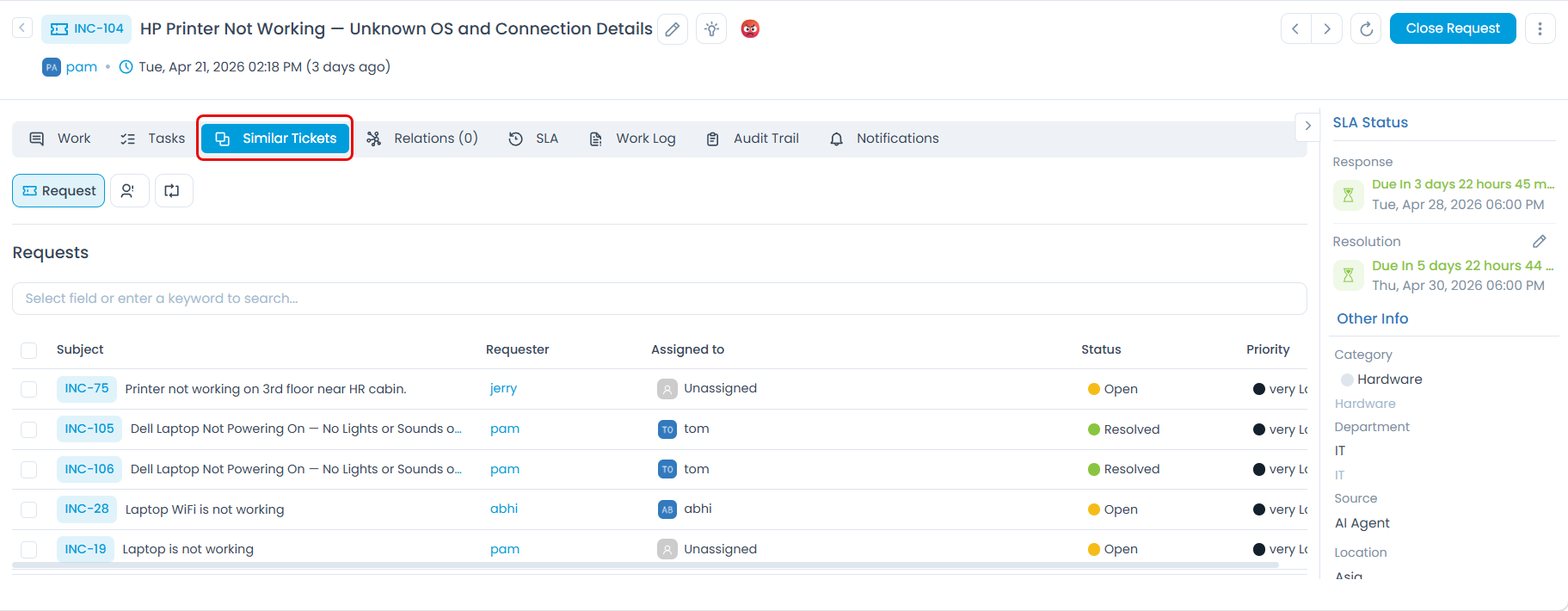
Example: Opening INC-104 and clicking the Similar Tickets tab reveals INC-75, INC-105, INC-106, INC-28, and INC-19 as related records. The list shows the requester, assignment status, ticket status, priority, etc., enough context to assess relevance without opening each record individually. Click any result to open it and review its resolution or activity thread.
Tips for Best Results
- Write descriptive subjects: Avoid vague subjects like "Not working" or "Issue." Be specific. "VPN disconnects after 10 minutes on Windows 11" gives the system much more to match against.
- Add detail to the description: Mention what you were doing when the problem occurred, any error messages shown, and what you have already tried.
- Always check before submitting: Glancing at the Similar Incident panel takes seconds and could save hours of duplicated effort.
- Do not dismiss near-matches too quickly: A result that is not an exact match may still contain a useful resolution or important context.
- Check the Similar Tickets tab early: Review it at the start of your investigation, not just at the end. Finding a prior resolution upfront shapes your whole approach and saves time.
Related Features
Once you have identified a similar record using Similarity, the following features can help you take the next step:
| Feature | How it connects to Similarity |
|---|---|
| Solution Assistant | Use it to pull a recommended fix from a similar resolved record directly into the Solution field, without copying and pasting manually. |
| Ticket Summarizer | If a similar record has a long thread, use Summarizer to get a quick overview of what happened and how it was resolved. |
| Knowledge Base | The Suggested Knowledge panel shown alongside Similar Incidents displays relevant articles. Review them before creating a ticket or beginning investigation. |
Permissions Reference
| Role | Can see Similar Incident panel during creation | Can see Similar Tickets tab | Can configure Vector Store |
|---|---|---|---|
| Technician | Yes | Yes | No |
| Administrator | Yes | Yes | Yes |
Troubleshooting
The Similar Incident panel is not appearing when I create a record.
The Similar Tickets tab is missing inside a record.
Results appear that seem completely unrelated to my issue.
No results appear even when I know a similar ticket exists, or results have changed or disappeared.
I want to see more or fewer results.
Frequently Asked Questions
Does Similarity automatically close or merge duplicate tickets?
A: No. It only displays related records for your review. Any action such as merging, closing, or linking must be taken manually.
Can I search for similar records manually, or does it only work automatically?
A: Similarity works automatically based on the Subject and Description you enter or update. There is no separate manual search. Results are generated in real time.
Does Similarity search all modules at the same time?
A: The modules included in similarity searches depend on your organization's configuration. Your administrator can confirm which modules are active for your tenant.
Will old records with poor descriptions affect result quality?
A: Yes. Records with very short or vague descriptions contribute less to similarity matching. Encouraging technicians to write detailed, descriptive records consistently improves result quality over time.