Ticket Summarizer
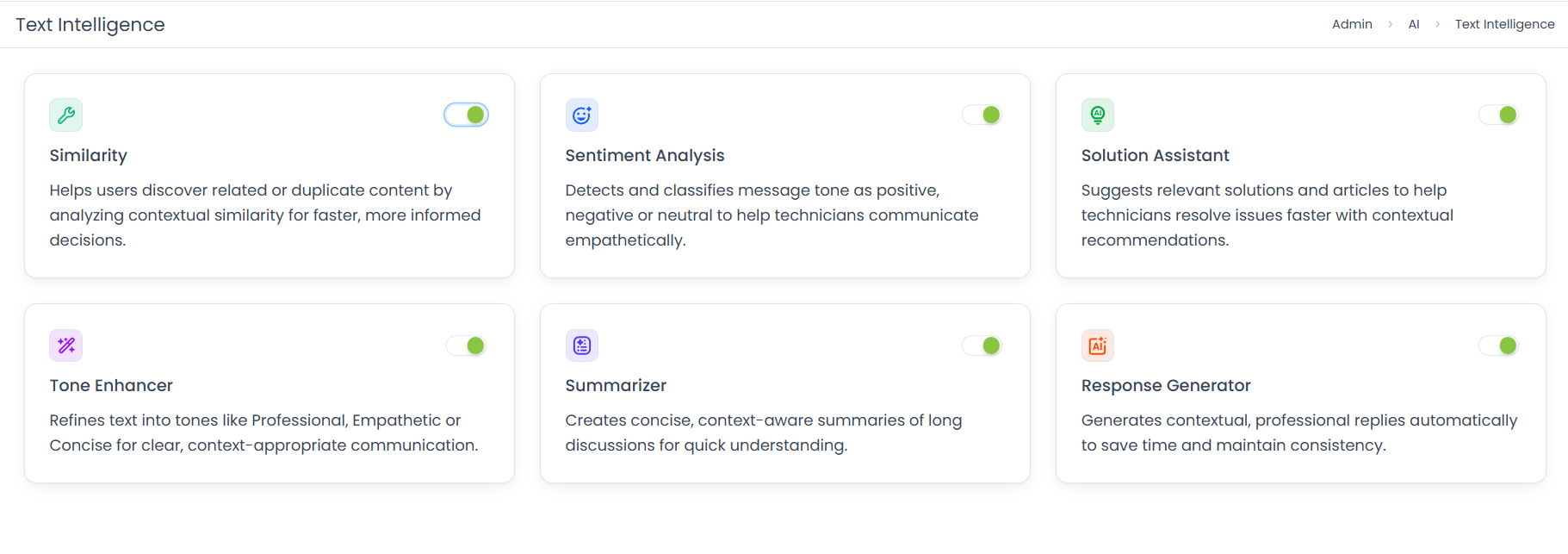
ServiceOps Ticket Summarizer condenses long ticket threads into a concise AI-generated summary so technicians can get the gist of the ticket instantly without reading every message in the history.
Support tickets do not always stay simple. By the time a ticket has been updated several times, reassigned, and replied to by multiple people, understanding what actually happened can take longer than fixing the issue. The Ticket Summarizer solves that. With one click, it reads the full content of a record — conversations, notes, replies, and resolution entries — and generates a clear, focused summary. Whether you are picking up someone else's ticket or reviewing an old thread, you get the context you need in seconds.
- Ticket Summarizer is enabled by default. No additional configuration is required to start using it.
- Ensure you have the Manage Text Intelligence permission assigned to your role to access this feature.
- Contact your administrator if the feature is not visible.
How It Works
When a technician clicks Summarize with AI, the system processes all content from the Work tab, including Subject and Description, Requester conversations, Technician replies, Internal notes and collaboration entries, and Solution and diagnosis content. It generates a concise contextual summary and adds it directly to the Summary field within the Work tab. If the ticket is updated after the summary was generated, it can be refreshed at any time using the Regenerate Summary icon.
Business Use Cases
Picking Up a Reassigned Ticket: A technician receives a reassigned ticket with 20 conversation entries spanning several days. Instead of reading every message, they click Summarize with AI and get the full context in three sentences, picking up immediately where the previous technician left off.
Pre-Escalation Briefing: A manager reviewing an escalated ticket uses the summary to understand what has already been attempted before joining a call with the user, avoiding redundant questions and presenting a more informed response.
Using a Similar Ticket's History: While reviewing a matched record in the Similar Tickets tab, a technician uses Summarizer to quickly understand how that ticket was resolved before applying the same approach to their current ticket.
Handing Off Without a Verbal Briefing: Before transferring a complex ticket to a senior technician, the current owner generates a summary. The incoming technician reads it and picks up immediately without needing a separate handover conversation.
Where Ticket Summarizer Appears
Ticket Summarizer is available in the Work tab of Request and Service Request records in the Technician Portal.
Generating a Summary
Open any record with a conversation history and navigate to the Work tab. The Summarize with AI button is available in this view.
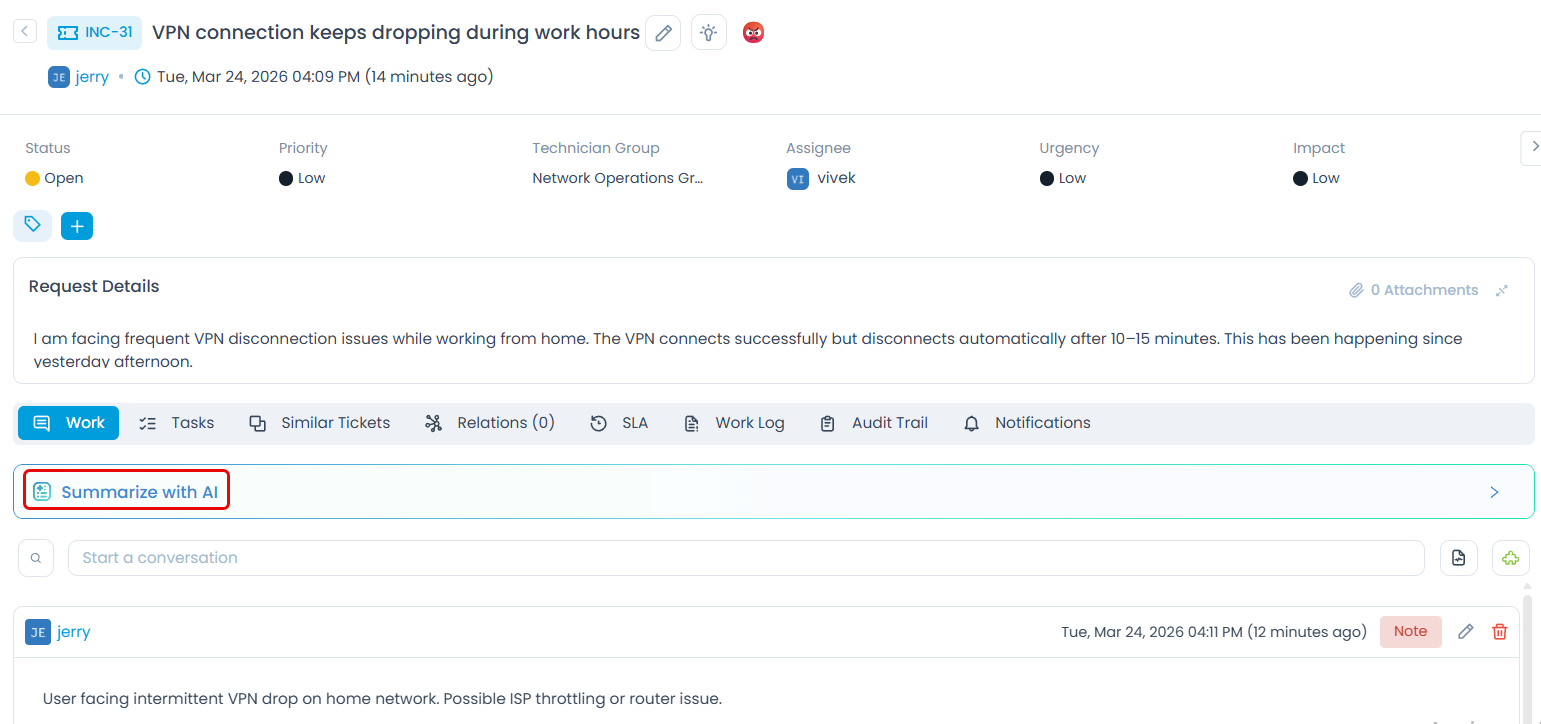
Click Summarize with AI. The system reads the Subject, Description, and all threads in the Work tab — including Requester conversations, Technician replies, Notes, Collaboration entries, and Solution and Diagnosis content — and generates a summary.
The screenshot below shows a generated summary for a ticket with multiple updates.
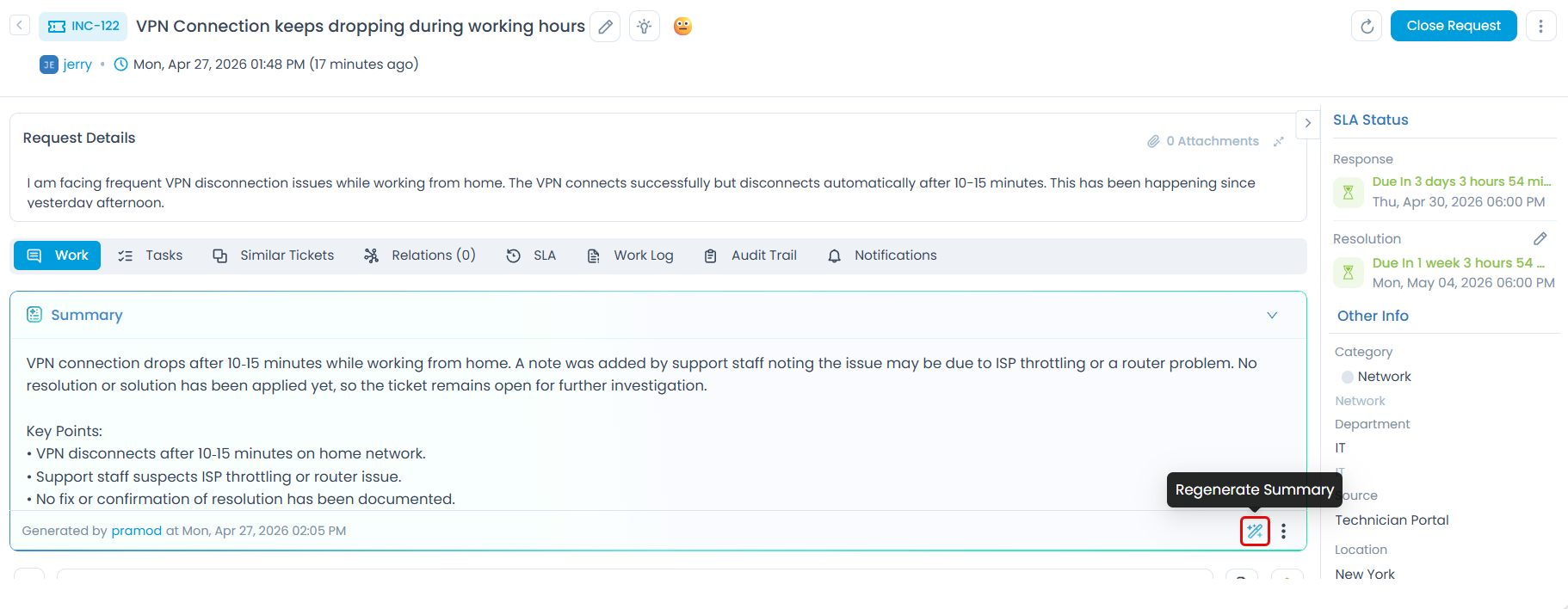
The summary appears in the Summary field. If the ticket is updated after the summary was generated, click the Regenerate Summary icon to produce a fresh version based on the latest content.
Tips for Best Results
- Summarize early, not just at the end: Even mid-investigation, a summary helps you confirm your understanding of what has been done and what is still open.
- Regenerate after major updates: If a significant reply or note has been added since the last summary, regenerate it so the summary reflects the current state of the ticket.
- Use it before reassigning: Generate a summary before handing a ticket to another technician — it gives them a clean starting point without needing to ask for context.
- Pair it with Similarity: If a similar ticket appears in the Similar Tickets tab, use Summarizer to quickly understand how that ticket was resolved before applying the same approach.
- Do not replace the full record: Summaries are a quick-start tool. For audit purposes or detailed investigation, always refer to the full conversation history.
Related Features
Ticket Summarizer works best when used alongside these features:
| Feature | How it connects to Ticket Summarizer |
|---|---|
| Similarity | When a similar ticket appears in the Similar Tickets tab, use Summarizer to quickly read what happened in that record before deciding whether to reuse its resolution. |
| Solution Assistant | After reviewing a summary to understand the issue, use Solution Assistant to surface a relevant fix without having to search manually. |
| Tone Enhancer | Once you understand the full context from the summary, use Tone Enhancer to craft a reply that matches the tone and history of the conversation. |
Permissions Reference
| Role | Can generate and view summaries | Can enable or disable Ticket Summarizer |
|---|---|---|
| Technician | Yes | No |
| Administrator | Yes | Yes |
Troubleshooting
The Summarize with AI button is not visible in the Work tab.
The generated summary seems incomplete or missing key details.
The summary did not update after I added a new reply.
The Regenerate Summary icon is not responding.
The Summary field is empty after clicking the button.
Frequently Asked Questions
Which modules support Ticket Summarizer?
A: Ticket Summarizer is available in the Request and Service Request modules.
Does the summary get saved to the record permanently?
A: Yes. Once generated, the summary is saved in the Summary field of the Work tab. It remains until it is regenerated or the record is closed.
Can I edit the generated summary?
A: The summary field displays the AI-generated content. Whether it can be manually edited depends on your organization's configuration — check with your administrator.
Does Summarizer include internal notes in the summary?
A: Yes. The system analyzes internal notes and collaboration entries alongside requester conversations and technician replies to produce the most complete summary possible.
Will the summary include information added after it was generated?
A: No. The summary reflects the record at the time it was generated. Use the Regenerate Summary icon to update it after new content is added.