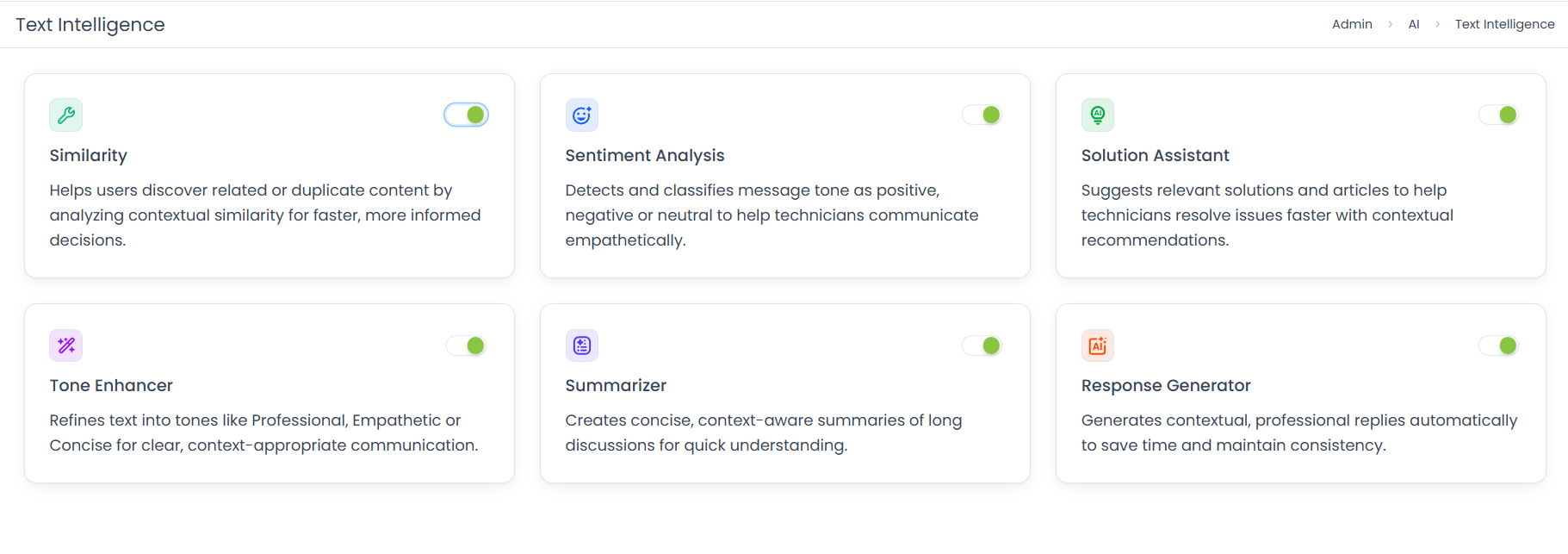
Solution Assistant
ServiceOps Solution Assistant displays context-aware fixes directly in the Solution field so technicians can resolve tickets faster without leaving the record or searching through documentation manually.
When a technician is ready to resolve a ticket, the hardest part is not always the fix — it is finding the right one quickly. The Solution Assistant takes care of that. As soon as you click the Solution field, it analyzes the ticket's subject, description, and category, then searches your Knowledge Base, past resolved records, and the web simultaneously. The best matches appear as suggestion cards right in the record, ready to insert with a single click.
- Solution Assistant is enabled by default. No additional configuration is required to start using it.
- Ensure you have the Manage Text Intelligence permission assigned to your role to access this feature.
- Contact your administrator if the feature is not visible.
How It Works
When a technician clicks the Solution field in a Request or Problem record, the system analyzes the Subject, Description, and Category of that record. A Solution Assistant icon appears in the text editor toolbar. Clicking it triggers a simultaneous search across three data sources:
- Knowledge Base Articles: verified internal documentation.
- Resolved Similar Entities: past Requests or Problems that were resolved with a documented fix.
- Web Search: external troubleshooting resources retrieved from the web.
Results appear as suggestion cards showing the title, source reference, and a snippet of the solution text. Click Insert to auto-fill the Solution field, or View More to open the source record in a side drawer.
Business Use Cases
Resolving a Known Issue Instantly: A technician opens a ticket about RDP connection failures. Solution Assistant surfaces a verified knowledge article with a specific checklist for resolving the issue. The technician inserts it and resolves the ticket in minutes without searching the Knowledge Base manually.
Reusing a Past Resolution: A VPN connectivity ticket is raised again. Solution Assistant finds a similar ticket resolved last month with a documented workaround. The technician applies it directly without starting from scratch.
Supporting New Technicians: A new technician encounters an unfamiliar issue. Solution Assistant pulls three relevant knowledge articles and a past resolution, giving them a starting point without needing to escalate to a senior technician.
Handling Uncommon Issues: An unusual printer error appears for which no internal article exists. Solution Assistant's web search returns relevant external troubleshooting resources, giving the technician a lead to investigate.
Where Solution Assistant Appears
Solution Assistant is available inside the Solution field of Request and Problem records in the Technician Portal. It activates automatically when the field is clicked — no separate step required.
Triggering the Solution Assistant
When a technician opens a record and clicks into the Solution field, the Solution Assistant icon appears in the toolbar. Clicking it triggers a three-phase intelligent search based on the ticket's context.
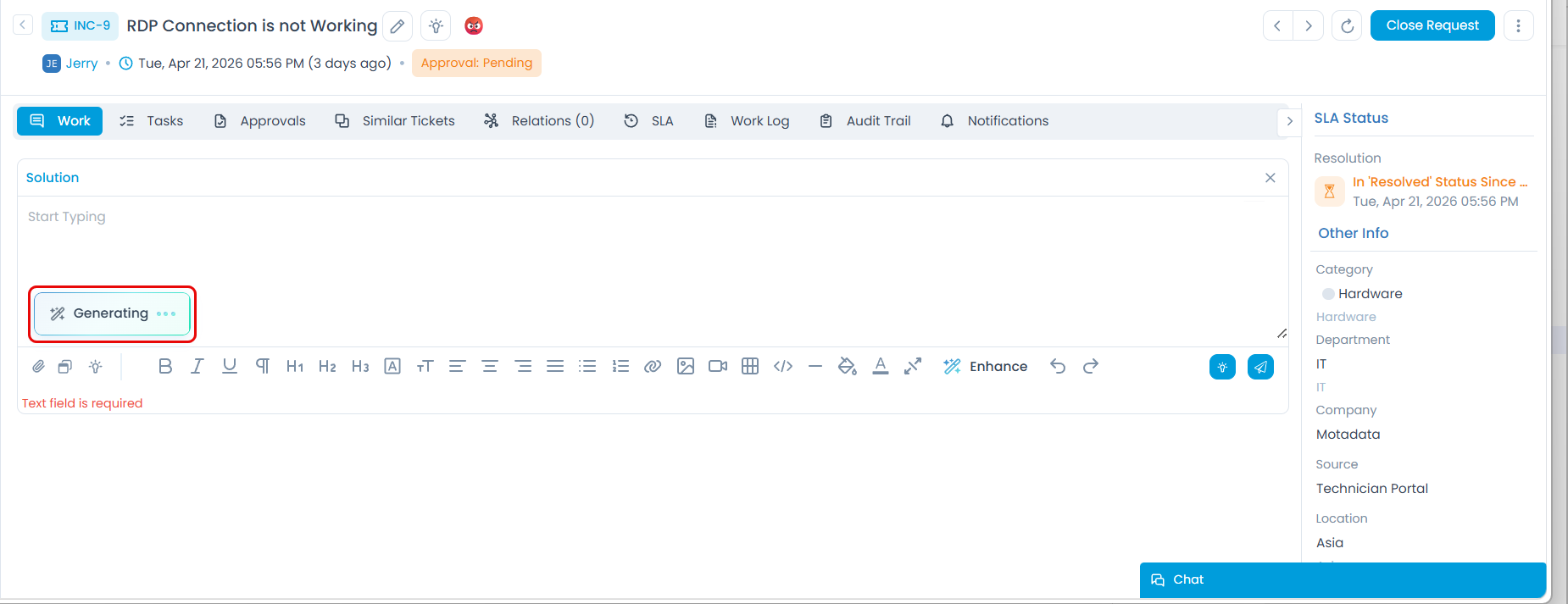
The example below uses a ticket (INC-34) with the subject "RDP Connection is not Working" to show how each phase works.
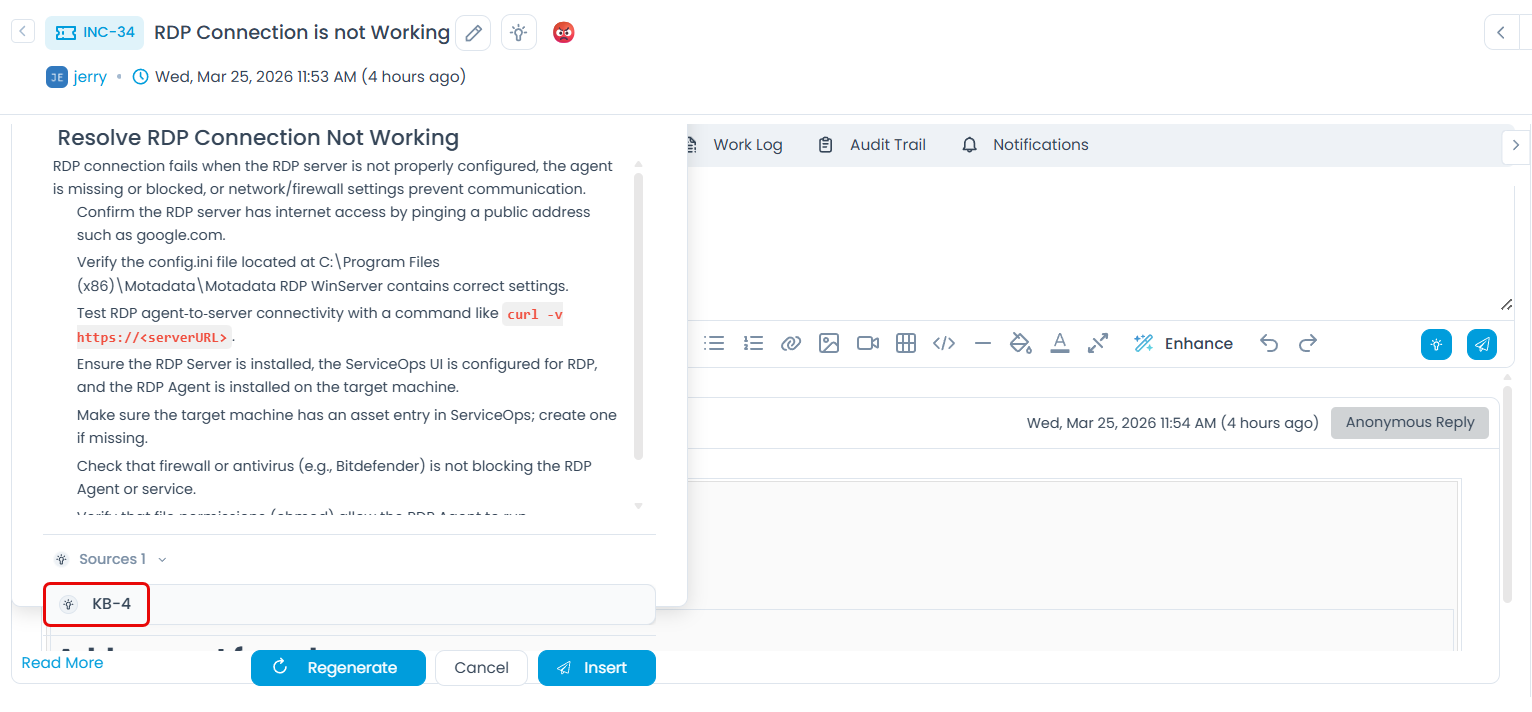
Phase 1: Knowledge Base Search
The system first searches the Knowledge Base for articles that match the ticket context. In this example, it finds KB-4: "Resolve RDP Connection Not Working", which contains a specific checklist for verifying firewall settings and service status.
Phase 2: Resolved Similar Entities
Simultaneously, the system searches across previously resolved Requests and Problems to find tickets handled in a similar context. This ensures the suggestion aligns with how your team has actually solved the problem before, not just what the documentation says.
Phase 3: Web Search
If internal sources do not fully cover the issue, the system retrieves relevant results from external technical resources. These give technicians additional options when the internal knowledge base is limited or the issue is uncommon.
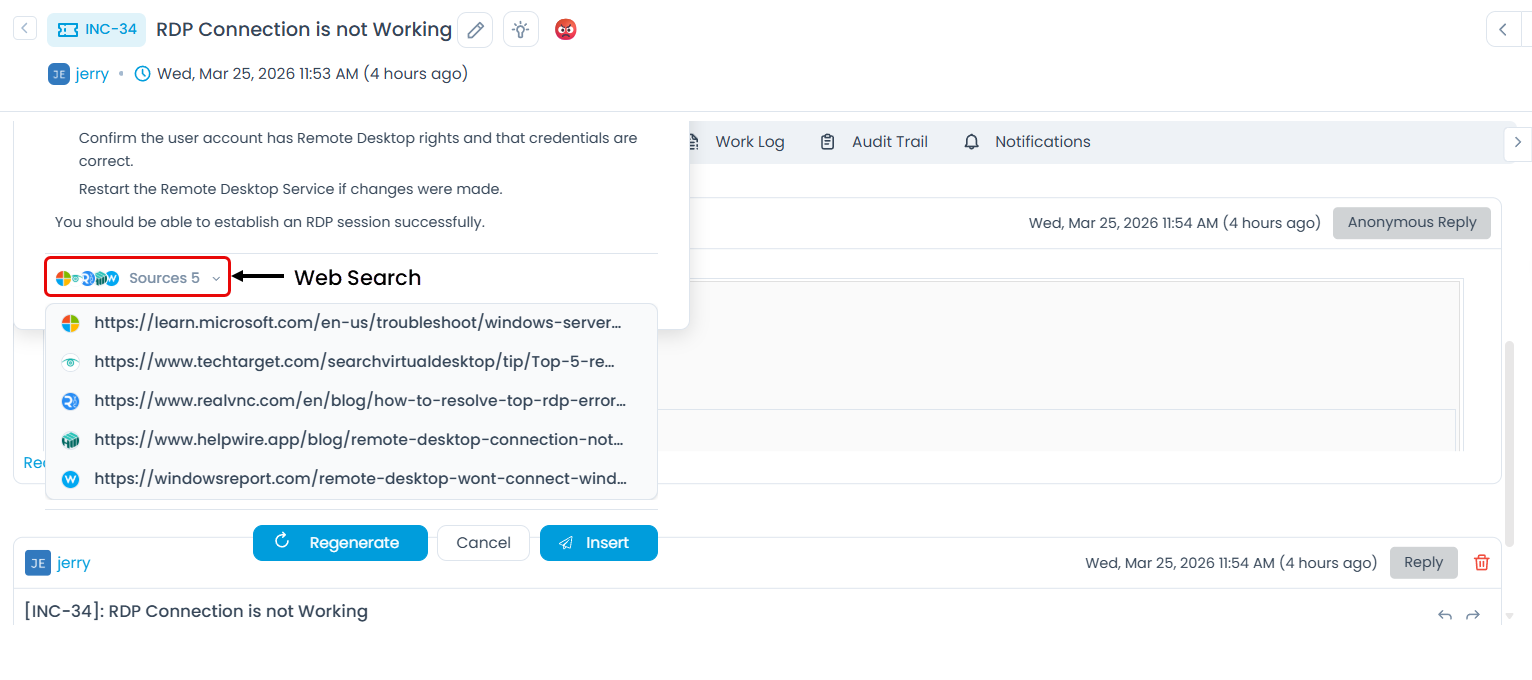
Each suggestion card shows the source title, reference ID, and a text snippet. Clicking Insert fills the Solution field with that content. The text remains fully editable after insertion.
Tips for Best Results
- Fill in the Subject and Description before clicking the Solution field: The more context the system has, the more relevant the suggestions will be. A bare subject with no description produces generic results.
- Check all three phases: Knowledge Base results and web results serve different purposes — do not stop at the first suggestion.
- Use View More before inserting: Opening the source record lets you review the full resolution, not just the snippet. This avoids applying a fix that only partially matches your situation.
- Edit the inserted text: Inserted content is a starting point, not a final answer. Always review and tailor it to the specific ticket before saving.
Related Features
Solution Assistant works best when used alongside these features:
| Feature | How it connects to Solution Assistant |
|---|---|
| Similarity | Use the Similar Tickets tab to find a related resolved record first, then use Solution Assistant to pull that resolution directly into the Solution field. |
| Ticket Summarizer | If the source record has a long thread, use Summarizer to quickly understand what was done before inserting the solution. |
| Tone Enhancer | After inserting a solution, use Tone Enhancer to refine the language before sending, especially if the requester's sentiment is Negative. |
Permissions Reference
| Role | Can use Solution Assistant in records | Can enable or disable Solution Assistant |
|---|---|---|
| Technician | Yes | No |
| Administrator | Yes | Yes |
Troubleshooting
The Solution Assistant icon is not appearing in the Solution field toolbar.
Suggestions seem unrelated to the ticket I am working on.
No Knowledge Base results are appearing.
The Insert button filled the field with unexpected content.
Frequently Asked Questions
Does Solution Assistant work on all record types?
A: Currently, Solution Assistant is available in the Request and Problem modules.
Can I use Solution Assistant more than once on the same ticket?
A: Yes. You can click the Solution Assistant icon multiple times to generate suggestions at any point while working on a ticket. Each trigger re-analyzes the current record content.
What happens to the inserted text if I regenerate suggestions?
A: Generating new suggestions does not overwrite what is already in the Solution field. You choose which suggestion to insert, and any previously inserted content stays unless you edit or replace it manually.
Does Solution Assistant learn from my organization's resolved tickets over time?
A: Yes. Resolved Similar Entities draws from your organization's historical data. The more detailed and consistently documented your past resolutions are, the better the suggestions become over time.
Is the web search pulling results from any specific sites?
A: The system retrieves results from publicly available technical resources. The specific sources depend on the query and configuration. Your administrator can confirm what is enabled for your tenant.